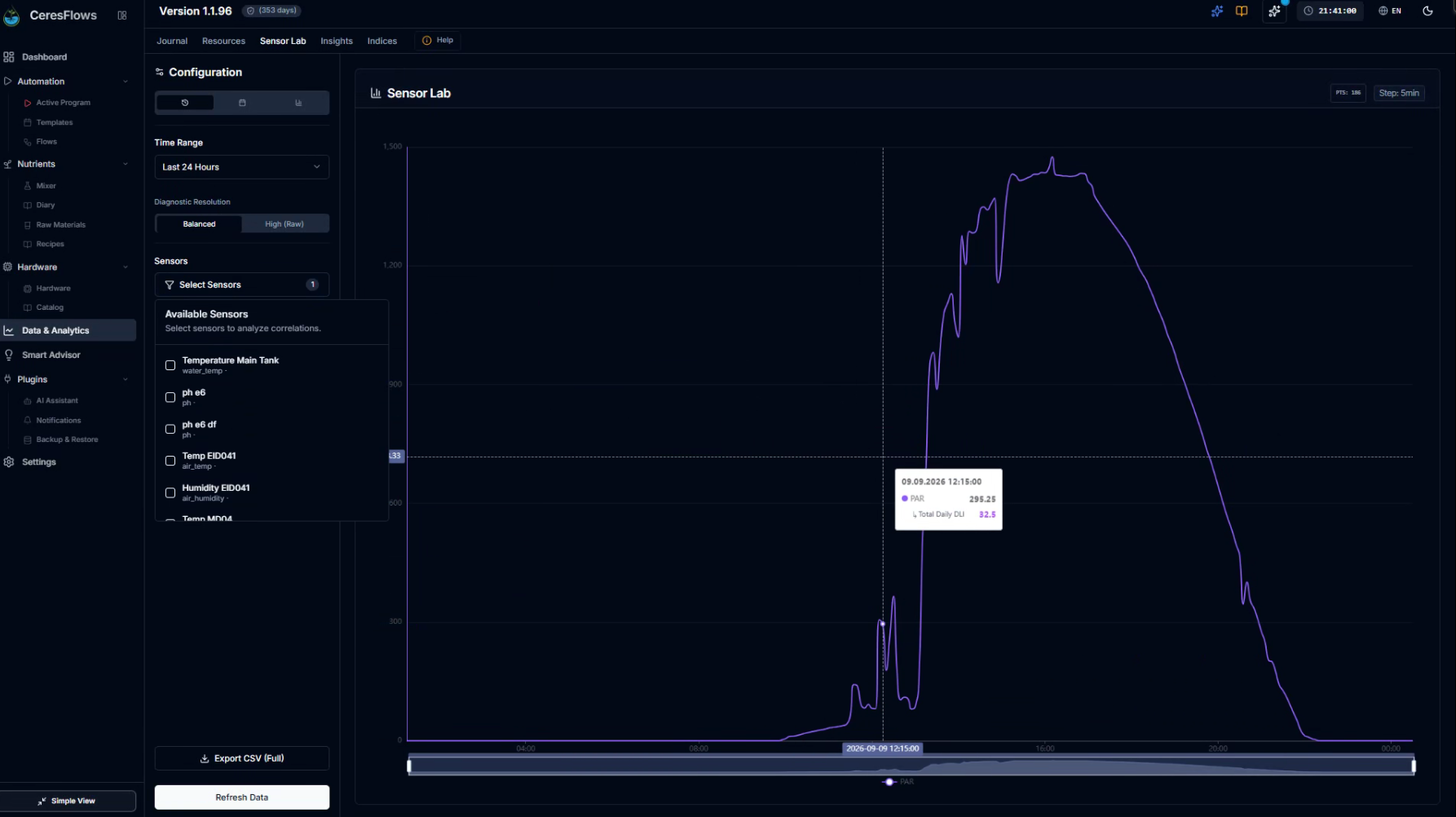
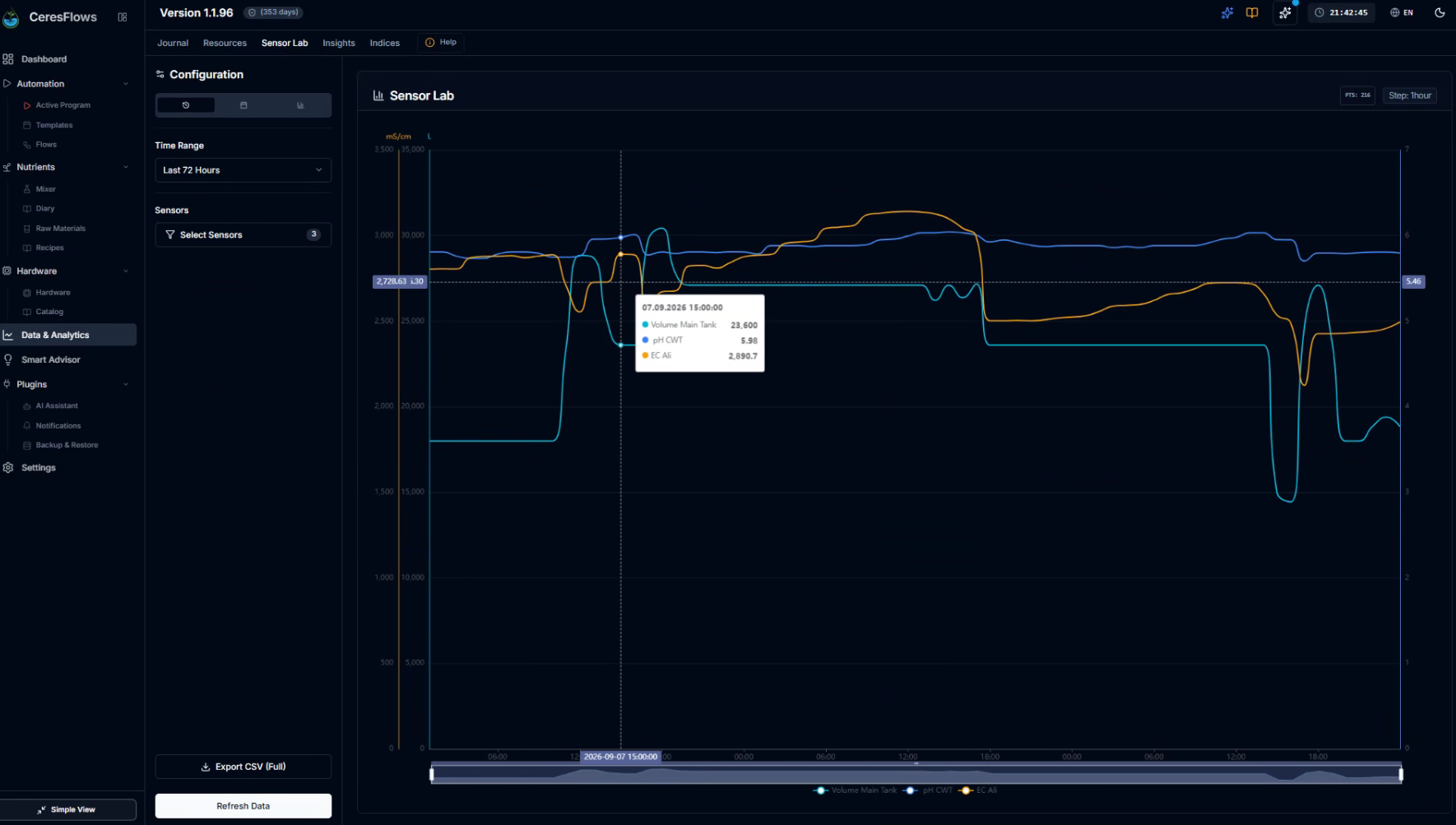
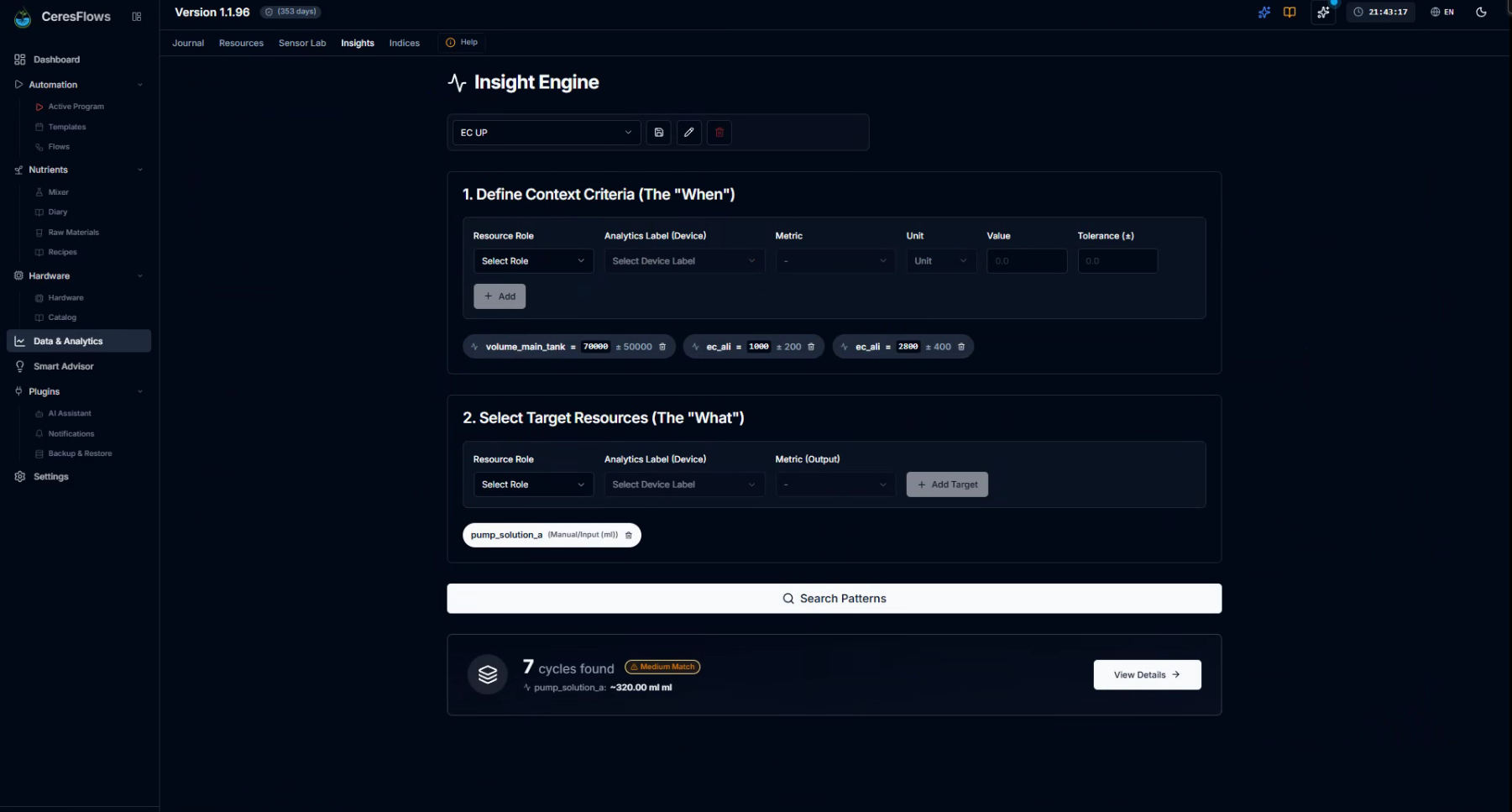
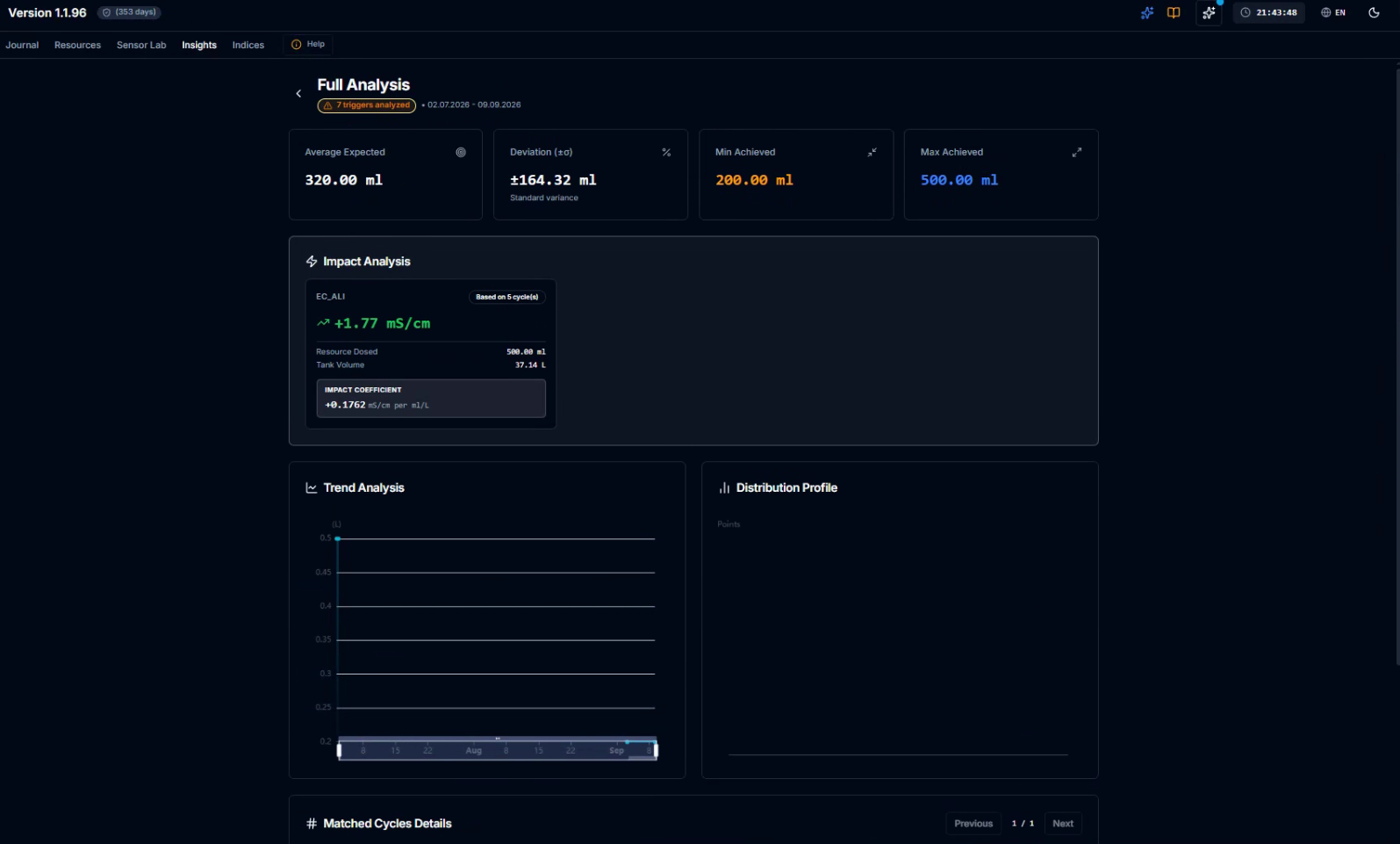
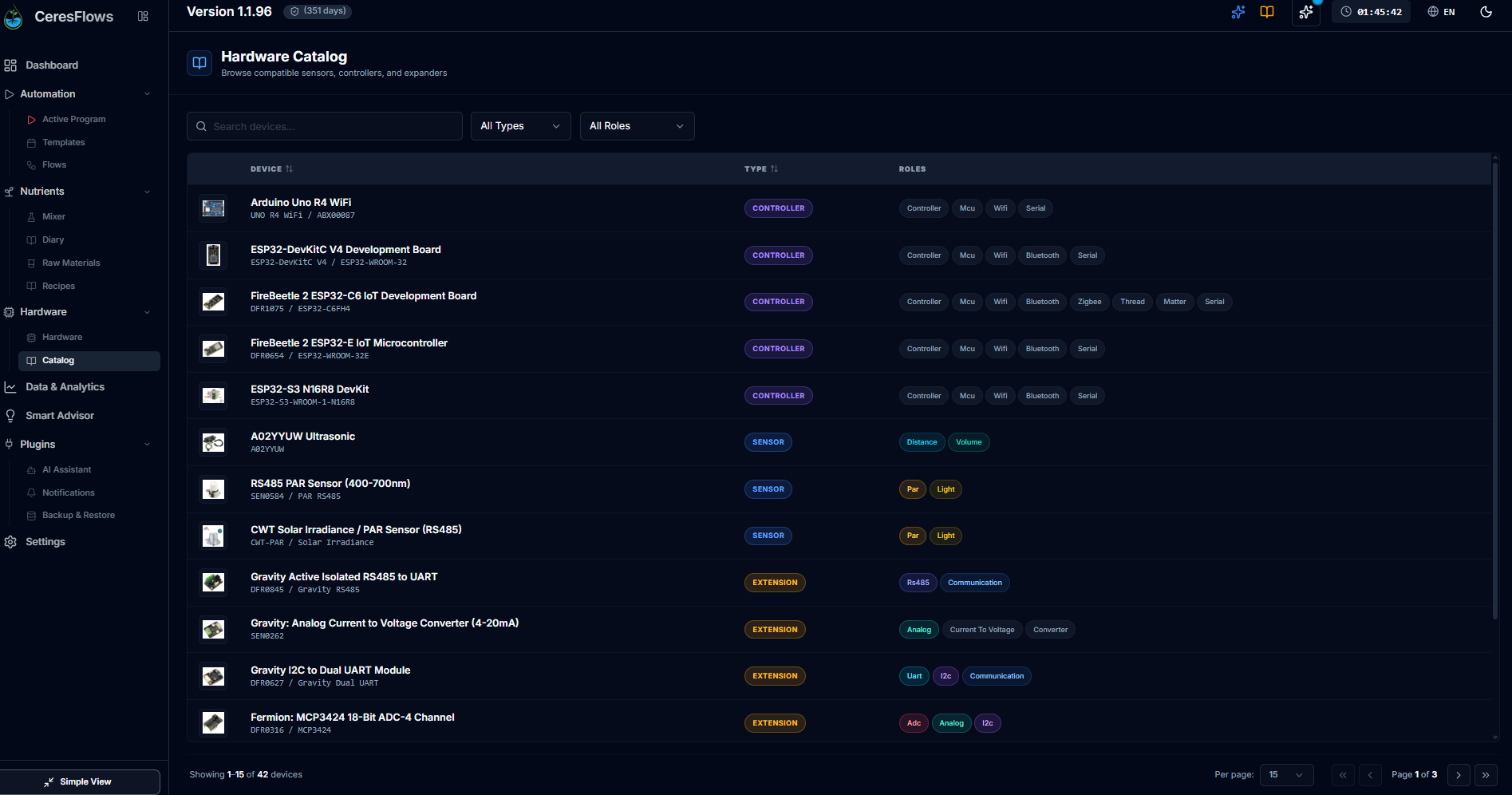
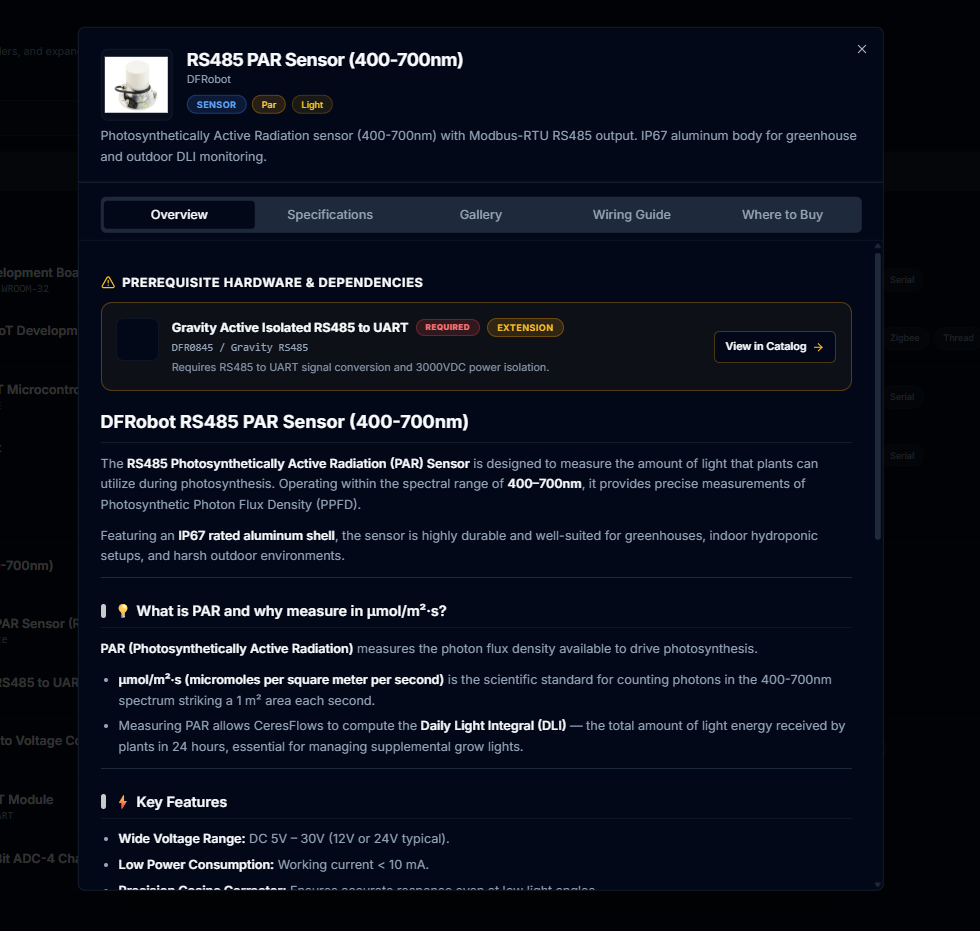
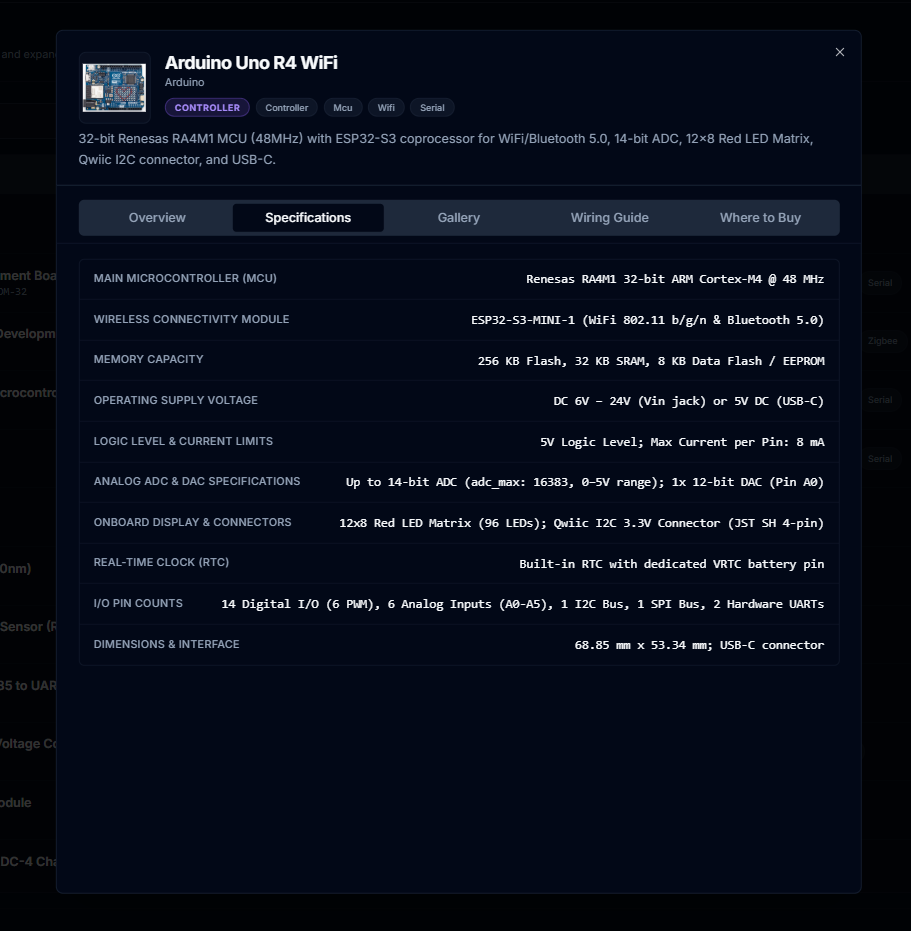
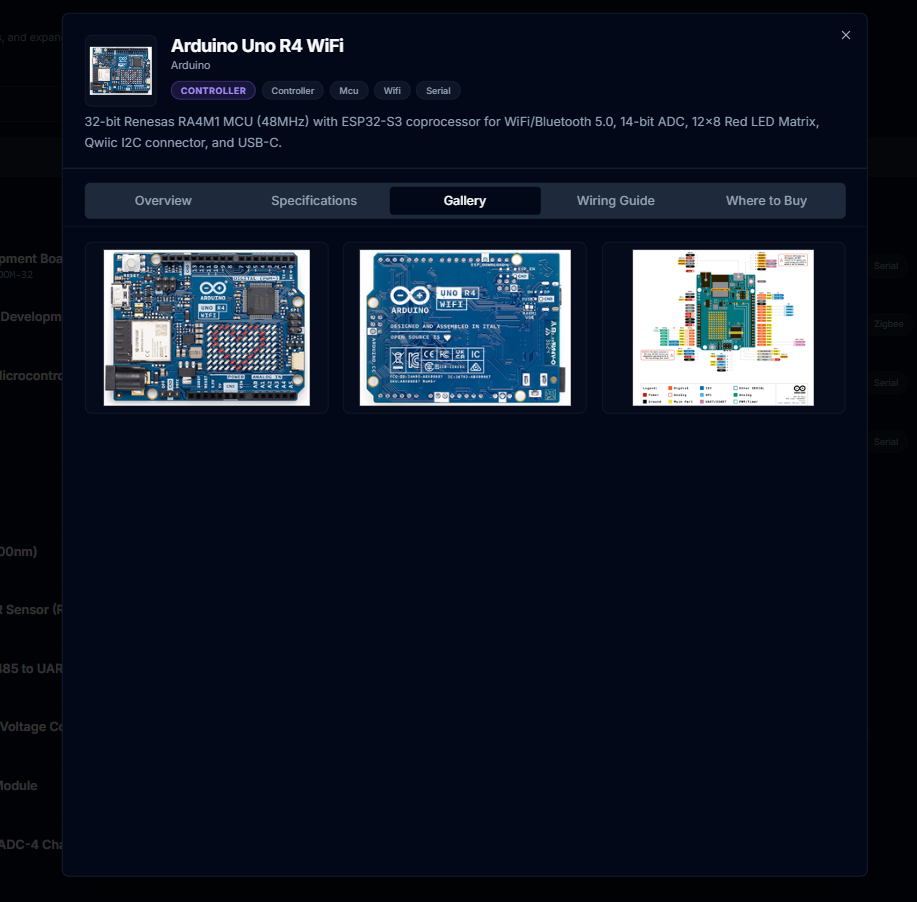
Three bad options. Every grower knows at least one of them personally.
If you grow anything — hydroponically, in substrate, in soil, in a greenhouse — you've probably faced the same
uncomfortable question at some point: how do I stop being the one who has to be there? The
plants don't care if you're sick, traveling, or just want a weekend off. The sensors need checking. The pH needs
adjusting. The pump schedule needs watching.
Today, growers choose between three unsatisfying answers to that question:
⏱️
The Timer Slave
Mechanical or digital timers. Cheap, simple, and completely blind to reality. The timer
doesn't know it's 35°C today, that your reservoir is almost empty, or that the humidity just hit 90%. It
fires at the same time, every day, no matter what.
"I can't leave for the weekend. What if the timer gets stuck?"
🔒
The Locked-In Farmer
Professional industrial controllers. They work — but only with their own ecosystem. Want to
add a sensor from another brand? Not compatible. Need an extra module? €500 from the manufacturer. Any
modification requires a certified technician.
"I paid €8,000 for a system I can't adapt to my own needs."
🔧
The DIY Hacker
Home Assistant, Node-RED, OpenSprinkler. Powerful and open — but designed for smart homes,
not smart farms. To run hydroponics through them, you practically need to be a software developer. Months of
forum-crawling for a basic setup.
"These tools don't speak 'pH'. I had to teach them everything myself."
Each option forces a sacrifice: either your time (doing it manually), or your
freedom (locked-in systems), or your sanity (endless DIY tinkering). What if there
was a fourth option — one that didn't ask you to choose?
"The real cost of a bad automation system isn't what you paid for it. It's the hours you spend compensating
for what it can't do."
Chapter 3
The Origin Story
Born from 10 years in the field. Not from a whiteboard.
CeresFlows was not designed by a committee. It was not conceived in a startup incubator or pitched to venture
capitalists. It was written by a person who spent over a decade in hydroponics, aquaponics, and
agriculture — and who, after years of doing the same things every single day, finally decided to stop
doing them manually.
The frustration wasn't with the plants. It was with the infrastructure. There were sensors — good sensors — but
each one was isolated. A pH meter here. A temperature controller there. A timer on the pump. No logic connecting
them. No way to say: "Water not when the timer says so, but when the substrate is actually dry." No way
to say: "If the temperature spikes, delay the next irrigation and turn on the fan first."
The commercial solutions were either too expensive, too rigid, or too generic. Home automation tools could talk
to sensors but didn't understand growing. So the only option was to build it.
The Beginning
The first lines of code were written not to launch a product — but to solve a personal problem. One
function at a time, each born from a real need encountered in the greenhouse that week.
Five Major Versions
Over roughly two years, the system went through five complete architectural revisions. Each version didn't
just add features — it rethought the foundation, incorporating everything learned from actually running the
previous version on real hardware in real conditions.
A Rule That Never Broke
There is not a single function in CeresFlows that was added to impress users. Every
feature exists because someone needed it. Because the alternative was doing it manually, every day, forever.
Check the Changelog — there is literally not a day without something new or improved.
Version 5.5 — Today
The current, public release. A comprehensive platform that started as a personal script and grew into a
full automation ecosystem — covering hardware management, visual logic, analytics, nutrition, remote
monitoring, and safety. Still built the same way it started: one real need at a time.
10+
Years in Hydroponics & Agriculture
5
Major Architectural Versions
~2
Years of Active Development
∞
Days Without a Changelog Entry: Zero
"Every function in CeresFlows exists because someone needed it. Because the alternative was doing it
manually, every day, forever."
That is also why CeresFlows has a free version. Not as a marketing trick — not a "trial" that expires or a
"freemium" that nags you. But because the platform was built out of necessity, not profit. It makes sense to
make it accessible to growers who are in the same situation the author was in: capable, motivated, but not
funded.
Chapter 4
What is CeresFlows?
The sweet spot between a timer and a PhD in software engineering.
CeresFlows is an automation platform purpose-built for controlled-environment growing. It is
not a smart home system adapted for plants. It is not a generic industrial SCADA repackaged with a nicer
interface. It speaks the language of growers: pH, EC, VPD, DLI, substrate moisture, irrigation cycles, nutrient
recipes.
SimplePowerfulFlexibleRigid
Timer
Pro Systems
DIY Tools
✦ CeresFlows
You download a single executable — no Python runtime, no Docker containers, no database server
to configure, no dependencies to install. Double-click. Open a browser. You are running. Windows, Linux,
Raspberry Pi, Android — it works on all of them, without modification.
The hardware is yours. Use what you already have, or buy what fits your budget: a $20 Arduino, a $40 ESP32, a
$2,000 industrial controller — it doesn't matter. CeresFlows connects to it. The intelligence lives in the
software, not in proprietary hardware.
CeresFlows doesn't grow your plants for you. It executes your expertise with machine
precision, 24 hours a day, 7 days a week — so you can be the grower, not the watchman.
What Can You Automate?
pH Management — measure, compare to
target, dose acid or base
EC / Nutrient Control — monitor
concentration, adjust dosing pumps
Irrigation — schedule, soil
moisture, solar radiation, or custom logic
Climate Control — fans, heaters,
coolers, humidifiers, dehumidifiers
Lighting — on/off schedules,
dimming, spectrum control
Reservoir Management — water level
monitoring, auto-refill
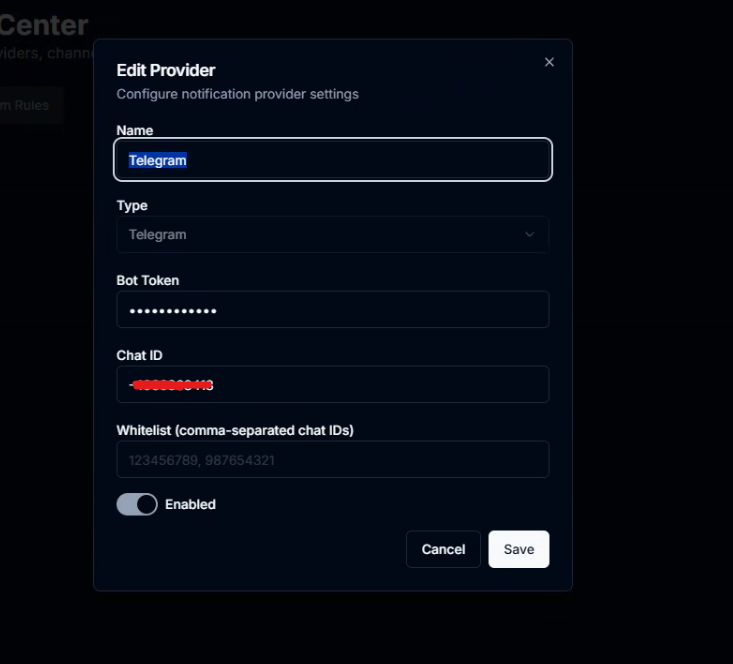
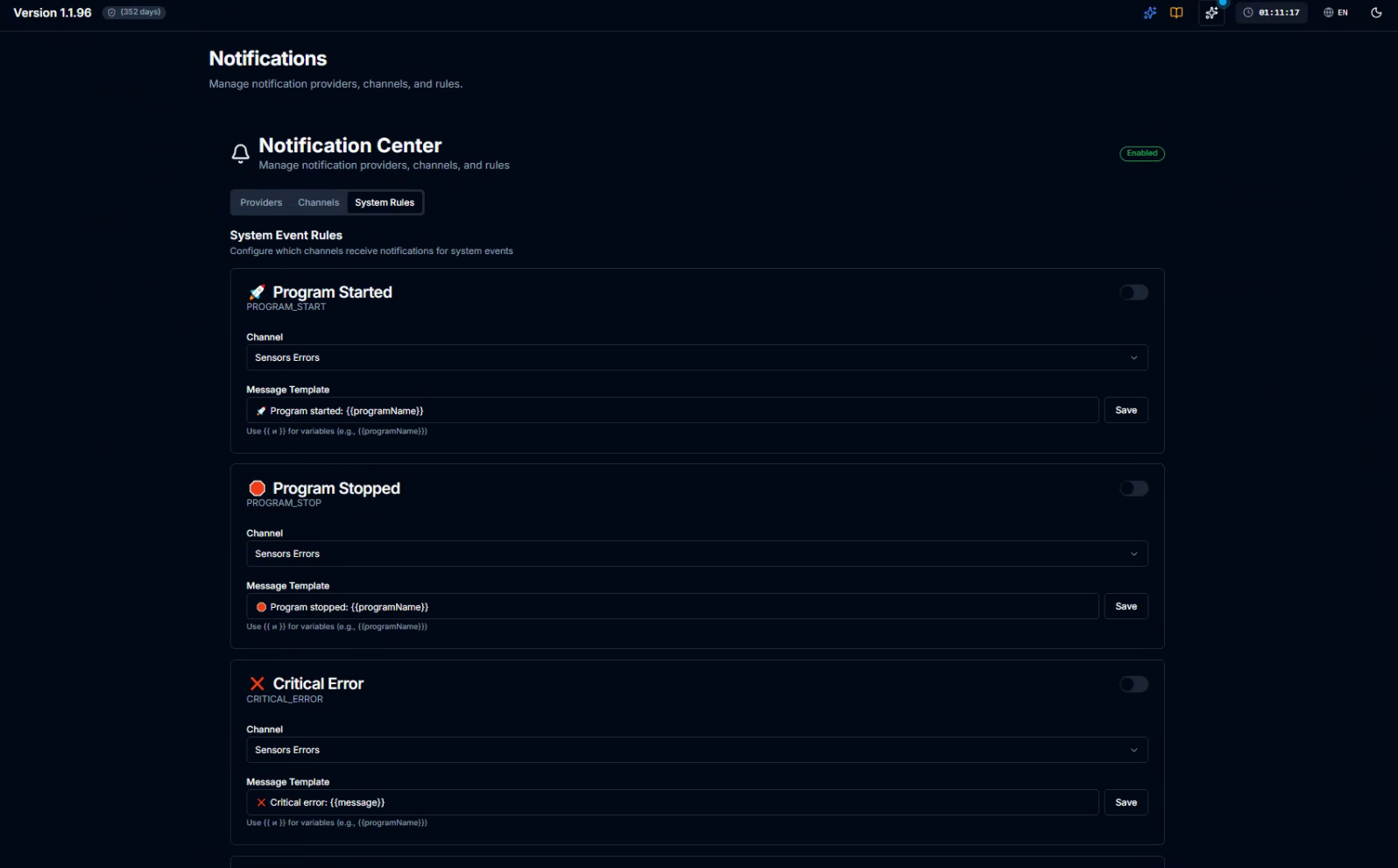
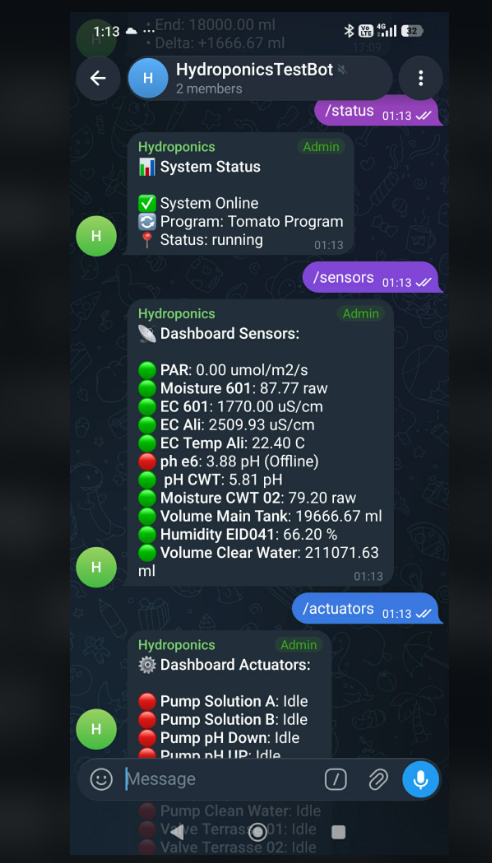
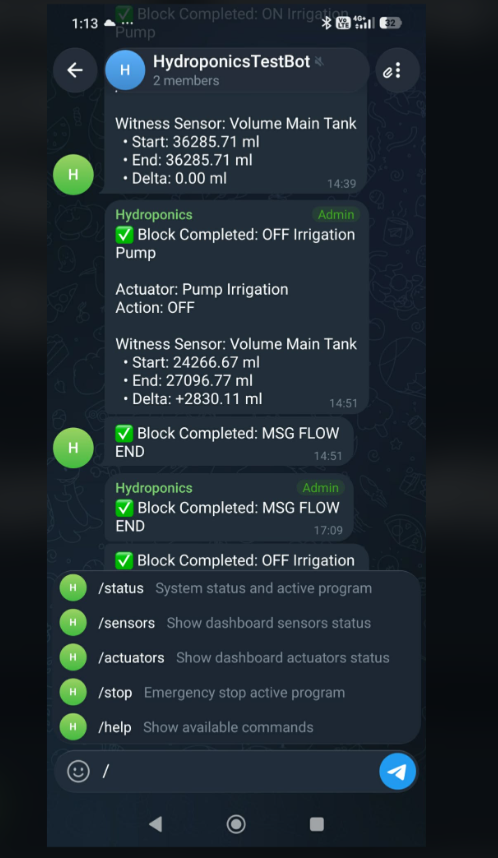
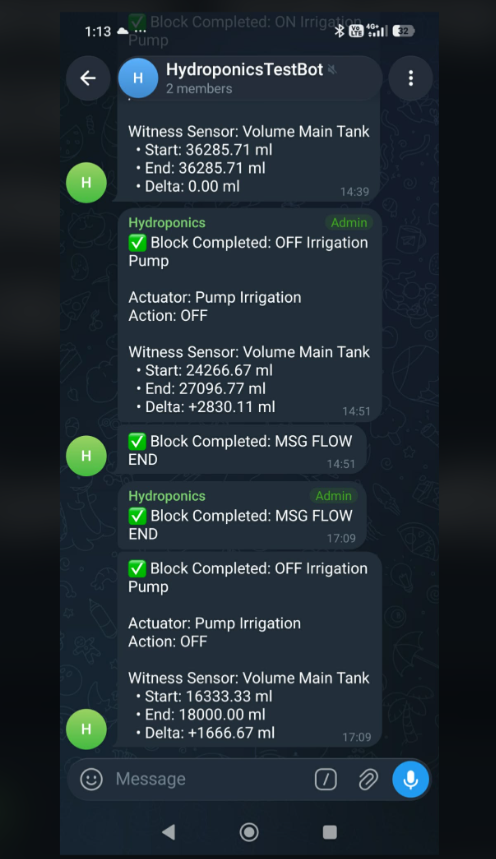
Safety Alerts — instant Telegram
notifications when something goes wrong
Custom Logic — any combination,
with conditions, loops, and branching
Any Growing Method
CeresFlows manages the process, not the method. It works equally well for:
Hydroponics
NFT, DWC, Drip, Ebb & Flow — full sensor and pump control.
Aquaponics
Fish + plants. Ammonia monitoring, water cycling, dual-zone management.
Aeroponics
Precision mist timing, root zone temperature and humidity management.
Ceres is the Roman goddess of agriculture — a symbol of abundance, growth, and nurturing the
earth. Flows represents two things at once: the movement of water in hydroponic systems, and
the logical flows you build in the software to control them.
Ancient wisdom. Modern logic.
Part II
Getting Started
Everything you need to go from zero to a running system.
Chapter 5
Where Does It Run?
A single executable. Any platform. No dependencies. Runs on the computer you already
own.
CeresFlows has one installation philosophy: no friction. You download one file. You run it.
That's it. There's no Python to install, no Docker containers to configure, no Node.js version conflicts to
debug. Everything — the web server, the database, the automation engine, the web interface — is bundled into a
single binary that starts in seconds.
That binary runs on virtually anything.
Supported Platforms
🖥️ Windows
Windows 10 or later. Double-click the .exe and your browser opens to the dashboard
automatically. Ideal for growers who want a simple, always-on PC next to the greenhouse.
🐧 Linux
Ubuntu, Debian, and similar distributions. Run ./ceresflows in any terminal. Pairs perfectly
with mini PCs and Intel NUC devices as silent, low-power 24/7 servers.
🍓 Raspberry Pi
Pi 4 or Pi 5 recommended. Inexpensive, silent, power-efficient. Many growers mount a Pi directly inside
their grow room and forget it's there. The most popular choice for small-to-medium installations.
📱 Android Phone
Got an old Android phone collecting dust? It's now a full CeresFlows server. The dedicated Android app
wraps the automation engine in a 24/7 foreground service with power locks, WiFi locks, auto-boot on startup,
and crash watchdog restart. Plug it in, leave it running.
The Android Option — A Grower's Dream
The Android support deserves a special mention, because it's not common. Most automation platforms are built
for computers. CeresFlows goes further.
The Android app is not a remote control. It is the server. The full Go automation engine runs as a
compiled native binary inside a foreground service — with CPU wake locks to prevent Doze mode, WiFi locks for
constant network access, and a built-in watchdog that restarts the engine if anything crashes. Plug your phone
into a charger. Mount it on the wall. Walk away. CeresFlows will be running when you come back — even after a
power outage, because it auto-starts on boot.
Connect controllers via WiFi or directly via USB OTG. A $15 old phone becomes a production-grade automation
server.
What the Server Needs
The server doesn't need to be powerful. CeresFlows is lightweight by design — built in Go specifically for
efficiency. What it does need:
Constant power — it should stay on while your system is active
Network access — connected to the same local network as your controllers
A browser somewhere — any device on your network can access the dashboard
Installation in Three Steps
1
Download — Get the CeresFlows executable for your OS from ceresflows.com.
2
Place it — Create a folder (e.g. C:\CeresFlows or
/home/pi/ceresflows) and put the file there. This folder will also hold the database and your
license.
3
Run it — On Windows, double-click. On Linux/Pi, run ./ceresflows. Your browser
opens. Your system is live.
[CeresFlows] Server started on http://localhost:8080
[CeresFlows] Network access: http://192.168.1.100:8080
[CeresFlows] Database: initialized (WAL mode active)
[CeresFlows] License: valid · Full access enabled
Bookmark that network address on your phone. It's your greenhouse dashboard —
accessible from any browser on your local network, no app required.
License & Free Tier
CeresFlows is free to download and run. A free tier exists not as a marketing hook, but
because the system was built out of necessity — and the builder believes access to good tools shouldn't depend
on your budget.
To activate a license: CeresFlows generates a unique hardware code for your machine. You send it to the team,
receive your license file, drop it in your CeresFlows folder, and restart. One-time process. No internet
verification after that. No phoning home. The license lives locally on your hardware.
Chapter 6
The Architecture
One brain. Many hands. One network. Everything talking to everything.
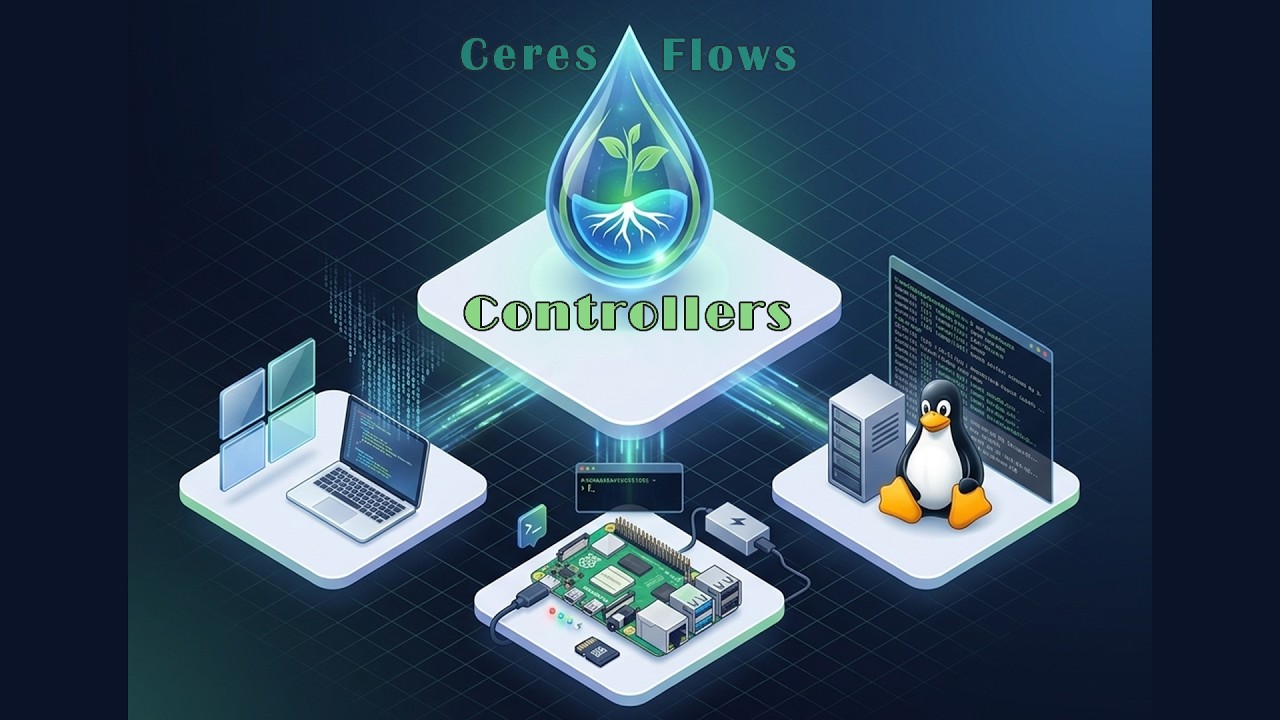
CeresFlows separates intelligence from action. The server thinks. The
controllers act. The network connects them.
This separation is intentional — and it's what makes the system scalable. You can run one controller or twenty.
You can add sensors without changing a line of logic. The server doesn't care whether there's one device or a
hundred; it manages them all the same way.
The server is where all intelligence lives. It runs the flow engine that executes your automation logic, the
scheduler that manages programs and time windows, the analytics system that stores and analyzes sensor history,
and the web interface you use to configure everything. It's built in Go — a language chosen specifically for its
efficiency and reliability on low-power hardware.
The database is SQLite — embedded, zero-configuration, and rock-solid. Everything is stored locally. Your data
never leaves your network unless you explicitly set up remote monitoring.
Controllers — The Hands
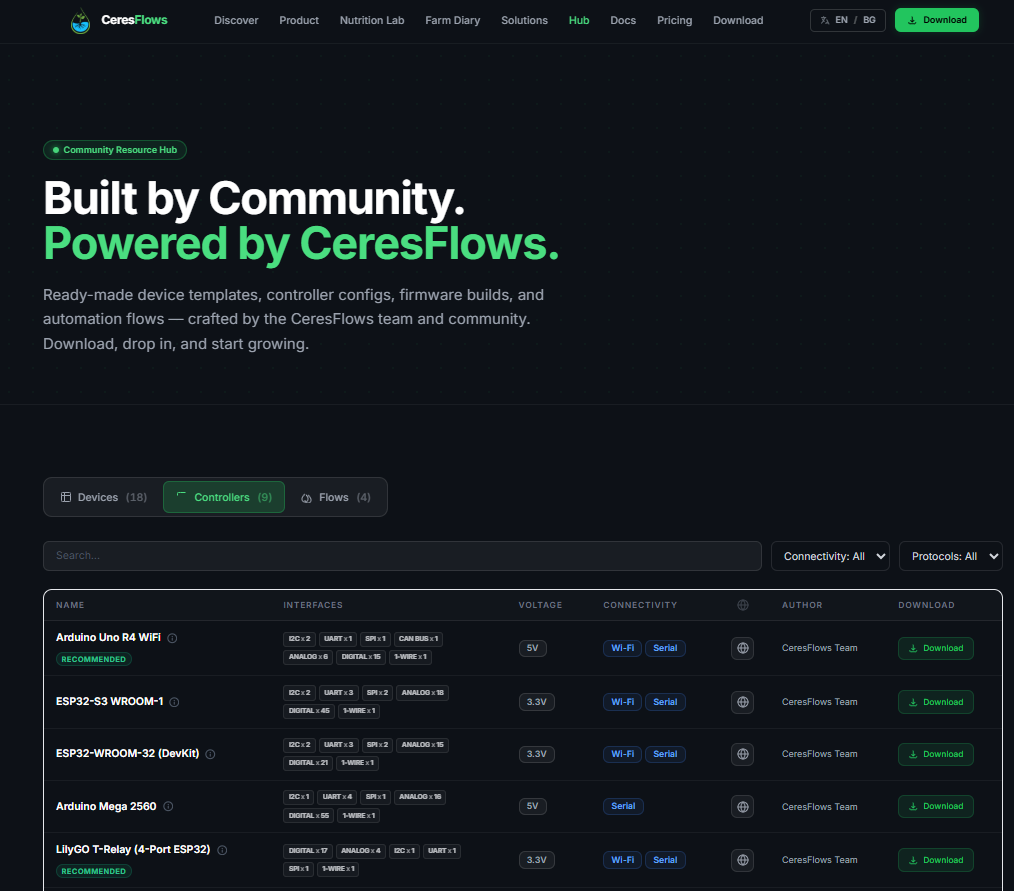
Controllers are inexpensive microcontrollers that connect to your physical world. An ESP32 costs under $5. An
Arduino Uno R4 WiFi is around $20. They have no intelligence of their own — they're intentionally kept simple.
They connect to sensors and actuators via their physical pins and execute exactly what the server tells them.
CeresFlows flashes custom firmware onto controllers. Once flashed, a controller connects to your network,
announces itself, and registers with the server. From that point, the server knows it exists — what type it is,
what profiles it supports, and how to talk to it.
ESP32
The workhorse. Available in dozens of form factors. Native WiFi. Extensive pin count. Supports analog,
digital, I2C, SPI, UART, OneWire. Most versatile option for complex builds.
Recommended
Arduino Uno R4 WiFi
The beginner's friend. Native WiFi built in. Excellent documentation and community. Great choice if you're
starting from scratch and want a familiar platform.
ESP8266 / NodeMCU
The budget option. Smaller, fewer pins, but fully functional for simpler setups. Ideal when you need many
low-cost nodes for distributed monitoring.
Communication Channels
Controllers connect to the server in three ways, giving you flexibility for different physical setups:
📡 WiFi
The default. Controller and server communicate over your local network. The server uses UDP broadcast to
auto-discover controllers — no manual IP configuration needed. Controllers that go offline are automatically
detected and flagged.
🔌 USB
Direct serial connection. Useful when WiFi is unreliable or when running the server on a desktop PC right
next to the grow area. Plug in the USB cable and the controller appears instantly.
🌐 MQTT
For advanced or distributed setups. Connect controllers over any MQTT broker, enabling scenarios where
controllers are on different networks or far from the server.
Sensors Connect to Controllers
Sensors and actuators don't connect directly to the server — they connect to controllers via their physical
pins. CeresFlows supports every common protocol:
Analog → pH probes, EC probes, pressure sensors, raw ADC signals
Digital → flow meters, door sensors, binary inputs
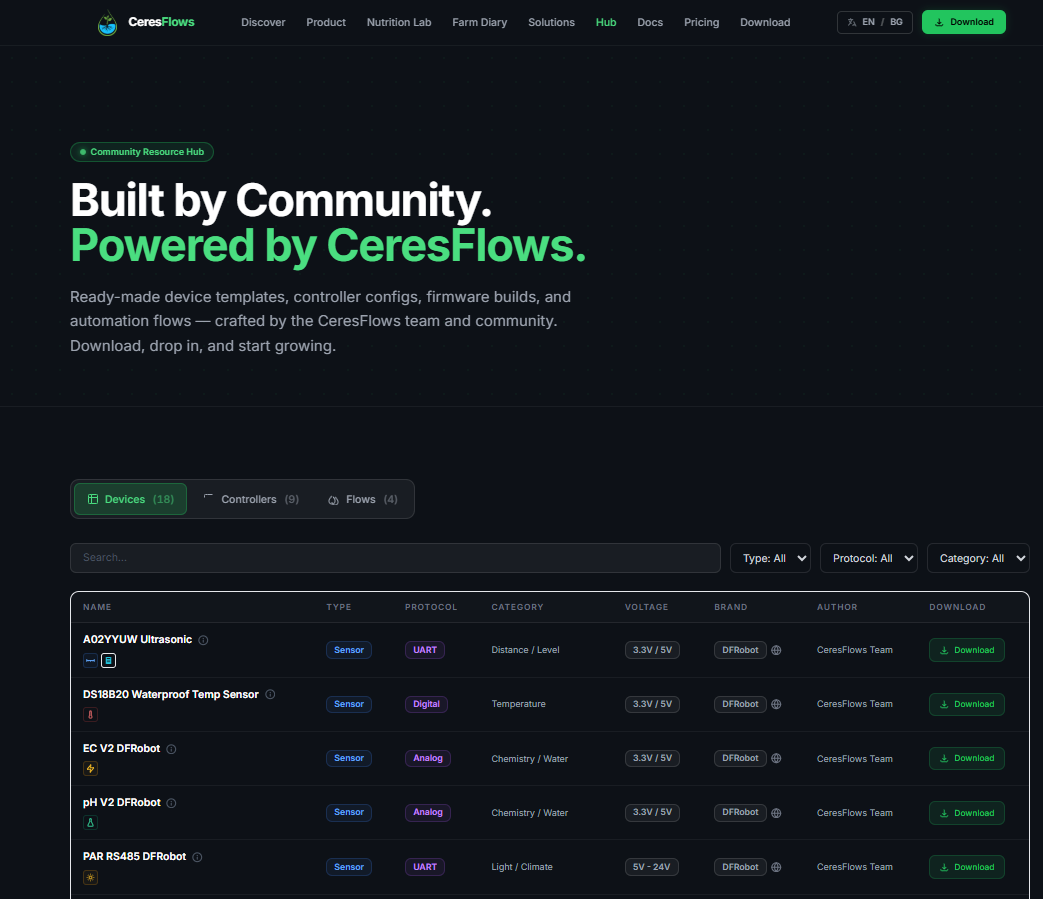
I2C → BME280, ADS1115, SHT31, relay expanders, ADC expanders
SPI → specialized sensors and precision ADCs
UART → CO2 sensors (SCD30, S8), particle sensors
OneWire → DS18B20 temperature sensors
Modbus → industrial sensors and relay banks via RS485
One controller can host multiple sensors and actuators simultaneously. Scale your
hardware by adding more controllers to your network — no limit on how many you can run.
Chapter 7
Key Vocabulary
Eight words. Once you know them, the whole system makes sense.
CeresFlows uses consistent terminology throughout. These aren't marketing terms — they're the actual names of
objects in the system. Every screen, every button, every API call uses these exact words. Learn them once and
you'll never feel lost.
Controller
A physical microcontroller (ESP32, Arduino, ESP8266) running CeresFlows firmware. It connects to sensors
and actuators via physical pins. The controller has no decision-making capability — it executes
instructions from the server and reports sensor readings back.
🔧 Analogy: The body. It has hands that can touch the physical world, but the
brain is elsewhere.
Device
A sensor or actuator registered in CeresFlows and assigned to a controller channel. Each device has a
type (pH probe, EC sensor, relay, dosing pump), a protocol, and calibration data. CeresFlows includes a
template library with pre-configured devices for the most common hardware — or you can define your own.
🌡️ Analogy: A specific tool attached to the body — a pH probe, a temperature
sensor, a peristaltic pump.
Relay
An electronically controlled switch. Relays turn high-power equipment (pumps, lights, heaters, fans,
valves) on and off under software control. In CeresFlows, relays can be built into controllers, added via
expansion modules (I2C relay boards, Modbus relay banks), or controlled via any digital output.
💡 Analogy: A light switch that CeresFlows can flip — remotely, automatically,
at any time.
Flow
A visual logic sequence you build in the Flow Editor. A Flow reads data, evaluates conditions, and
performs actions — all in a drag-and-drop canvas. Flows are reusable: build a pH correction flow once, use
it in any program. CeresFlows supports 10 block types: read, compare, branch, act, wait, loop, log,
notify, set variable, and subroutine call.
📋 Analogy: A recipe. "If pH > 6.5 → start acid pump → wait 2 minutes → read
pH again → repeat until target."
Program
A complete automation plan. A Program combines Flows, Time Windows, and Triggers into a coherent daily
schedule. You load a Program onto a Template and start it — from that point, CeresFlows runs it
autonomously. Programs support variables (configurable per-run without editing the underlying logic),
midnight resets, and parallel execution of multiple flows.
📅 Analogy: A weekly meal plan. It schedules which recipes to run, and when,
for the entire week.
Template
A reusable Program blueprint. Templates define the structure — windows, triggers, flows, and default
variable values — which can be saved, shared, and applied to any run. The distinction between Template
(the blueprint) and Program (the active running instance) means you can run the same template repeatedly
with different configurations.
📚 Analogy: A cookbook. You can cook the same recipe many times with slightly
different ingredients each time.
Time Window
A scheduled period when specific Flows are eligible to run. A Program can have multiple Time Windows —
"Morning: 06:00–12:00", "Afternoon: 12:00–18:00", "Night: 22:00–06:00". Each Window has its own set of
Triggers and Flows. Outside a Window, its Flows don't run — regardless of sensor readings.
⏰ Analogy: A shift at work. The morning team handles morning tasks; the night
team handles nights. Different people (flows), different hours.
Trigger
A condition that starts a Flow within an active Time Window. Triggers can be sensor-based (pH > 6.5),
time-based (every 30 minutes), state-based (device went offline), or manual (user-initiated). Multiple
Trigger types can be combined with AND/OR logic. Triggers also support cooldown periods and execution
limits to prevent runaway automation.
🔔 Analogy: An alarm clock, but smarter — it rings based on what's actually
happening, not just what time it is.
The mental model in one sentence:
You build Flows (the logic), organize them into a Program using Time Windows and
Triggers, save the structure as a Template, and let CeresFlows run it — reading from
Devices attached to Controllers and switching Relays to control your equipment.
Part III
The Hardware World
Controllers, Devices, Relays — where software meets the physical.
Chapters 8 – 10
Chapter 8
Controllers — The Hands of the System
CeresFlows is the brain. But a brain without hands can't do anything.
Controllers are the physical boards that carry out the instructions — reading
sensors, firing relays, running pumps. This chapter explains what they are,
how to connect them, and the one feature that changes everything: the
Firmware Builder.
Your Hardware, Not Ours
One of the foundational principles of CeresFlows is hardware independence.
The system does not require you to buy a specific controller brand, a specific
sensor kit, or any proprietary hardware. It is designed to work with what you
already have — or what fits your budget.
At its core, a "controller" in CeresFlows is any microcontroller board that:
Can run a CeresFlows-compatible firmware
Communicates using the CPS v2 JSON protocol
Responds to INFO
— the handshake command that tells CF what it can do
That said, CeresFlows has a growing list of officially tested and recommended
boards — boards where the firmware is battle-tested, the pin maps are
verified, and everything works out of the box. Think of these as the safe
default choices, especially if you're starting fresh.
Profile A — 8-bit AVR
Arduino Mega 2560 · Nano · Uno R3
Simple analog/digital tasks. Serial connection. No WiFi —
perfect for bench setups directly wired to the server.
Full WiFi/MQTT support. Deep Sleep. OTA updates. The
workhorse for distributed, wireless greenhouse setups.
WiFi
Built-in4–16
MB Flash12-bit
ADC
But here is the important part: any controller can be added to CeresFlows
— even one that isn't on the recommended list. As long as the firmware follows
the CPS v2 JSON protocol and responds to the handshake, CeresFlows will talk
to it. Advanced users can write their own firmware by following the open
protocol specification. Manufacturers can create a JSON controller template and
submit it to the Template HUB — making it available to all
users with a single click.
The philosophy: CeresFlows adapts to your hardware.
Not the other way around.
Three Ways to Connect
Every controller needs a communication channel to the CeresFlows server.
There are three, and each has a different trade-off between simplicity,
reliability, and physical freedom.
🔌
Serial (USB-C / UART)
A USB cable directly from the controller to the server machine. The most
stable connection possible — no wireless interference, no network outages,
no IP address changes. The server opens a serial port (e.g.
COM3 on Windows,
/dev/ttyUSB0 on Linux),
and communication begins immediately.
The limitation is physical: the controller must be close to the server.
If cable proximity is not a problem in your setup, Serial remains the
most secure and lowest-latency choice.
✓
Most stable✓
No network needed~
Requires cable proximity
📶
WiFi UDP
The controller connects to your local WiFi network and communicates
over UDP. No cables, no physical proximity requirement — the controller
can be placed anywhere in the greenhouse, and the server will talk to it
by IP address on the local network (default port 8888).
The prerequisite is a stable WiFi infrastructure. In large or
electrically noisy environments, signal quality matters.
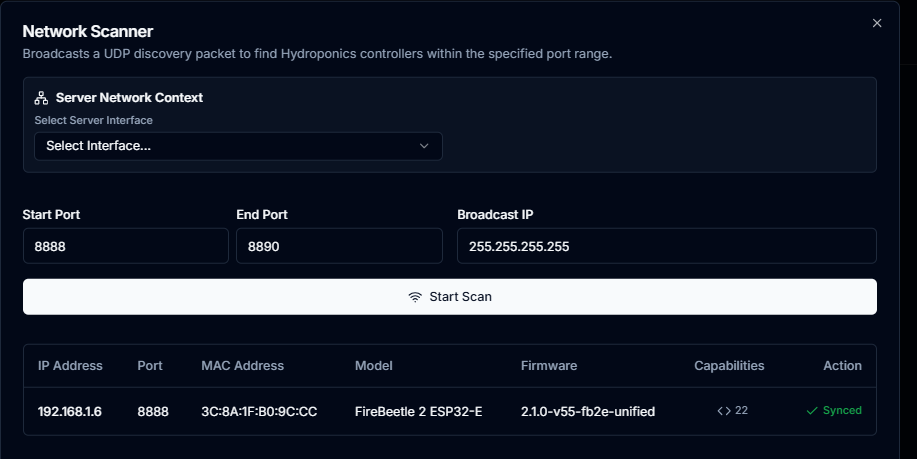
The Network Scanner makes it trivial to find controllers automatically
without manually entering IP addresses.
✓
Cable-free✓
Long range~
Requires stable WiFi network
📡
WiFi MQTT
Communication goes through an MQTT broker — a message relay server.
The controller publishes to one topic, the server listens on another.
This means the server and controller don't need to be on the same
WiFi network at all. A controller in a remote grow tent and a server
in a different building can communicate through a shared broker.
CeresFlows includes a built-in MQTT broker, so you can start without
external infrastructure. MQTT also enables Deep Sleep mode — controllers
wake up, send data, and go back to sleep to conserve power.
✓
Cross-network✓
Deep Sleep support✓
Built-in broker available
Firmware Builder v5 — Generate, Don't Program
Before a controller can talk to CeresFlows, it needs the right firmware.
Traditionally, this is where most growers hit a wall: flashing a microcontroller
requires programming knowledge, the right IDE, the right libraries, and
patience for the inevitable errors.
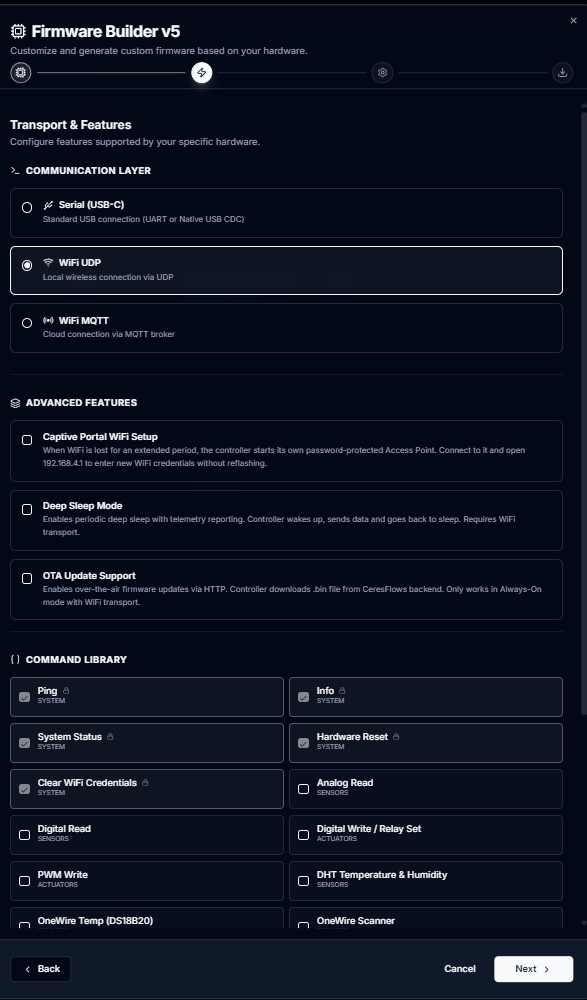
CeresFlows solves this with the Firmware Builder v5 — a
built-in wizard that generates a ready-to-flash .ino
file tailored to your exact board and configuration. You don't write a single
line of code.
1
Select your board
Choose from the list of supported controllers — Arduino Mega 2560, Nano,
Uno R3, R4 WiFi, ESP32 WROOM-32, ESP32-S3, ESP8266, FireBeetle variants,
LilyGO, Norvi IIOT and more. Each board shows its Flash, SRAM, and ADC specs.
2
Choose transport & features
Select your connection type: Serial, WiFi UDP, or WiFi MQTT.
Then optionally enable advanced features: Captive Portal
(when WiFi is lost, the controller starts its own access point for reconfiguration
without reflashing), Deep Sleep Mode (for battery-powered
deployments), or OTA Update Support (over-the-air firmware
updates via HTTP). Finally, select which command library to include —
only the commands you actually need end up in the firmware, keeping it lean.
3
Configure settings
Enter your WiFi credentials, MQTT broker address, baud rate, or
other transport-specific parameters. These get injected directly into
the generated code.
4
Download & flash
Download the generated .ino
file and open it in Arduino IDE
(or any compatible tool). Compile and upload to your board — this is the
only manual step. Once flashed, the controller runs the CeresFlows
protocol automatically on every boot. You never touch the code again.
The "hard part" is just this one step: uploading the
generated file to the controller using Arduino IDE or a similar tool.
Everything before (building the firmware) and after (connecting,
managing, monitoring) is handled entirely within CeresFlows.
Under the hood, the Firmware Builder uses a
Master Template + Sculpting architecture. Each board has
a single master .ino
file that compiles
out of the box in Arduino IDE — containing every possible command and transport.
The generator then removes the sections you didn't select, injects your settings,
and produces a clean, minimal file. Zero risk of broken output — the source is
always a working program.
Adding a Controller — Three Paths
Once the firmware is on the board and the board is powered on, adding it to
CeresFlows is straightforward. The method depends on your connection type:
🔌
Serial
Plug in the USB cable. CeresFlows can scan all available COM
ports and find the controller automatically, or you enter the port manually.
📶
WiFi
Enter the controller's IP address manually, or use the
Network Scanner — it broadcasts a UDP discovery packet and finds all CeresFlows-enabled
boards on your network automatically.
📡
MQTT
Enter the broker address and the controller's topic ID. Once
registered, CeresFlows begins communicating via the broker immediately. The Network Scanner also works for
MQTT boards — they still listen on UDP for local discovery.
The Controller Dashboard
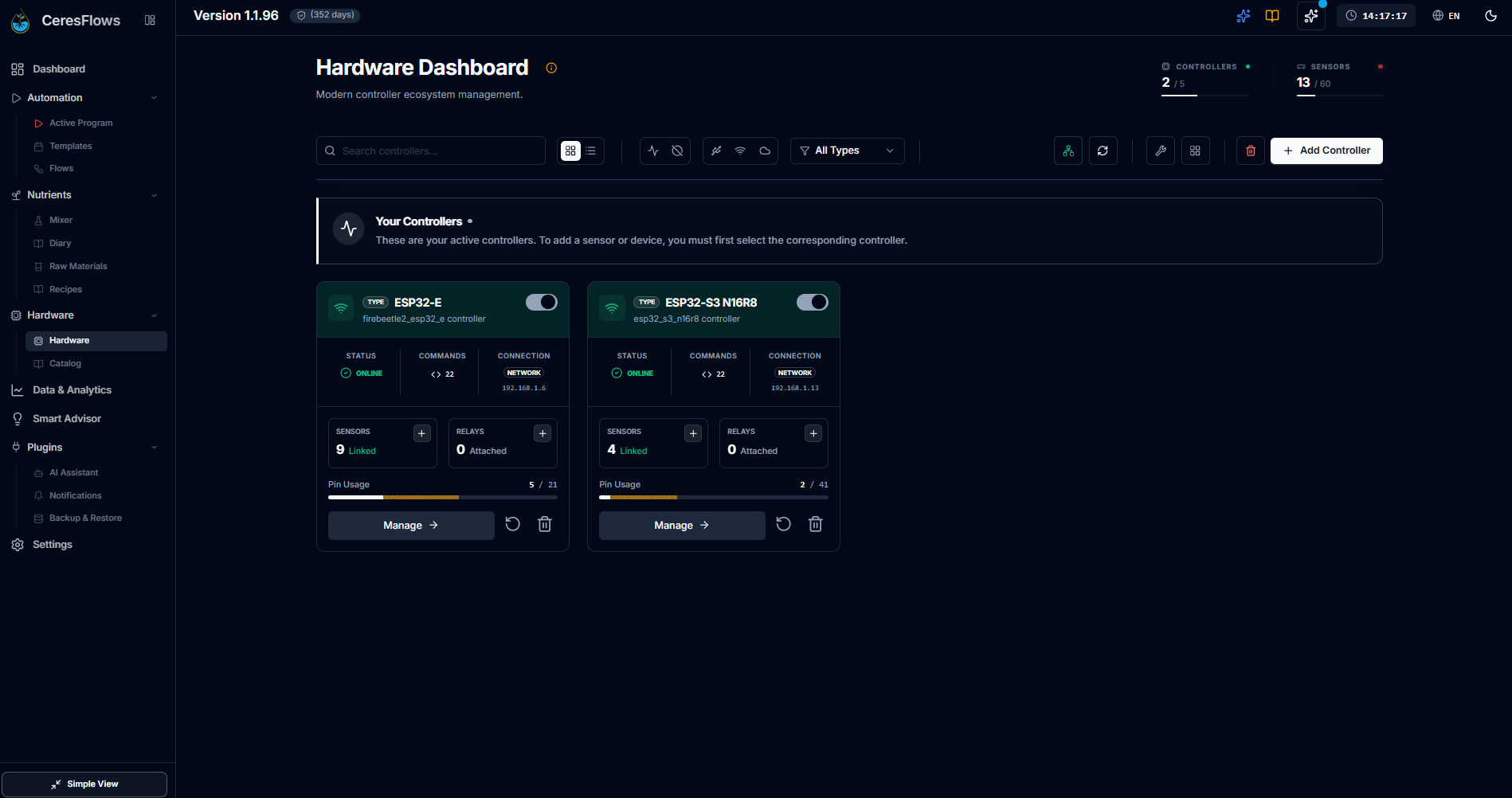
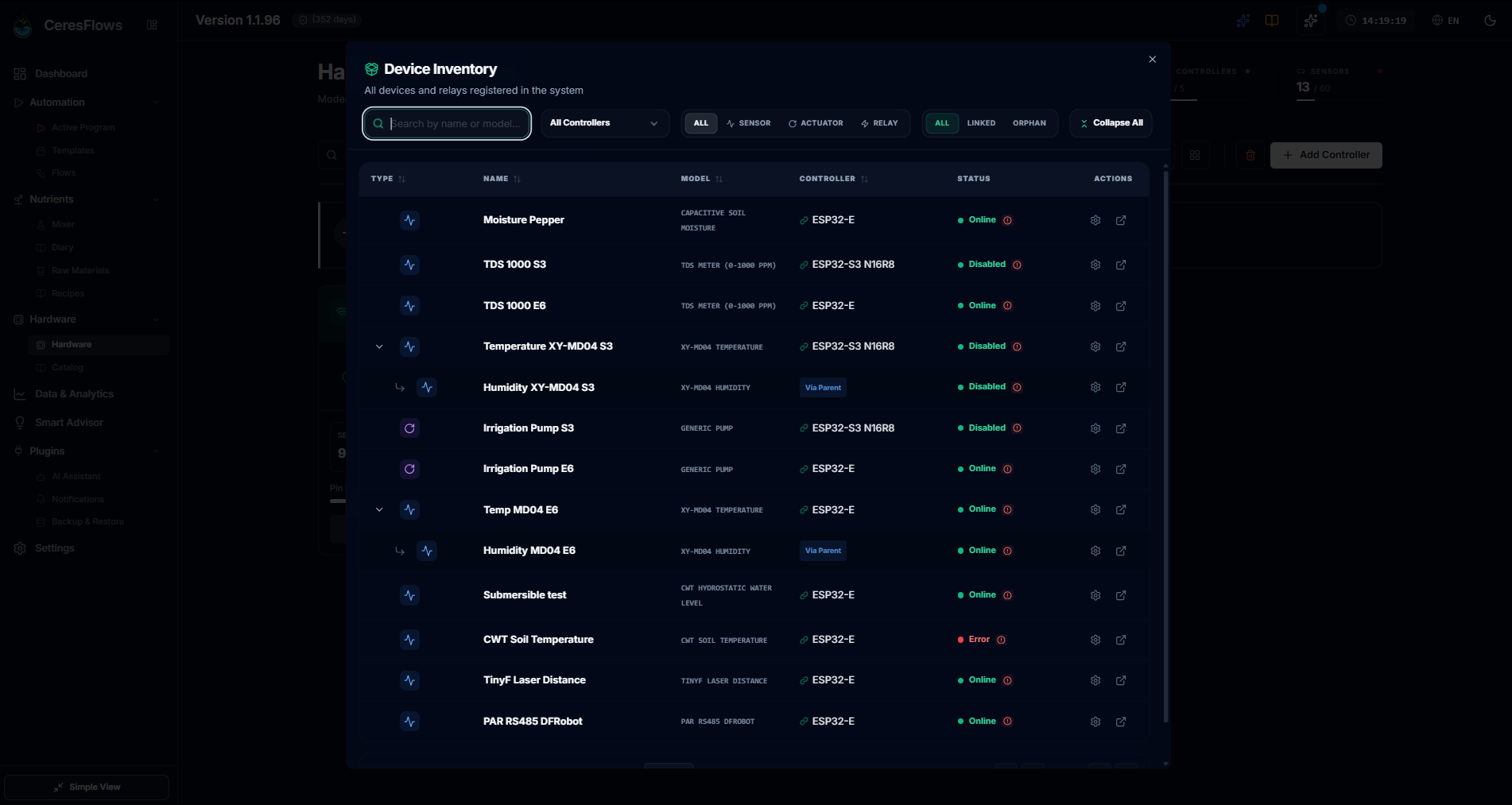
The Hardware Dashboard is your window into everything physical. Each registered
controller appears as a card showing:
Status — Online / Offline / Sleeping (for Deep Sleep controllers)
Connection type — Serial / Network / MQTT with the active IP or port
Commands count — the number of protocol commands this controller supports (from its INFO
handshake)
Sensors & Relays — how many devices and relay modules are attached
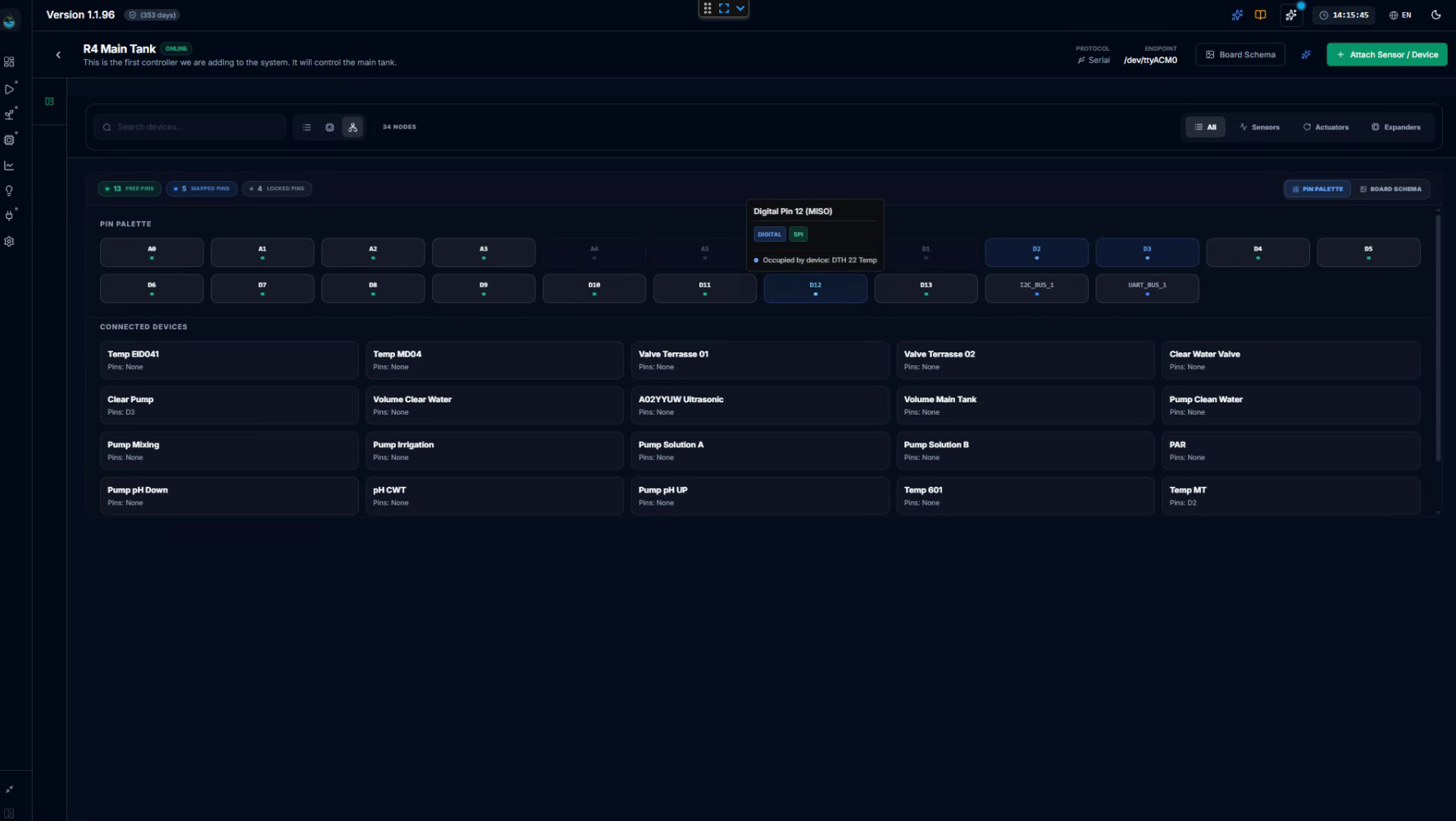
Pin Usage — a live bar showing how many of the available GPIO pins are already assigned
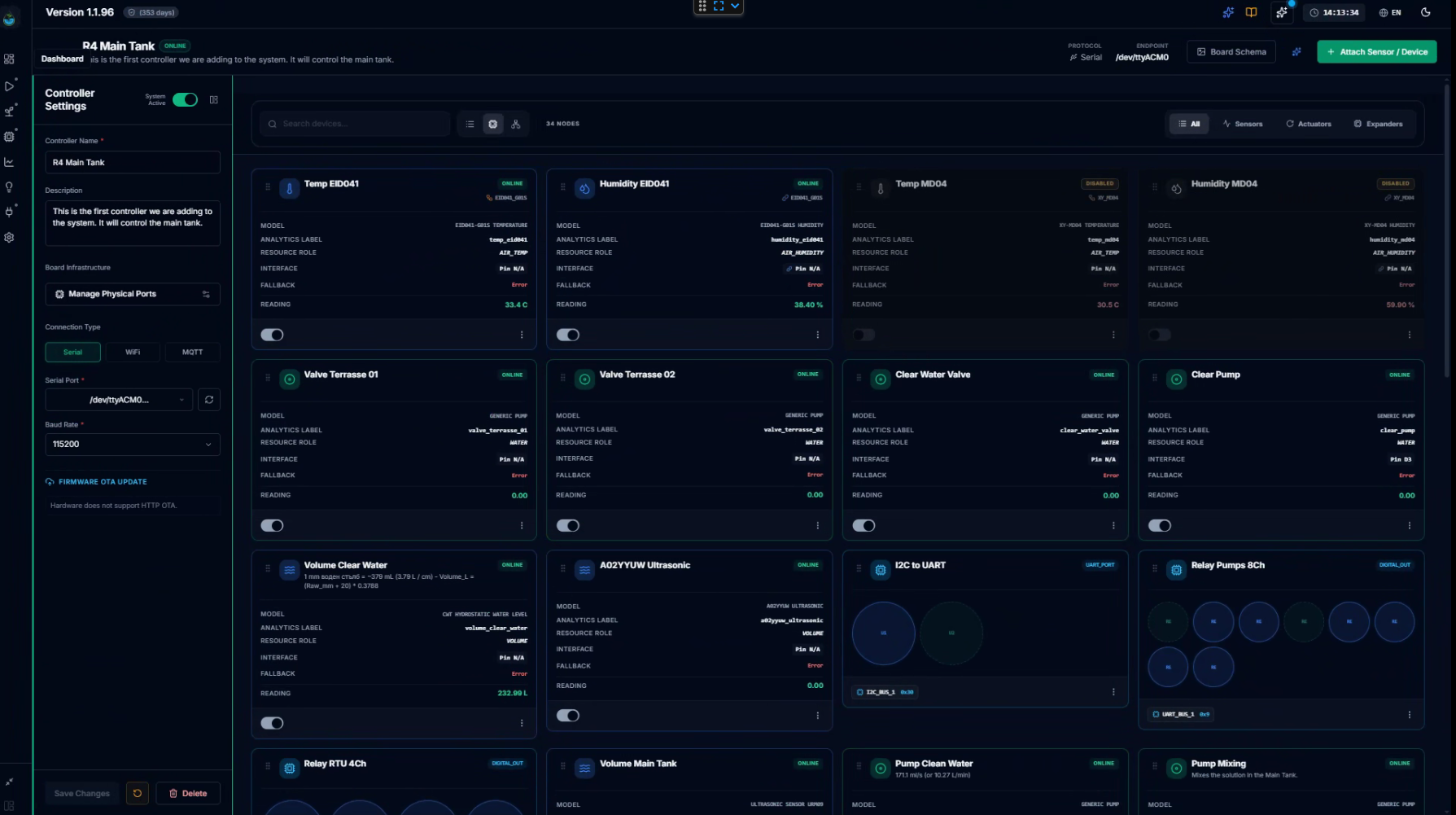
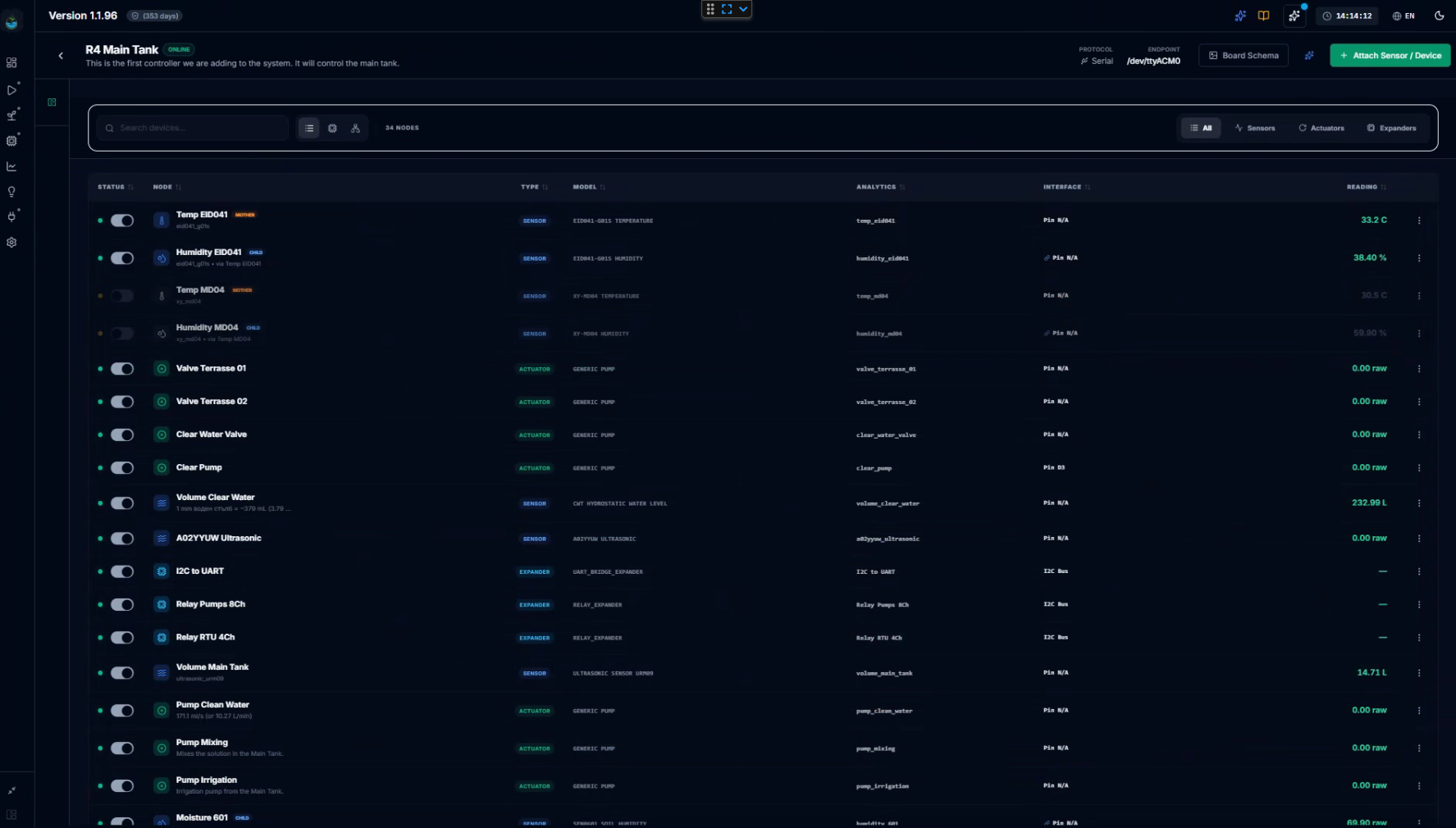
Clicking Manage opens the controller's detail view: a full list
of every attached node (sensors, actuators, expanders) with their live readings,
status, type, analytics label, and interface. From this view you can add new
devices, check pin assignments, configure the connection, and update the
controller's settings — all without leaving CeresFlows.
🎛️ Controller Ecosystem — Interactive Hardware Tour
▶ Watch on YouTube (Full HD)YouTube Official • Opens in New Tab
Hardware is hierarchical: everything in CeresFlows lives
inside a controller. You first add the controller, then attach sensors,
actuators, and expanders to it. Removing a controller doesn't delete its
history — it's soft-deleted, preserving all analytics data for as long
as you need it.
09
Devices — Sensors & Actuators
A controller is just a circuit board until you attach something to it.
Devices are what make CeresFlows see the world (sensors) and touch it (actuators).
This is where raw wire meets real intelligence.
Two Sides of the Same Coin
Every device in CeresFlows is one of two things:
📡
Sensors
Read a physical value from the world.
pH probes, EC meters, temperature sensors, humidity sensors, PAR meters, CO₂ sensors, ultrasonic level
monitors, flow meters, soil moisture probes.
Both types live inside a controller's detail view — the page you get when you click
Manage on any controller card. From there you can see all attached
devices with their live readings, status, type, analytics label, and interface —
and add new ones.
Adding a Device — Three Steps
Click Attach Sensor / Device from the controller detail page to open
the three-step wizard.
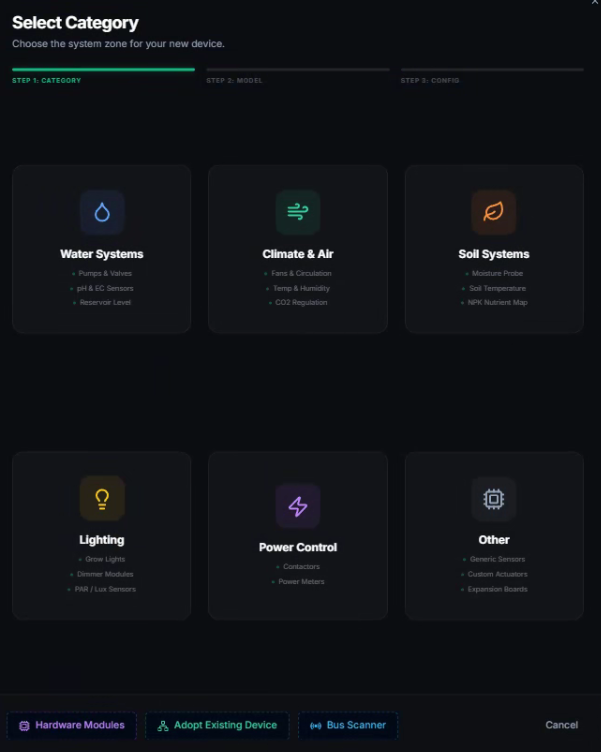
1
Select Category
Choose the zone your device belongs to: Water Systems, Climate & Air,
Soil Systems, Lighting, Power Control, or
Other.
This filters the template library and sets the device's dashboard icon group.
Three shortcuts are also available at the bottom: Hardware Modules (I²C/Modbus expanders —
covered in Chapter 10), Adopt Existing Device, and Bus Scanner.
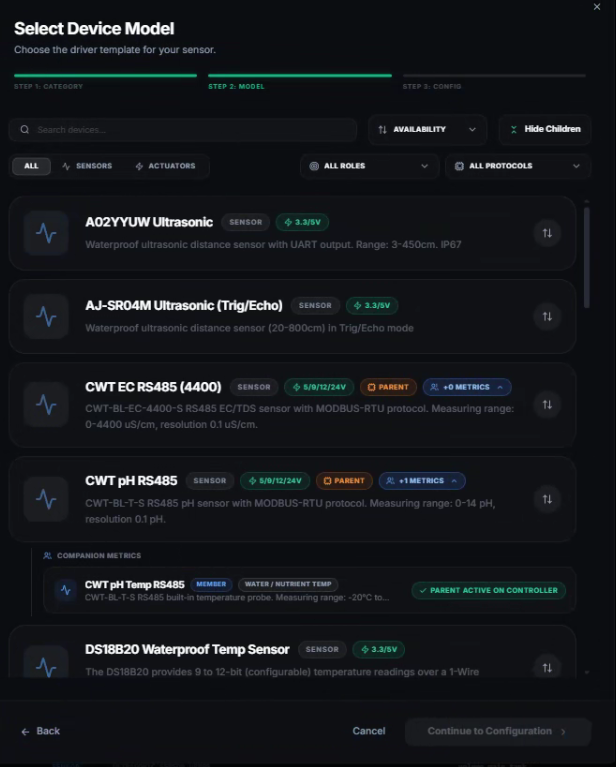
2
Select Device Model
Pick from the template library. Each entry is a pre-configured driver profile — its
protocol, voltage, calibration strategies, and default units are already defined.
Filter by type (Sensors / Actuators), by role (pH, EC, Temperature…), or by
protocol. Sort by availability, name, voltage, or command type.
Some sensors are Parent devices — multi-value hardware that measures
more than one thing (for example a Modbus RS485 module that reads both Temperature
and Humidity). The template list automatically shows the child metrics under the parent,
marked as Companion Metrics. You add the parent once; the children inherit
the connection automatically.
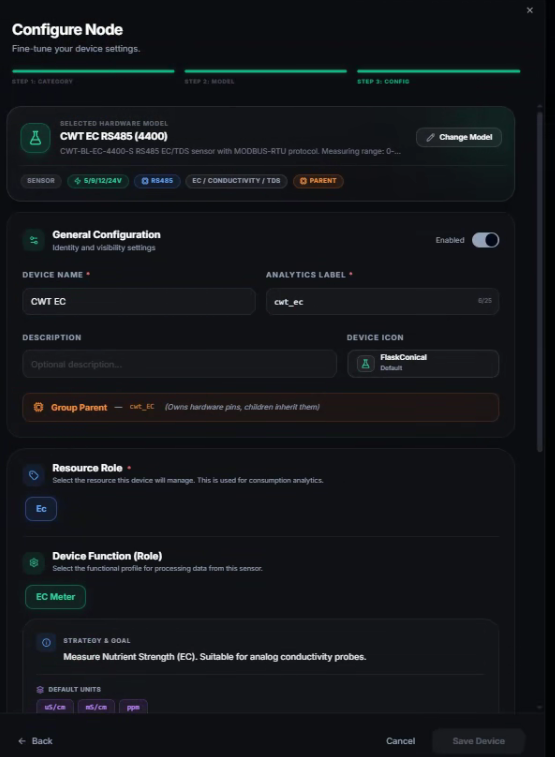
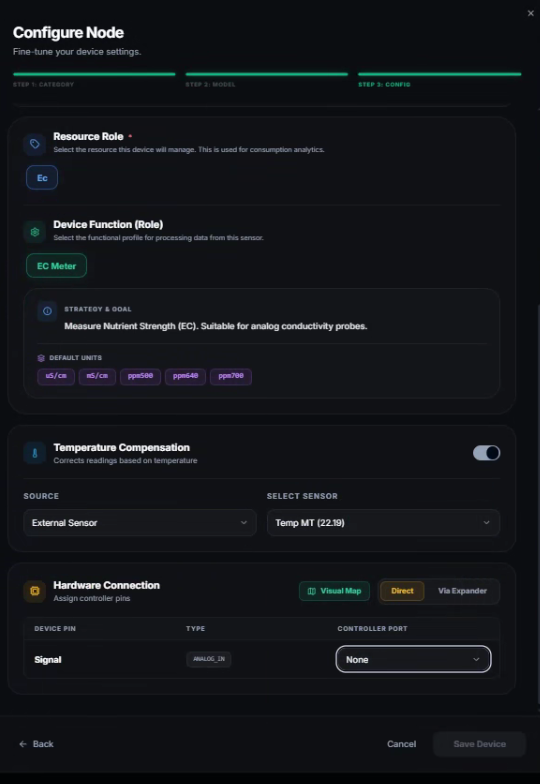
3
Configure Node
The full configuration panel. Name, analytics label, resource role, function mode,
temperature compensation, hardware connection — and the intelligence settings
that set CeresFlows apart from every other system.
The Template Library
CeresFlows ships with a library of pre-built device templates for the most common
sensors and actuators on the market — DFRobot Gravity, Atlas Scientific, CWT Modbus
probes, DS18B20 chains, SHT31/SHT41 climate sensors, generic pumps, grow lights, and more.
Each template defines the exact protocol commands, voltage requirements, calibration
strategies, and unit definitions.
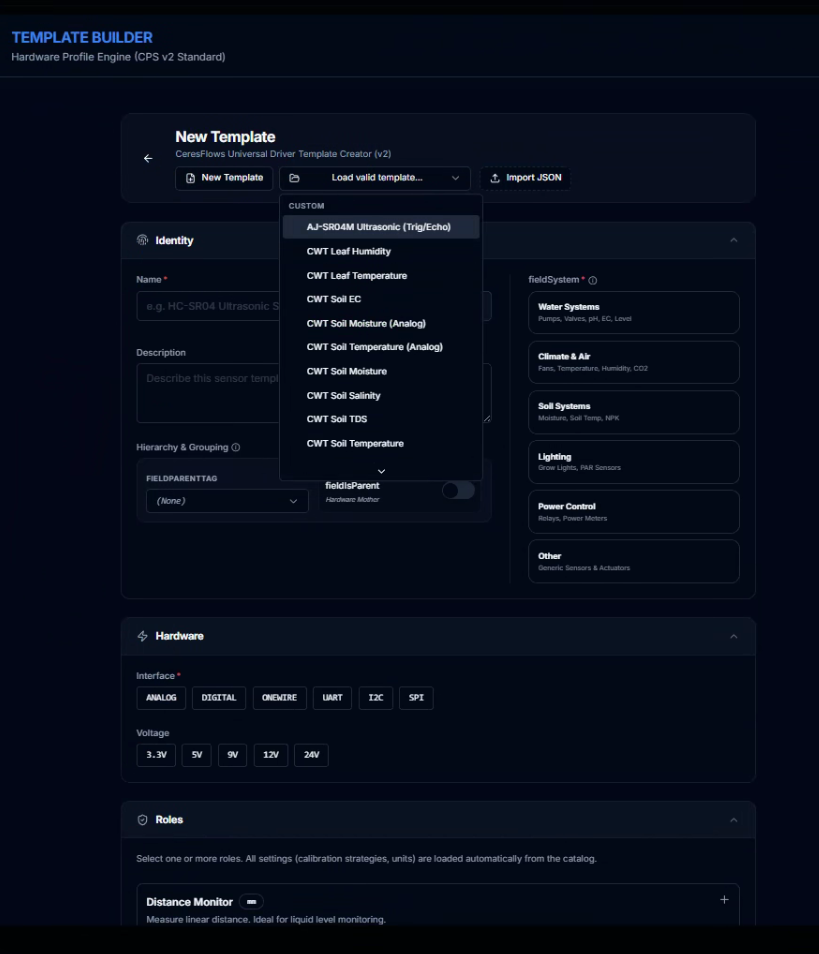
If your device isn't in the library, the Template Builder — accessible
from the wizard's first step — lets you create a custom driver from scratch. You define
the interface (Analog, Digital, OneWire, UART, I²C, SPI), the read/write commands,
how to interpret the response, and the calibration profile. Once built, your custom
template behaves exactly like a factory one: wizard-ready, filter-ready, calibration-ready.
What Makes CeresFlows Devices Different
Most systems let you add a sensor and read its value. CeresFlows goes further —
every device has a layer of intelligence built around it that makes cheap hardware
perform reliably and makes expensive hardware perform accurately.
🔗 Witness Sensor — Pumps That Think
Every actuator (pump, valve, fan) can be paired with a Witness Sensor —
a sensor that observes the actuator's real-world effect. Link a dosing pump to a flow
meter, or an irrigation valve to a reservoir level sensor.
The result: the pump goes from being a binary switch to a
measurable, accountable device. Every time it runs, CeresFlows
simultaneously records what the witness saw — volume dispensed, water level drop,
flow rate. This data flows into Analytics, so you can track nutrient consumption
over time, detect a clogged nozzle (pump runs but flow drops), or calculate your
exact irrigation budget per crop cycle. A $5 relay-controlled pump suddenly has
the accountability of a professional dosing station.
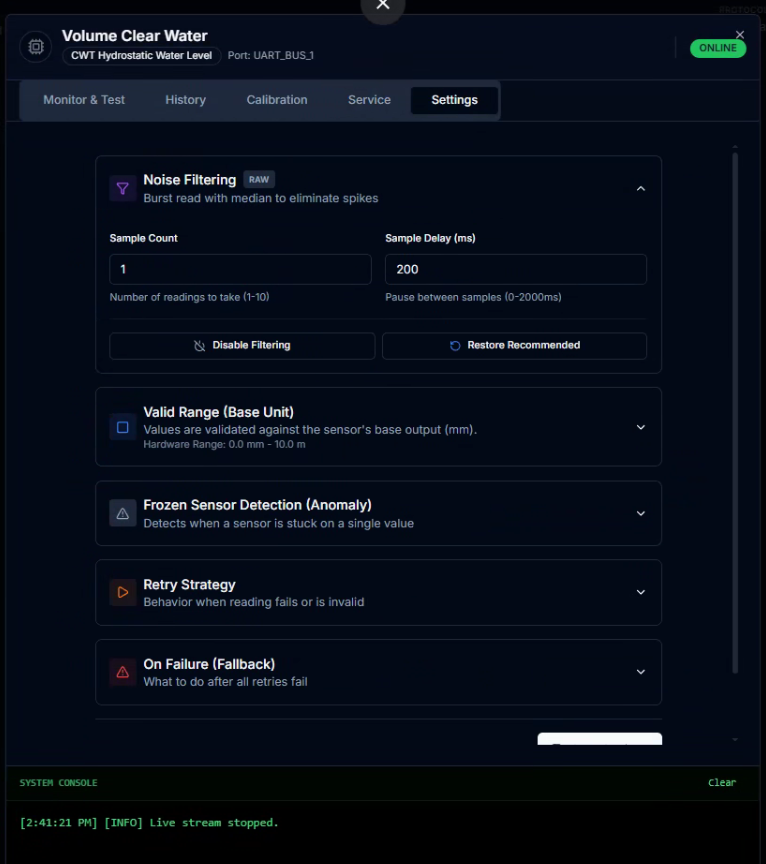
📉 Noise Filter — Cheap Sensors, Accurate
Data
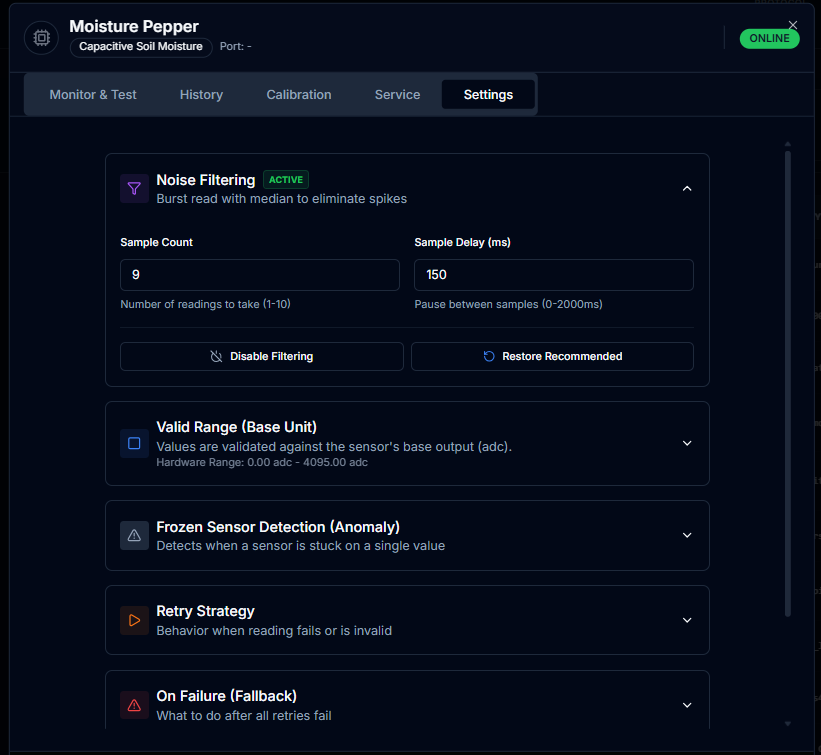
Analog sensors are noisy. Voltage fluctuations, long cables, proximity to motors — all
create measurement spikes that can confuse automation logic. CeresFlows applies a
Burst Read + Consensus Average algorithm to every reading:
Take multiple samples in rapid succession (configurable count)
Sort them and symmetrically trim the extreme outliers (spikes)
Average only the stable core — the signal, not the noise
The practical result: a €3 analog soil moisture sensor, properly configured, can
deliver data stable enough to drive irrigation decisions. You don't need expensive
hardware — you need smart signal processing.
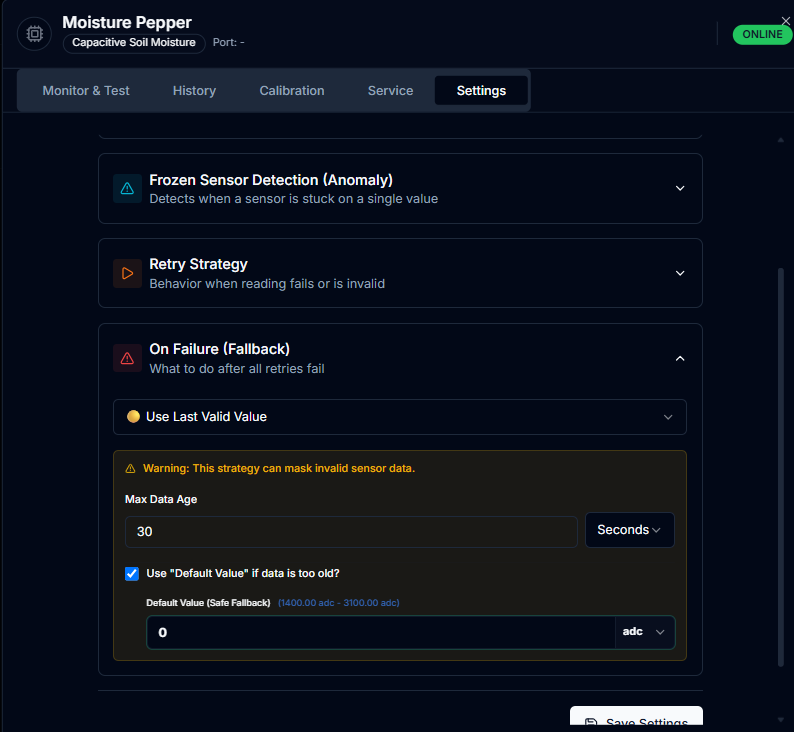
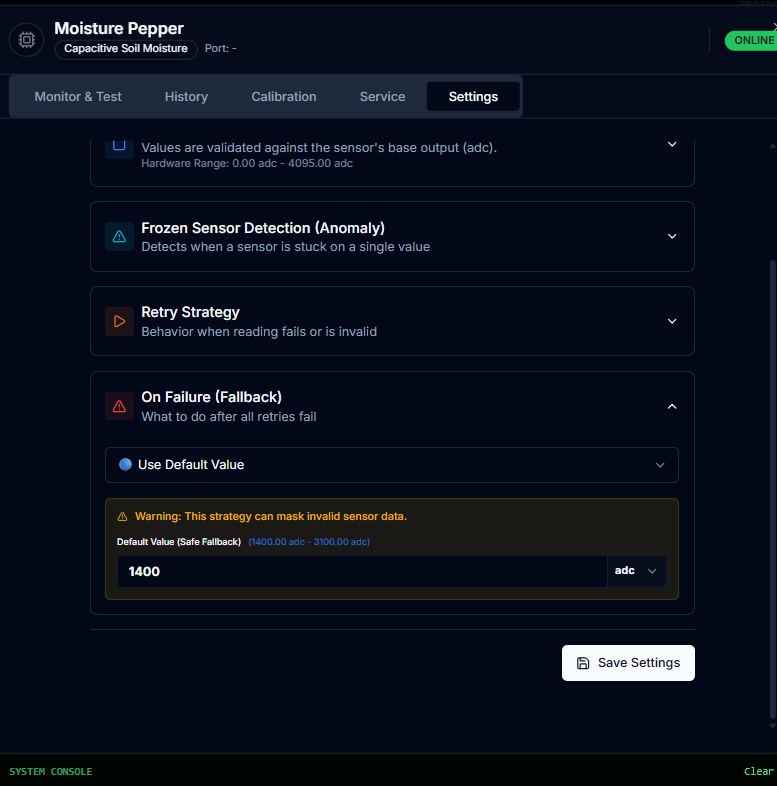
🛡️ Fallback Logic — Graceful Failure
What happens when a sensor fails mid-cycle? Without a plan, the whole automation stops.
CeresFlows lets you define a per-device fallback policy:
USE LAST VALID
Continue with the last confirmed reading. Useful when brief
dropouts are expected.
USE DEFAULT
Return a predefined safe value. Good for non-critical
sensors.
ERROR
Stop execution and surface the fault. For critical sensors
where guessing is dangerous.
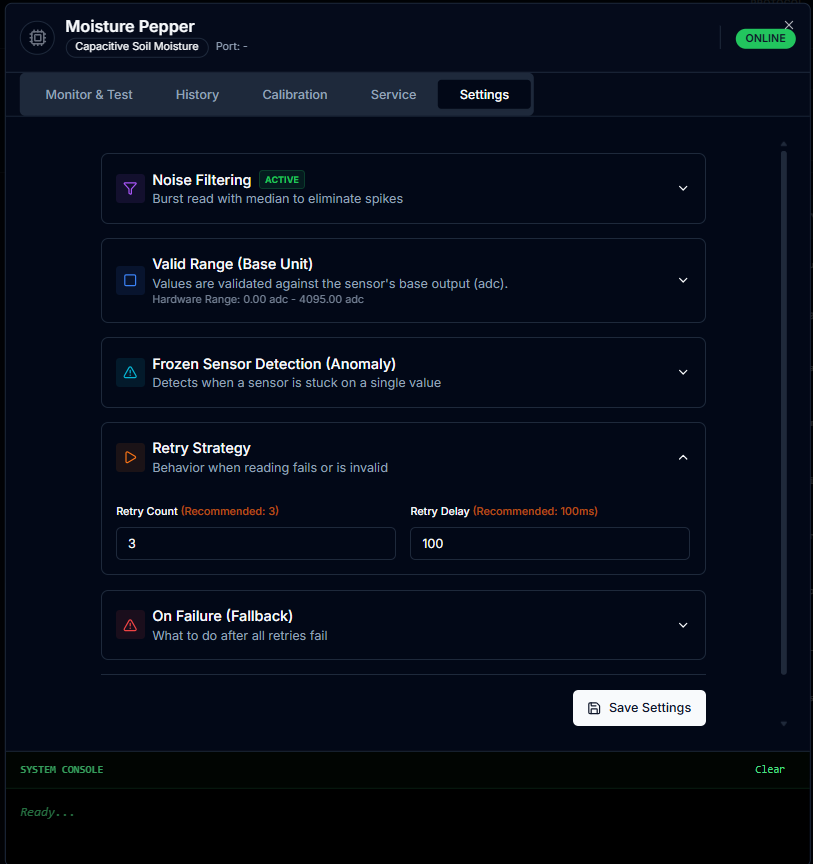
Before declaring fallback, the system retries the read — with configurable retry count
and delay — so a momentary hardware hiccup doesn't trigger a false alarm.
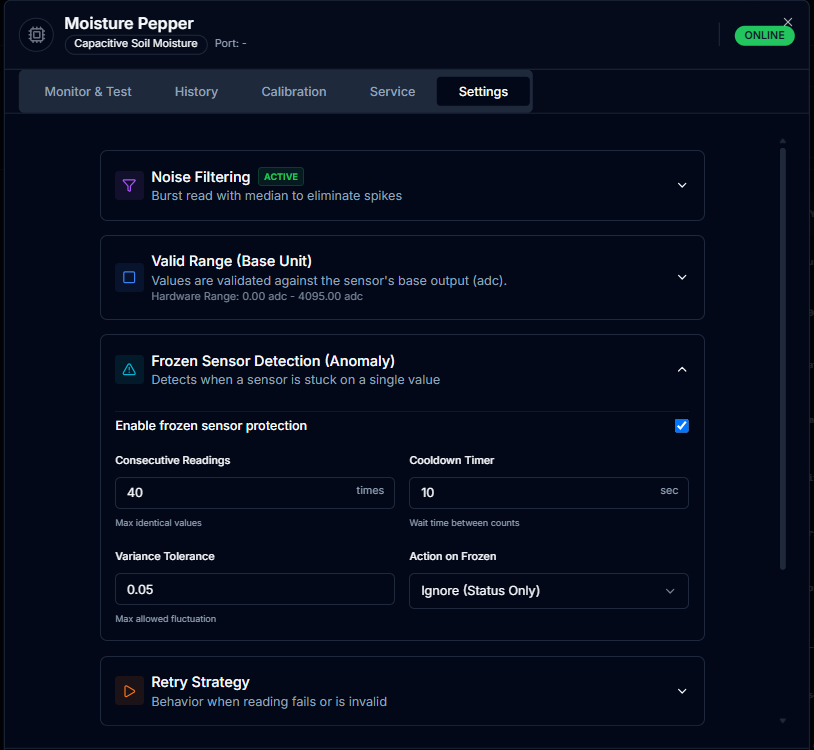
🧊 Frozen Sensor Detection
A sensor returning the same value every cycle is often more dangerous than one that's
completely offline — it reads fine, but it's stuck. This happens when a probe dries out,
gets fouled, or its analog circuit locks up. CeresFlows automatically detects this
Frozen state and marks the sensor accordingly, so your flows know
they're working with stale data — not a normal reading.
🎯 Calibration — Software That Replaces
Lab Equipment
Raw sensor signals are not real-world values. A pH probe doesn't output "6.5" — it
outputs a voltage that must be mathematically translated. CeresFlows handles this
entirely in software, with five calibration strategies:
Strategy
How It Works
Typical Use
Offset
Adds or subtracts a fixed value
"My sensor reads 0.3 too high"
Linear
Two reference points → straight line (y = mx + c)
Standard pH and EC 2-point calibration
Multi-Point
Multiple points with interpolation between them
High accuracy across a wide range
PWM Mapping
Target percentage → hardware signal (reverse mapping)
Variable-speed dosing pumps, dimmers
Volumetric Flow
Desired volume → pump run-time
"Dose 50ml" → run pump for X seconds
For precision probes (pH, EC), CeresFlows also provides Smart Calibration Wizards
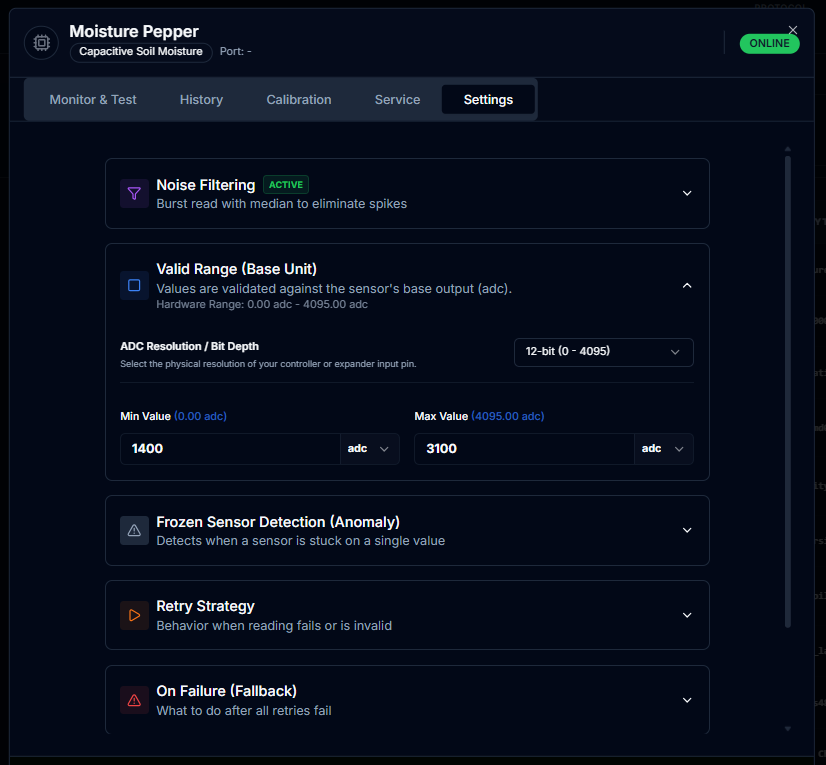
that adapt calculations to the actual ADC resolution of your controller — so a 12-bit ESP32-C6
and a 10-bit Arduino don't get the same mV-per-step math. The system knows your hardware.
🌡️ Temperature Compensation
pH and EC readings change with water temperature — a pH reading at 15°C is physically
different from the same solution at 30°C. Most growers don't know this affects their
readings by up to 0.3 pH units.
CeresFlows corrects this automatically. You choose:
Fixed Value (a constant reference temperature, e.g. 25°C) or
External Sensor — link any temperature probe in your system,
and every pH/EC reading is adjusted in real time based on actual water temperature.
One configuration step eliminates a measurement error that most systems simply ignore.
🏷️ Analytics Label — History That
Survives Hardware Changes
Every device has an Analytics Label — a unique technical identifier
that anchors its history in the database. When a probe fails and you replace it,
you give the new device the same label. CeresFlows seamlessly continues the measurement
history as if nothing changed: the same chart, the same trends, the same archive.
No lost data. No broken graphs.
This also means the Analytics modules, Smart Advisor, and all calculated indices
can look back months into the past — even across hardware replacements — because
they query by label, not by device ID.
Protocols — One System, Any Hardware
CeresFlows devices communicate over six protocols, so you can mix
professional-grade industrial sensors with hobbyist analog probes in the same system:
Protocol
What It Does
Typical Hardware
Analog
Reads voltage (0–5V), converts to value
Simple pH, EC, soil moisture, light sensors
Digital
ON/OFF signals or timed pulses
Flow meters, level switches, DHT temperature
UART / Modbus RTU
Structured serial data frames
Industrial RS485 probes (pH, EC, PAR, CO₂)
I²C
Multi-device bus, 2 wires
SHT31/SHT41 (temp+humidity), BH1750 (light)
SPI
High-speed synchronous bus
Precision ADC converters
OneWire
Chain multiple sensors on a single pin
DS18B20 temperature (up to dozens per wire)
The Device Dashboard
Once registered, every device appears as a card in the controller's detail view, showing
live data at a glance: current reading, status (Online / Offline / Frozen), analytics label,
resource role, interface protocol, and fallback policy. A toggle lets you
enable or disable an actuator directly from the grid without entering any menus.
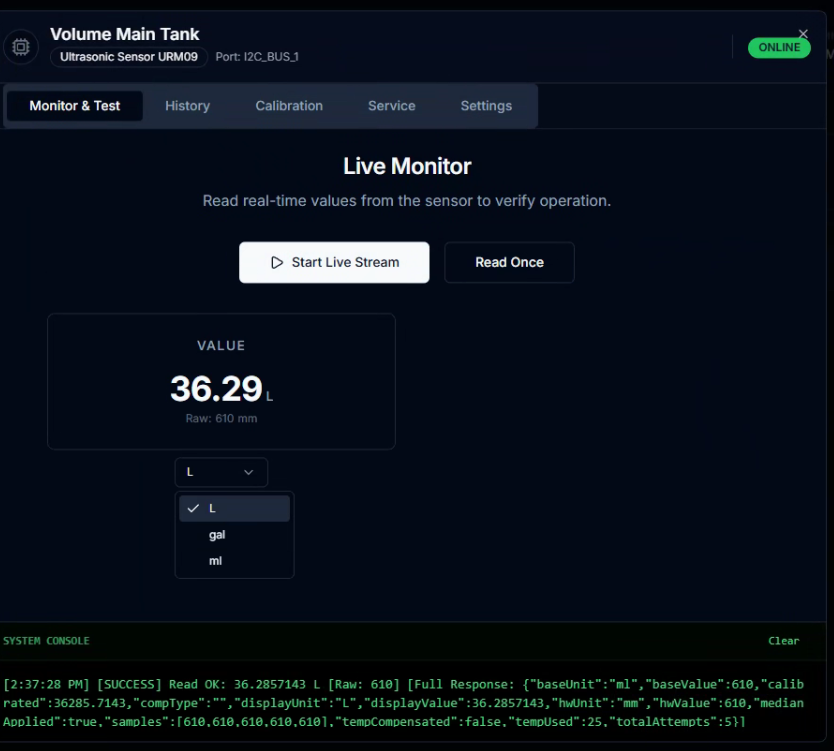
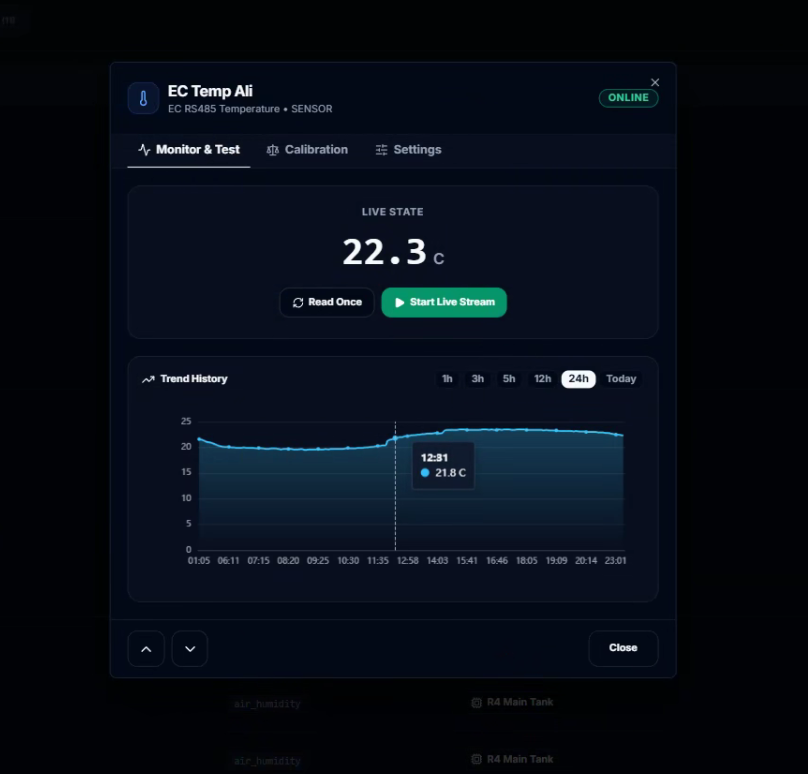
The Test button opens a live dialog — force a sensor read and see the raw
and calibrated value in real time, or activate an actuator and watch it respond. This
is the fastest way to verify new hardware before it goes into production automation.
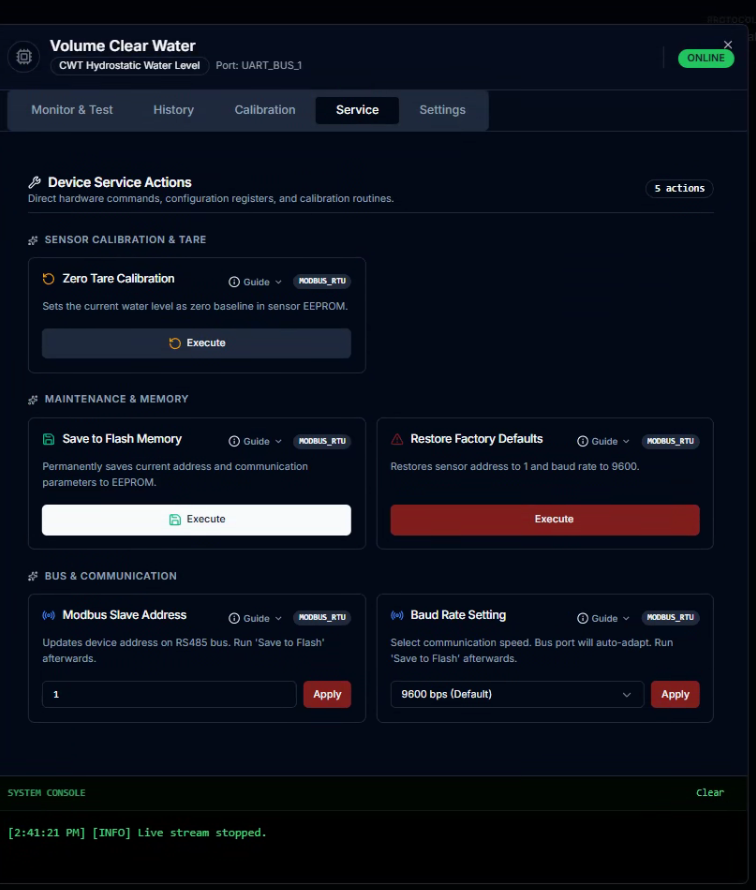
The Service tab inside the same dialog provides access to advanced device actions:
resetting calibration (Tare), changing Modbus Slave IDs, or adjusting bus parameters —
all without touching the firmware.
⚡ Device Suite — Interactive Hardware & Sensor Tour
▶ Watch on YouTube (Full HD)YouTube Official • Opens in New Tab
Every device in CeresFlows is more than a data point.
It is a node in a network of intelligence — calibrated, validated, protected against failure,
capable of witnessing other devices, and anchored to a history that outlasts the hardware itself.
A cheap sensor, properly configured, becomes a reliable partner. An actuator, linked to a witness,
becomes accountable. This is what "Your hardware. Our brain." actually means.
Chapter 10 — Hardware World
Expanders — Extending the Controller's Reach
Controllers are powerful. But sometimes a single board simply doesn't have enough outputs
to drive everything your operation demands. That's where Expanders come in.
The Problem They Solve
Picture a compact ESP32 running five sensors and needing to switch eight dosing pumps,
an irrigation valve, a grow light, and a circulation fan. A microcontroller has
a finite number of I/O pins — and each pin can only carry a tiny signal current,
nowhere near enough to drive a 12V pump or a 240V lighting circuit.
The classical answer was relay boards wired to individual controller pins. But that
approach has hard limits: you run out of pins fast, wiring becomes complex, and the
number of switching channels is fixed by the hardware you bought. CeresFlows takes a
different approach — Expanders.
An Expander is a peripheral hardware module that attaches to a controller
and extends its capabilities. It is not a sensor — it doesn't return data.
It is infrastructure: a bridge between the controller's communication bus and the
physical world of pumps, lights, valves, and signals.
Expanders are entirely optional. You add them only when you need them.
What Expanders Can Do
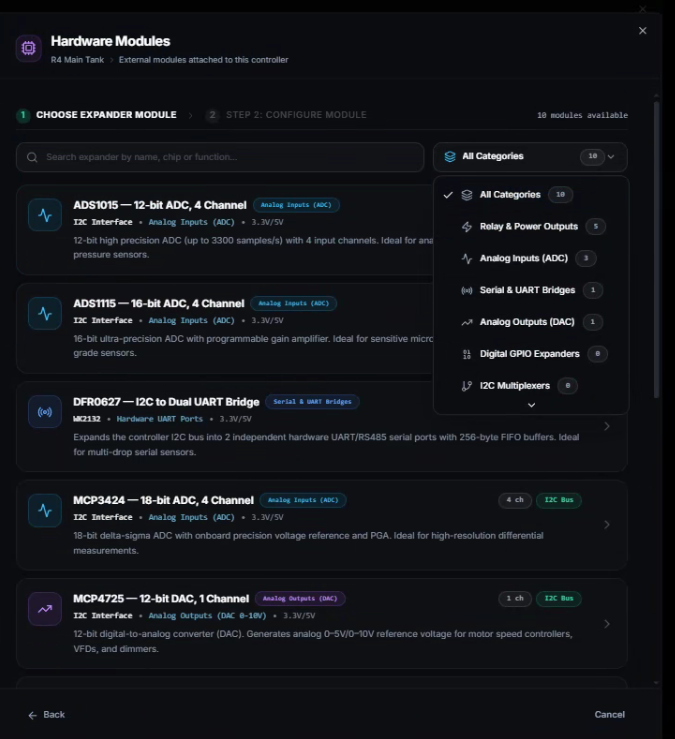
CeresFlows recognizes six categories of expander modules. Each solves a different
class of problem:
Category
What It Adds
Example Hardware
Relay & Power Outputs
Industrial-grade switching via Modbus RTU / RS485 with optocoupler isolation. Controls 250V AC / 30V DC
loads.
Modbus RTU 2CH / 4CH / 8CH relay modules
Analog Inputs (ADC)
High-precision analog-to-digital conversion over I²C, far exceeding the onboard ADC resolution of most
microcontrollers.
Multiplies the controller's serial ports — connects multiple RS485 / UART sensors simultaneously over
one I²C bus.
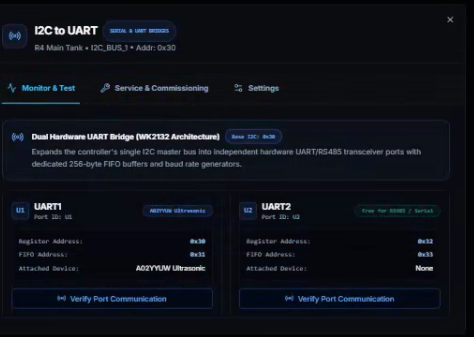
DFR0627 (WK2132) — 2× hardware UART with 256-byte FIFO
Analog Outputs (DAC)
Generates 0–5V / 0–10V reference signals for motor speed controllers, VFDs, and proportional valves.
MCP4725 (12-bit DAC)
Digital GPIO
Adds banks of digital I/O pins — ideal for float switches, limit switches, and digital signal inputs.
MCP23017 (16-channel, internal pull-ups)
I²C Multiplexers
Connects up to 8 sensors with the same factory I²C address without bus collisions — essential for
multi-sensor arrays.
TCA9548A (1-to-8 I²C mux)
The relay modules deserve special mention, because they are where most growers start.
A Modbus RTU relay expander connects to the controller via RS485 serial bus.
Through a single UART port, one 8-channel relay board can switch eight independent
high-power circuits — pumps, solenoids, lights, fans — with full optocoupler isolation
between the control electronics and the mains. Two of them on the same bus gives you
sixteen channels. The controller never touches line voltage directly.
Adding an Expander — Two Steps
Expanders are added through the Hardware Modules button, accessible
from the same panel where you select sensor categories when registering a new device.
The workflow mirrors the device wizard philosophy: choose a model from a catalog,
configure the bus parameters, done.
1
Choose a Module
Browse the catalog, filtered by category. Each entry shows the chip model,
how many channels it provides, what bus it uses (I²C or RS485/Modbus RTU),
and a plain-language description of what it's good for.
Relay modules display channel counts (2CH, 4CH, 8CH). ADC expanders show
their bit resolution. UART bridges show their port count.
2
Configure the Bus Connection
For I²C expanders: select the I²C bus port on the controller and confirm the I²C address
(using a structured selector that shows the physical jumper position, e.g. "ADDR → GND = 0x48").
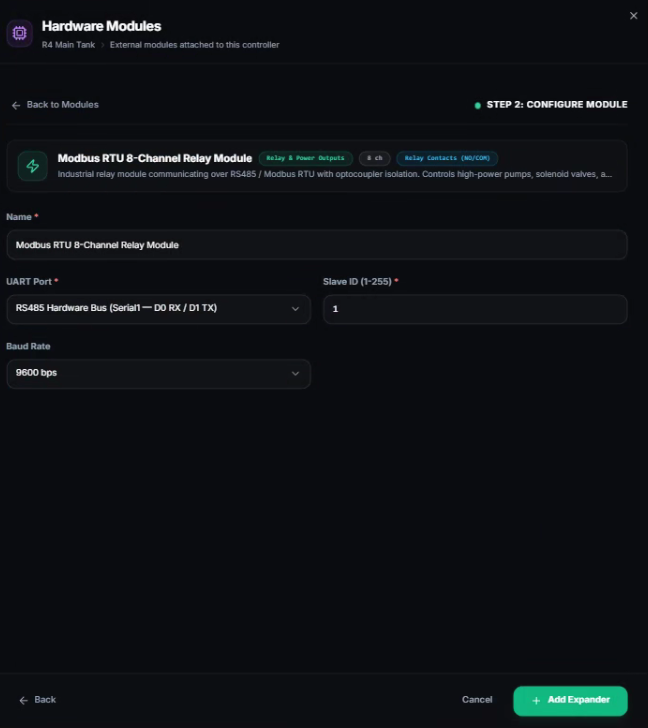
For Modbus RTU relay modules: select the UART/RS485 port, set the Slave ID (1–255), and
choose the baud rate. Click + Add Expander.
That's it. No pin assignment. No wiring map. No firmware changes.
The expander is immediately visible in the controller's device grid.
Expanders in the Controller View
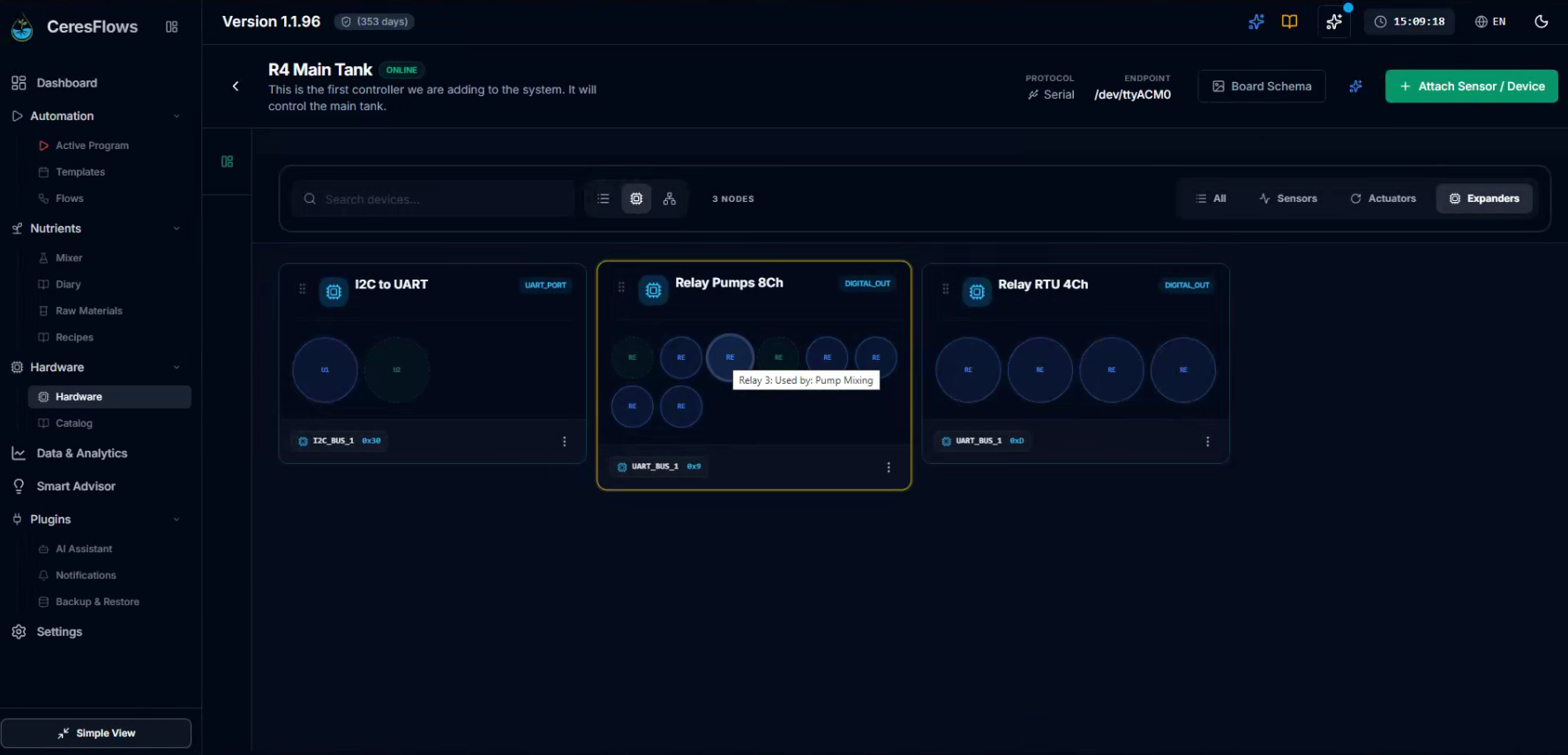
Once registered, each expander appears as its own card inside the controller detail page,
alongside the sensors and actuators — but clearly distinguished with its own type badge.
Channel indicators show at a glance how many outputs are occupied and how many are still free,
with labels that adapt to the expander type:
C1–C8 for relay channels,
A0–A3 for ADC inputs,
U1–U2 for UART bridge ports,
G0–G15 for GPIO banks.
An actuator device (a dosing pump, a solenoid valve) is then registered as usual through
the device wizard — but instead of mapping it to a controller pin, it is mapped to a
specific channel on the expander. From that moment, the automation engine controls
the actuator by sending commands through the expander's bus protocol.
The grower never needs to think about RS485 frames or I²C register maps.
Monitor, Test & Commission
Every expander has its own test dialog — the same kind of live inspection tool that
devices have. It opens directly from the expander card and contains three tabs,
each adapted to the expander's function:
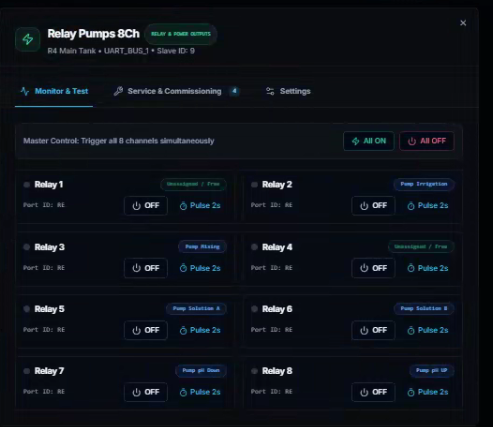
⚡
Monitor & Test
For relay expanders: All ON / All OFF master controls, plus per-channel
Toggle and Pulse (2s test fire). Each channel shows
which actuator is assigned to it — or marks itself "Unassigned / Free."
For ADC expanders: sample individual channels or all at once — see the raw ADC value
and calculated voltage in real time, with timestamp.
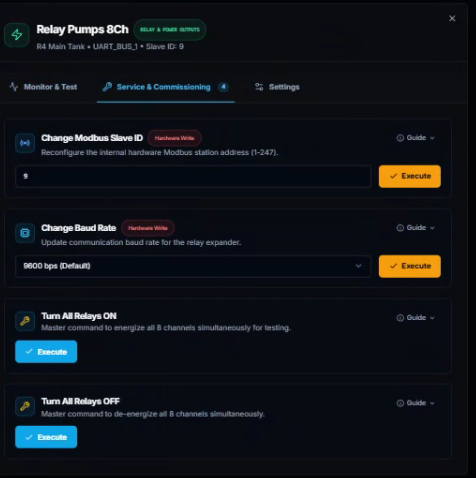
🔧
Service & Commissioning
Declarative service actions defined by the module's template. For relay expanders:
change the Modbus Slave ID, update the Baud Rate,
trigger Turn All Relays ON/OFF for wiring verification.
Each action writes to hardware first — the database is updated only after
a confirmed hardware response. No soft-bricking.
⚙️
Settings
Rename the expander, change the communication address (I²C address or Modbus Slave ID),
or switch the bus port. The address field shows a human-readable selector for I²C
expanders (physical jumper position), not a raw hex number.
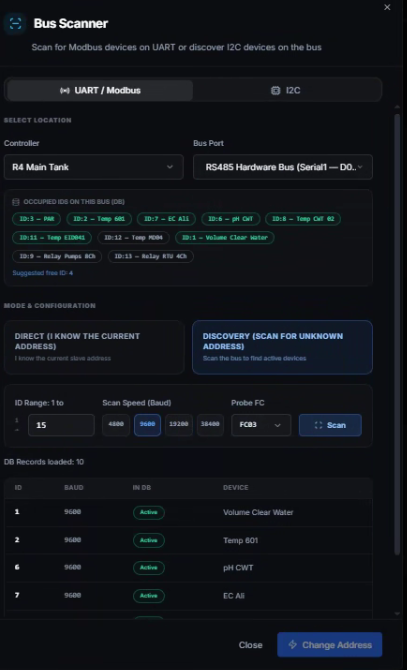
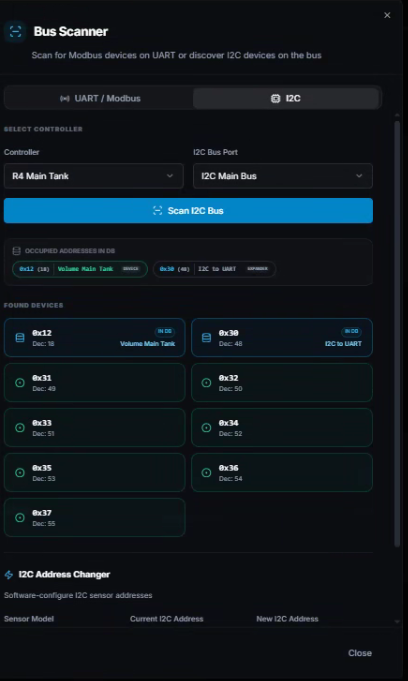
The Bus Scanner
Not sure what's physically present on the bus? CeresFlows includes a built-in
Bus Scanner — also accessible from the device wizard panel.
It scans both I²C and Modbus RTU buses directly through the connected controller:
I²C Scan: The controller probes all 127 possible I²C addresses and reports which ones
respond. Results show both hex address and its physical jumper position. Useful for confirming an ADS1115 is
correctly wired before registering it.
Modbus RTU Scan: Sweeps the RS485 bus for responsive slave devices. Includes direct
write-and-verify for commissioning new relay modules at fresh Slave IDs.
The scanner only appears for controllers whose firmware reports the relevant capability
(I2C_SCAN). No guessing. No wasted time.
🔌 Hardware Expanders Suite — Interactive Hardware Tour
▶ Watch on YouTube (Full HD)YouTube Official • Opens in New Tab
Template-Driven. Fully Extensible.
Every expander type in CeresFlows — just like every sensor and actuator — is defined
by a JSON template. The template describes the communication protocol,
the number of channels, the available commands, the bus parameters, and the service
actions that appear in the commissioning tab.
The built-in catalog ships with the most common hardware. But if you work with a relay
module from a manufacturer not in the list, or an ADC chip with a different register map,
you can define a custom expander template and register it in the system — the same
extensibility that exists for sensors and actuators, applied consistently at every layer.
Expanders are not an afterthought. They are the mechanism that turns a
single compact microcontroller into the nerve center of a large, multi-load greenhouse.
A controller with one Modbus relay expander controls eight pumps. Add a second expander
on the same bus — sixteen. Add an ADC expander on the I²C bus — four more high-precision
analog sensor channels. All of it managed from one place, through one system, without
touching firmware or rewiring the controller.
When you need more, you add more. The system grows with your operation.
Part IV
Building Logic
From hardware to automation — giving your system a brain
Chapter 11
Flows — Visual Automation Without Code
If CeresFlows has one superpower, this is it.
What Is a Flow?
A Flow is a visual recipe — a sequence of instructions you draw on a canvas
that the system then executes automatically, without any human intervention.
Think of it the way you'd explain a process to a colleague: "Read the pH sensor.
If the value is too high, run the acid pump for a few seconds. Wait for it to mix.
Read again. Repeat until it's within range." That logic — written in plain language on a whiteboard —
is exactly what you build in the Flow Editor. Except here, you draw it with blocks and arrows,
and the system runs it for you, 24 hours a day, seven days a week, without ever getting tired or forgetting a
step.
A flow has exactly one entry point (Start) and one or more exit points (End).
Between them, you place blocks and connect them with arrows that define the order of execution.
The system reads your flow from Start, follows the arrows, executes each block in turn, and stops at End.
That's the entire model.
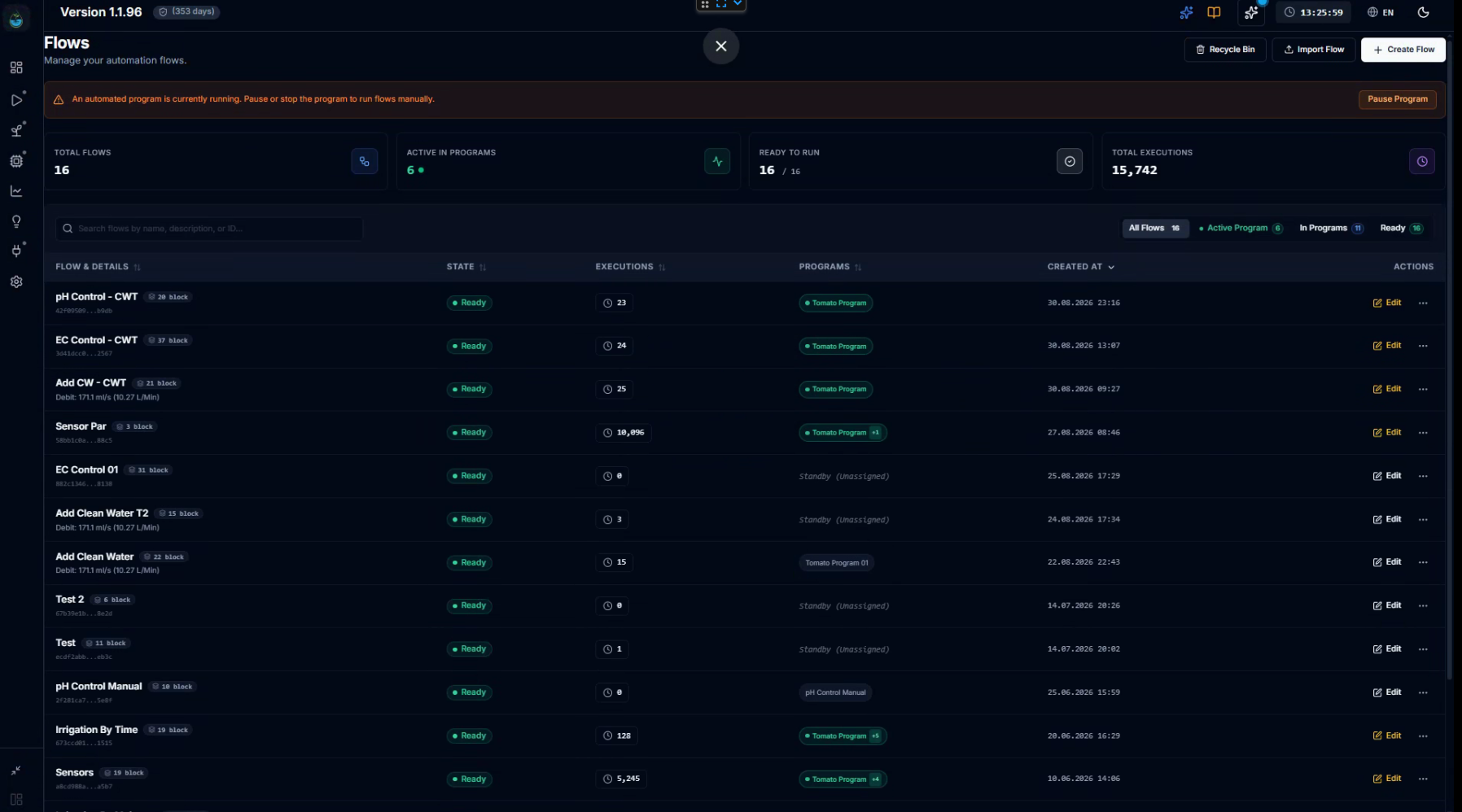
📑 Automation Flows Directory — Active Library
16 FLOWS READY
Total Flows
16
In Programs
6
Readiness
16 / 16
Executions
14,685
FLOW NAMEASSIGNED ZONESTATUSRUNS
⚡ pH Closed-Loop DosingReservoir A● Active (P1)4,812
💧 EC Nutrient Top-UpDosing Tank● Active (P1)3,240
🌬️ Night Canopy DehumidifyGrow Room 1● Active (P1)1,104
🧪 Morning Flush CycleAll Zones○ Standby856
🔍Click to inspect in Fullscreen
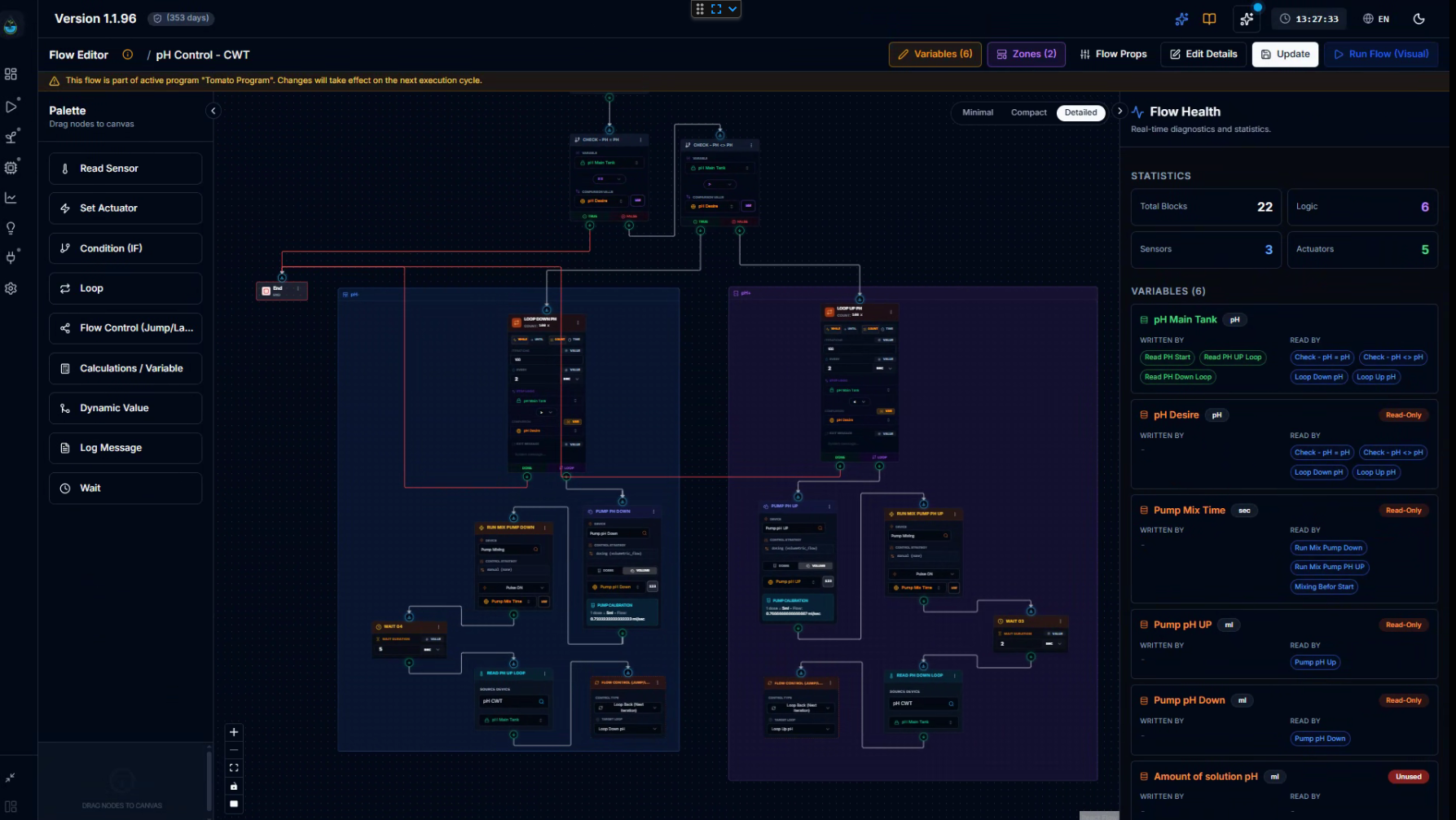
The Canvas — Where You Draw Your Logic
Opening the Flow Editor brings you to a dark, infinite canvas. On the left is the
Palette — a collapsible panel with every block type available. Drag any block
onto the canvas and it appears, ready to configure. Connect blocks by drawing arrows between them.
Pan, zoom, fit to screen — the canvas behaves exactly like you'd expect from a modern diagram tool.
On the right side, clicking any block opens its Properties Panel — where you
configure what that specific block does. At the top of the editor, a Flow Health
panel gives you a real-time overview: total blocks on canvas, how many are sensors, actuators,
and logic blocks — plus a full variable usage map showing exactly which blocks read and write
each variable in your flow. This is invaluable when flows grow complex.
▶ Click to Play Video WalkthroughYouTube • CeresFlows Official
The Building Blocks
CeresFlows provides nine block types. Together, they can express any automation logic
imaginable. Here is what each one does:
Block
What It Does
🌡️ Read Sensor
Reads a value from any sensor (pH, EC,
temperature, humidity, PAR…) and stores it in a variable for the next block to use.
⚡ Set Actuator
Controls a physical device — turn a pump ON,
dose a volume, run for a duration. Supports pulse modes and links directly to global variables for
duration or volume.
❓ Condition (IF)
A fork in the road. Evaluates a condition
(greater than, less than, equal to…) and routes the flow down the YES or NO path.
🔄 Loop
Repeats a sequence of blocks a set number of
times, for a set duration, or until a condition is met. The engine of any iterative process.
🔗 Flow Control
Jump to a label, break out of a loop, or loop
back — used to direct execution across complex flow structures without repeating blocks.
🧮 Calculations / Variable
Perform math on variables at runtime: add,
subtract, multiply, divide, set to a fixed value or the result of another variable.
🔀 Dynamic Value
Dynamically sets a variable's value based on
tiered runtime conditions — enables context-aware behavior within a single execution. (See below.)
📝 Log Message
Writes a message to the execution trace — with
variable values interpolated. Can also trigger a system-level pause or stop.
⏱️ Wait
Pauses execution for a specified duration
(seconds, minutes, hours). Essential after dosing, before re-reading a stabilizing sensor.
Variables — The Memory of Your Flow
Blocks communicate with each other through variables. A Sensor Read block stores
its result in a variable; an IF block checks that variable; a Set Actuator block reads another
variable to know how long to run. Variables are the connective tissue that makes blocks work together.
There are two types, and the difference matters enormously in practice:
LOCAL
Sensor Data
Exists only within the current flow execution. Created when the flow starts, gone when it ends.
Used to carry sensor readings between blocks — current_ph,
water_temp, loop counters.
Temporary by nature.
GLOBAL
User Targets
Shared across all flows. Persist between executions. These are your adjustable parameters —
targets, durations, volumes — set by you once and referenced by the flow whenever it runs.
Change a global variable and the flow adapts immediately.
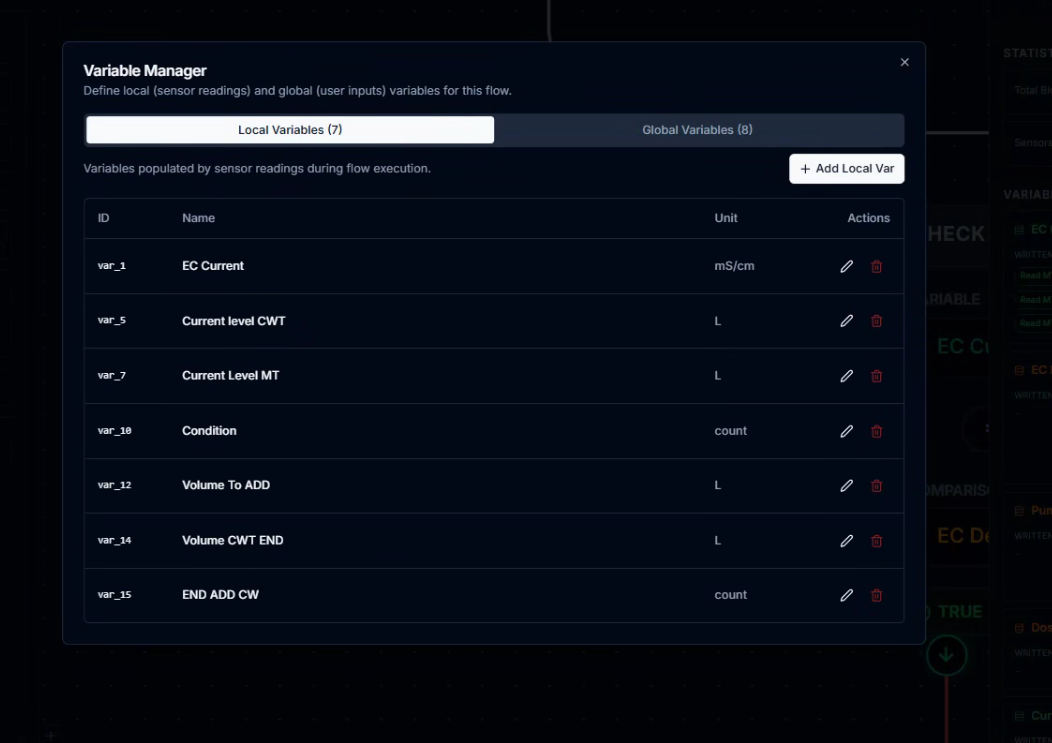
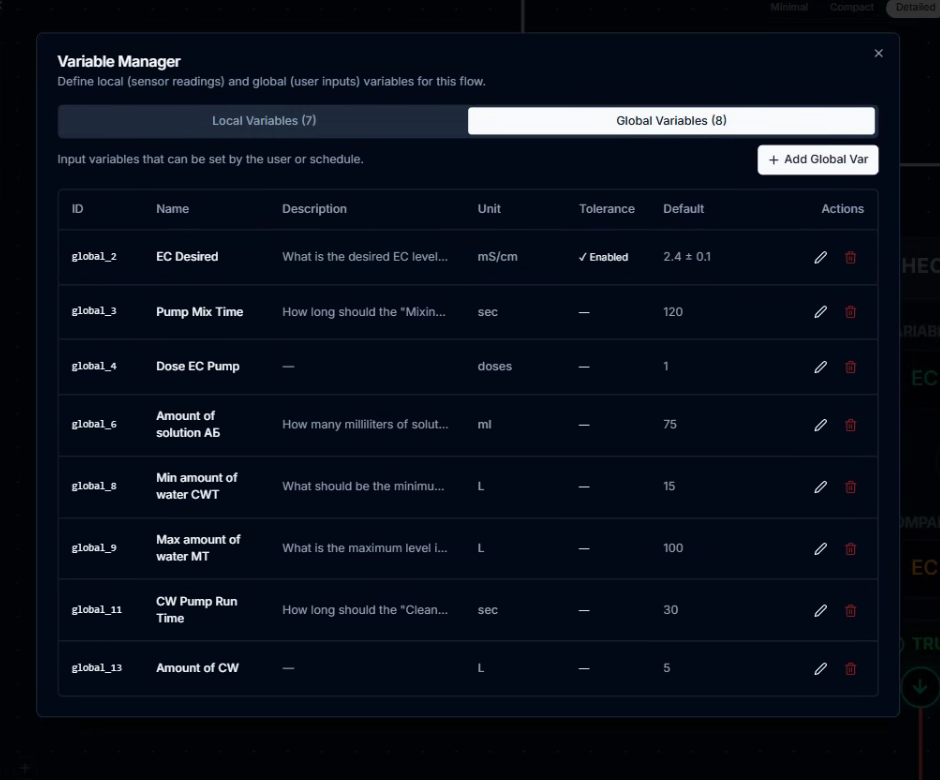
Global variables are where the real power lives. Consider this example:
You build a flow that runs the irrigation pump. Inside the Set Actuator block, you set the
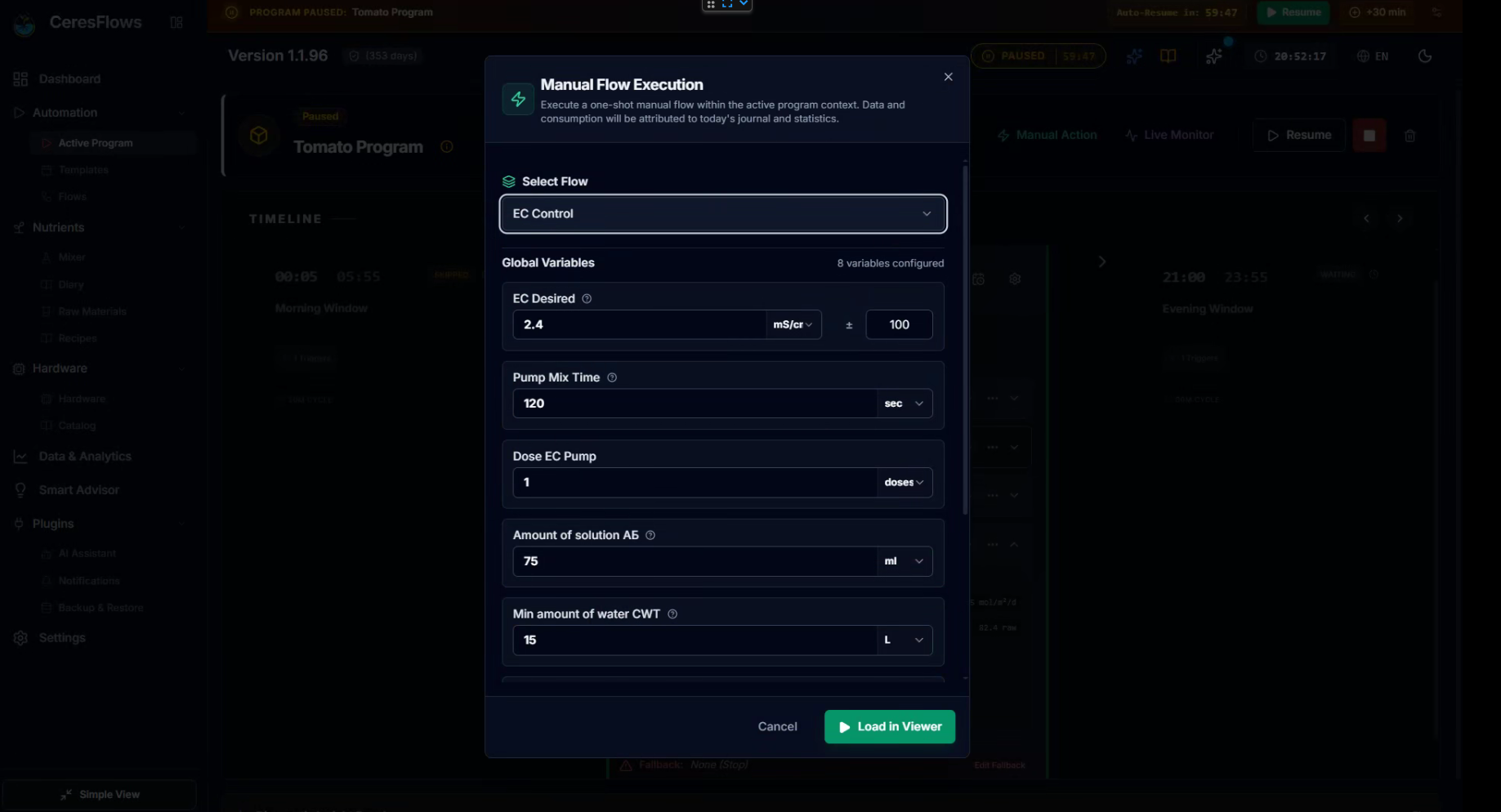
duration to a global variable called Pump Mix Time, currently set to
180 seconds. Next week, conditions change and you want 5 minutes instead.
You open the Variable Manager, change the value to 300 — and that's it.
No need to open the flow, no need to find the actuator block, no need to touch the logic.
The flow runs the new duration automatically on the very next execution.
This is what makes CeresFlows adaptable without being fragile. Your logic stays intact.
Your parameters stay flexible.
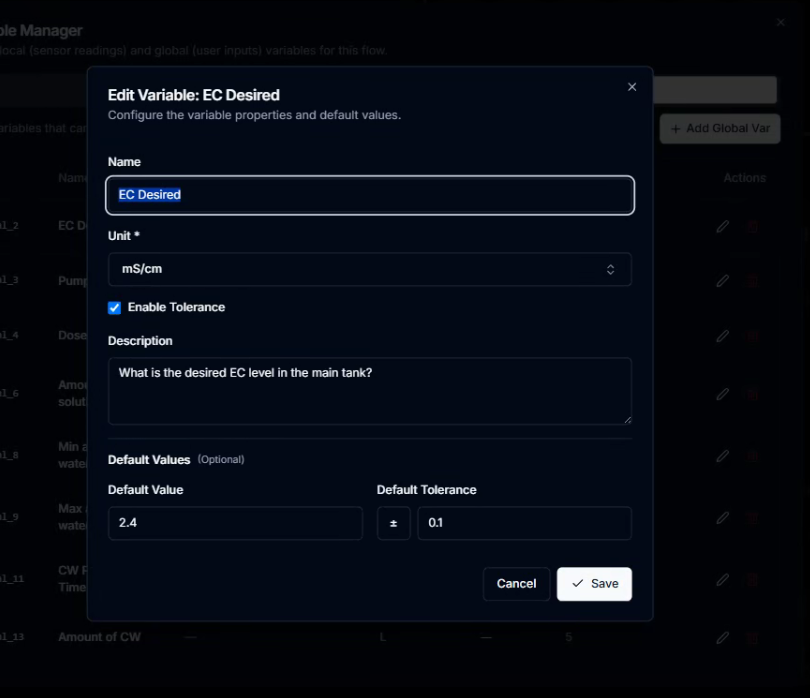
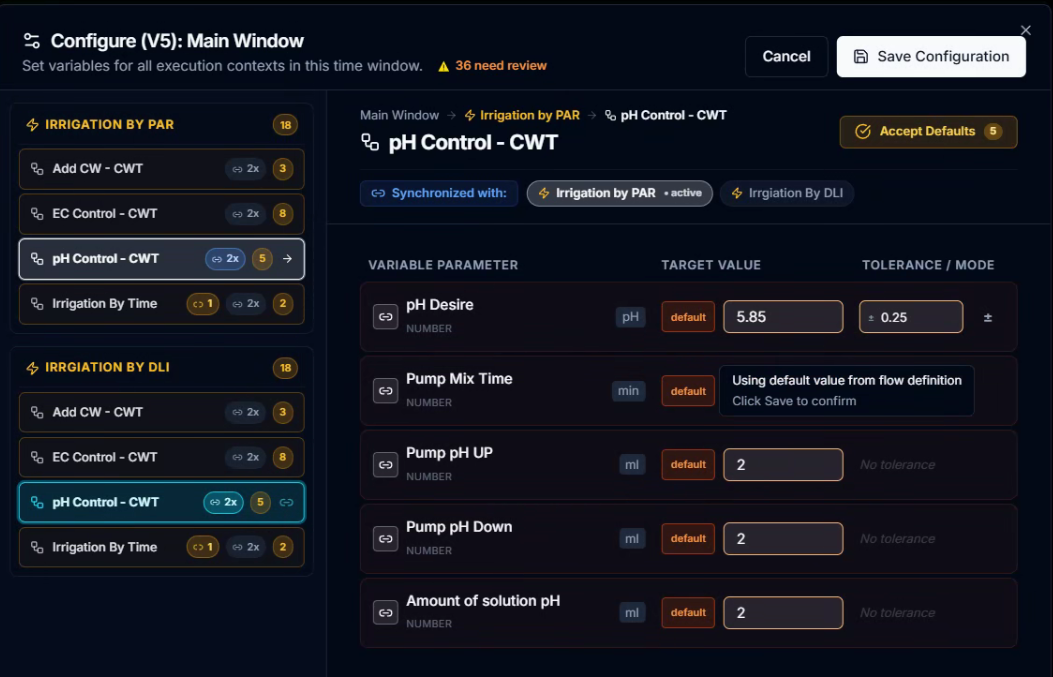
Global variables also support Tolerance Zones: instead of triggering on an
exact value, you define a range of acceptance. A pH target of 5.85 with a tolerance of ±0.15
means the system only acts when pH falls outside the 5.70–6.00 window — not every time the
sensor fluctuates by a hundredth of a point. This eliminates pump cycling, prevents equipment
wear, and mirrors how professional industrial control systems handle setpoints.
⚙️ Variable Manager & Tolerance Controls
1 / 3
Dynamic Value — Context-Aware Logic
Most blocks apply a fixed action or a stored variable. The Dynamic Value block
does something more powerful: it evaluates conditions at runtime and sets a variable's value based
on the current state of the system.
Imagine an EC dosing flow. You don't want to add the same volume of nutrient solution
regardless of how far the EC is from target. If the EC is 0–1 mS/cm, you dose 20 mL.
If it's 1–2 mS/cm, you dose 10 mL. If it's already above 2, you dose nothing.
Without Dynamic Value, this would require multiple IF blocks and separate variable-set steps.
With Dynamic Value, a single block evaluates the current EC reading and assigns the
correct volume to your dosing variable — before the actuator block even runs.
The same logic applies to irrigation: if soil moisture is above 40%, water for 3 minutes;
if it's below 20%, water for 10. One block reads the condition. One block decides the duration.
One actuator executes it. Clean, readable, maintainable.
Resilience — Flows That Handle Failure
Real systems fail. Sensors return no data. Network drops happen. A pump doesn't respond.
CeresFlows builds resilience directly into every block. Each block can be configured to
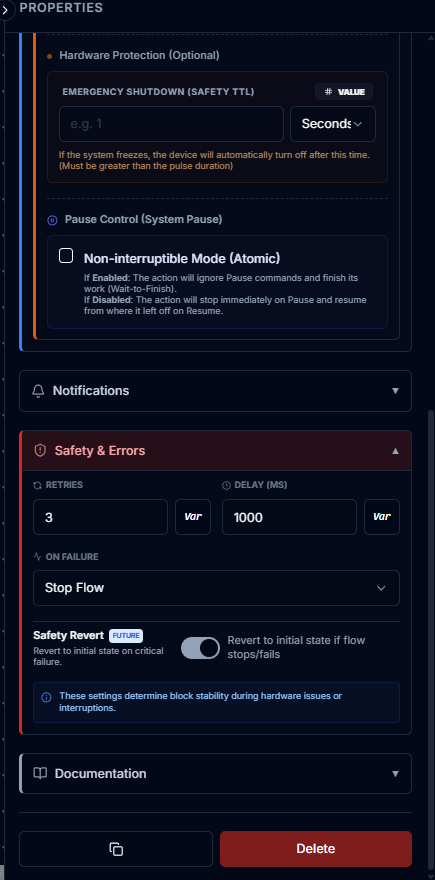
retry automatically a set number of times before declaring failure. When failure
is confirmed, the block can: stop the flow, pause it (resumable later), skip the step and continue,
or jump to a named label elsewhere in the flow for graceful error handling. Blocks can also
send a notification when they fail — so you know something went wrong before it becomes a problem.
For actuators, an additional Hardware Safety TTL is available: a maximum runtime
limit at the hardware level. Even if the server loses connectivity, the controller's firmware will
cut power to the device at the specified time. The software logic and the hardware watchdog work
together — defense in depth.
A Real Example — pH Correction in 10 Blocks
Theory is easy. Let's look at a real flow: automatic pH correction for a hydroponic reservoir.
The goal is to read the current pH, compare it to the target, and dose the appropriate correction
pump until the pH is within the acceptable range — with a maximum of 10 attempts per run.
pH Control Flow —
execution trace
START
└─→ LOOP (max 10 iterations)
└─→ READ SENSOR (pH sensor →
current_ph)
└─→ IFcurrent_ph < pH
Desire - tolerance
├── YES → SET ACTUATOR (Pump pH UP, Pump pH
UP ml)
│ └─→ SET ACTUATOR (Mixer, Pump Mix
Time sec)
│ └─→ [back to loop]
└── NO → IFcurrent_ph > pH
Desire + tolerance
├── YES → SET ACTUATOR (Pump pH DOWN, Pump
pH Down ml)
│ └─→ [back to loop]
└── NO → LOG "pH within range. Done."
└─→ FLOW CONTROL (break loop)
END
Every value you see in italics — pH Desire, Pump Mix Time, Pump pH UP,
Pump pH Down — is a global variable. You set them once in the Variable Manager.
The flow runs the logic. If next week you want to be more aggressive with dosing,
you change Pump pH UP from 2 mL to 3 mL. The flow adapts — without any editing.
Testing Before Deploying
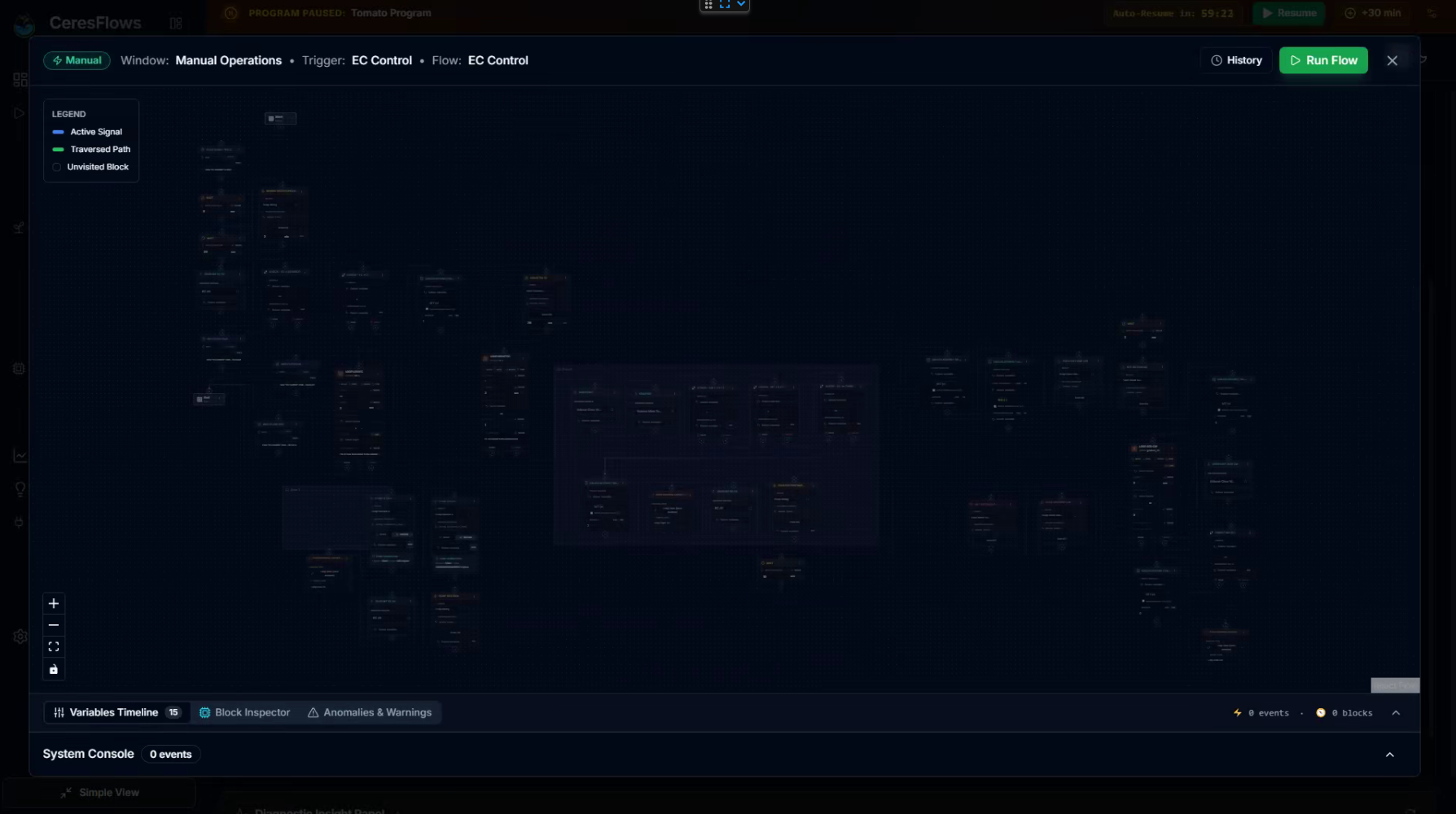
Every saved flow can be run in Visual Test Mode directly from the editor.
The execution is real — it reads your actual sensors, controls your actual hardware —
and you watch each block light up in sequence as it executes. The Flow Health panel on the right
updates live: which block is running, what values the variables hold at each step.
This is how you build confidence before a flow goes into production. You test once, watch it work,
fix what's wrong — and only then assign it to a live program.
The system distinguishes between two flow states:
Valid ✅ — All paths connected, all blocks configured, Start-to-End reachable. Ready for use
in a live automation program.
Draft 📝 — Has unresolved errors (disconnected blocks, missing configuration). Saved,
visible, but cannot be used in a running program until fixed.
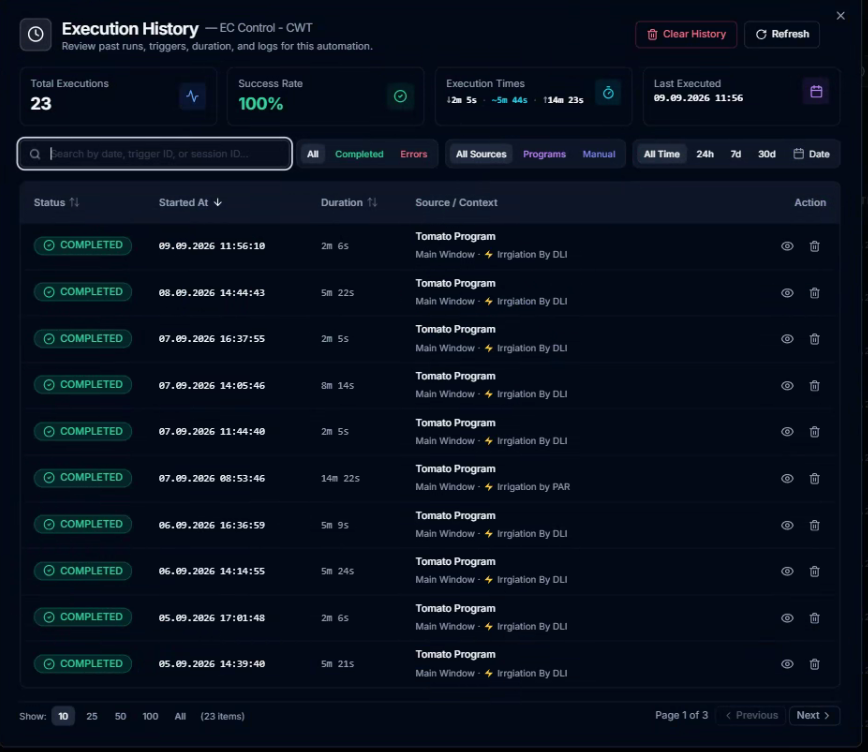
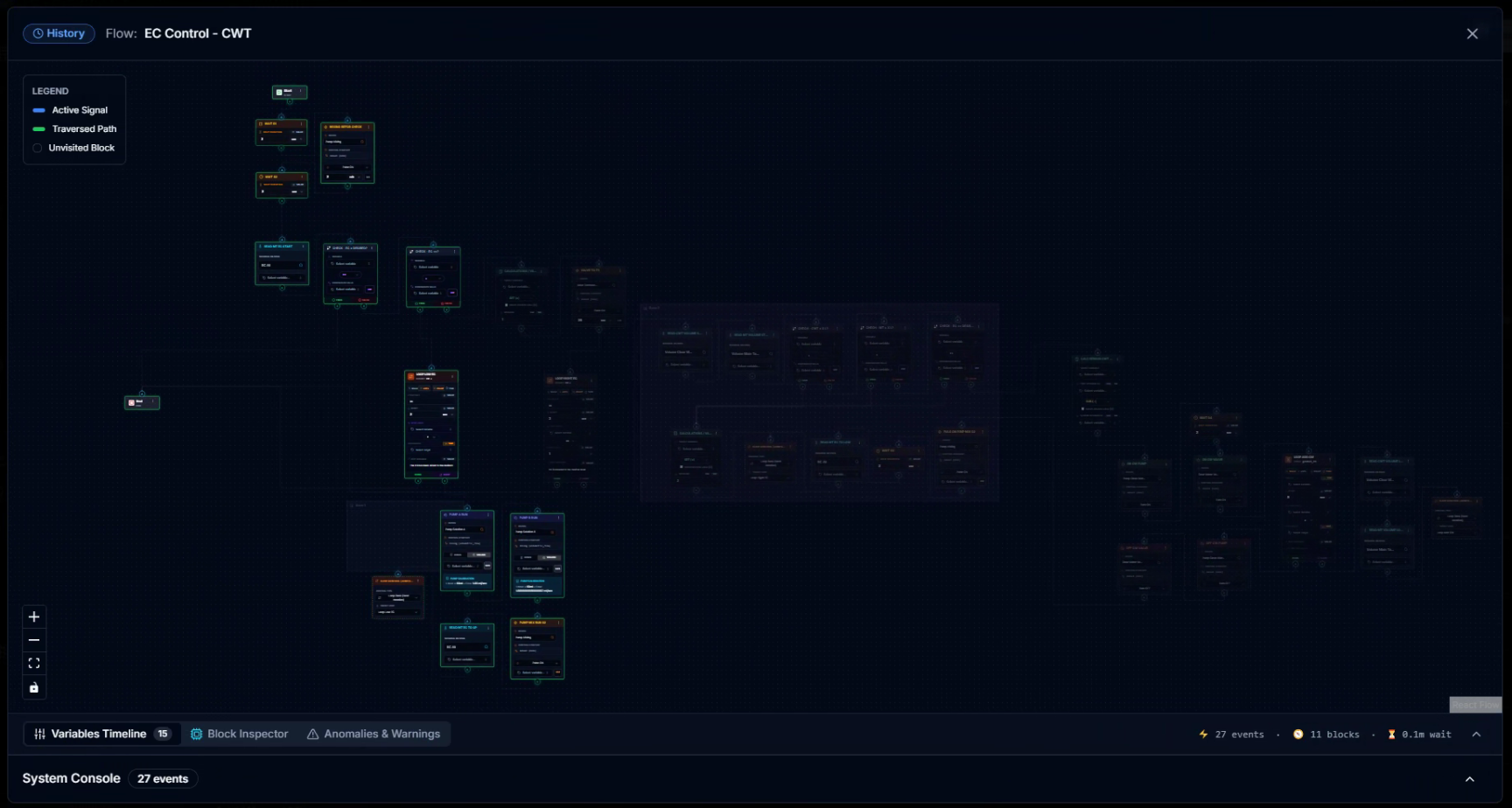
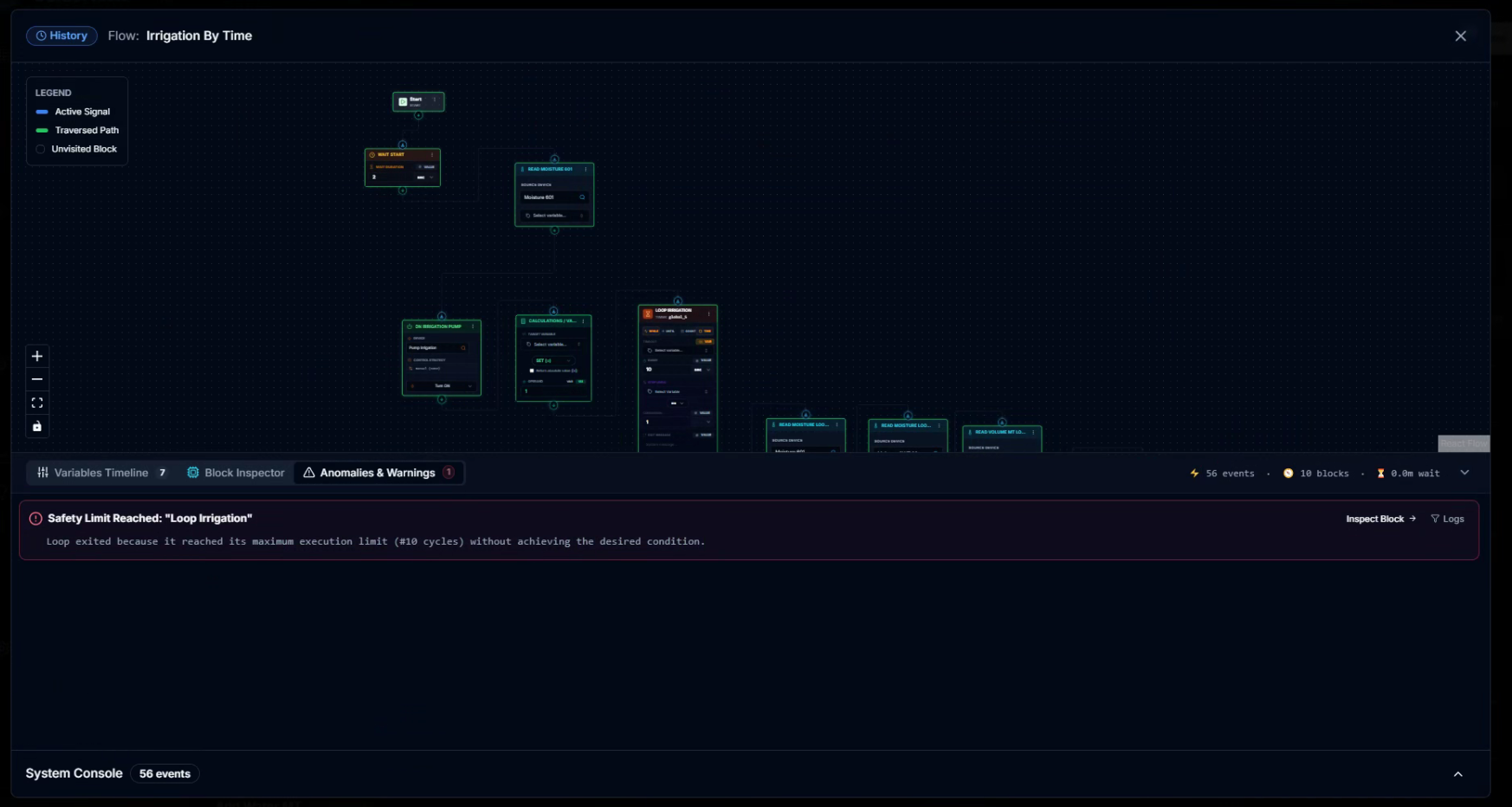
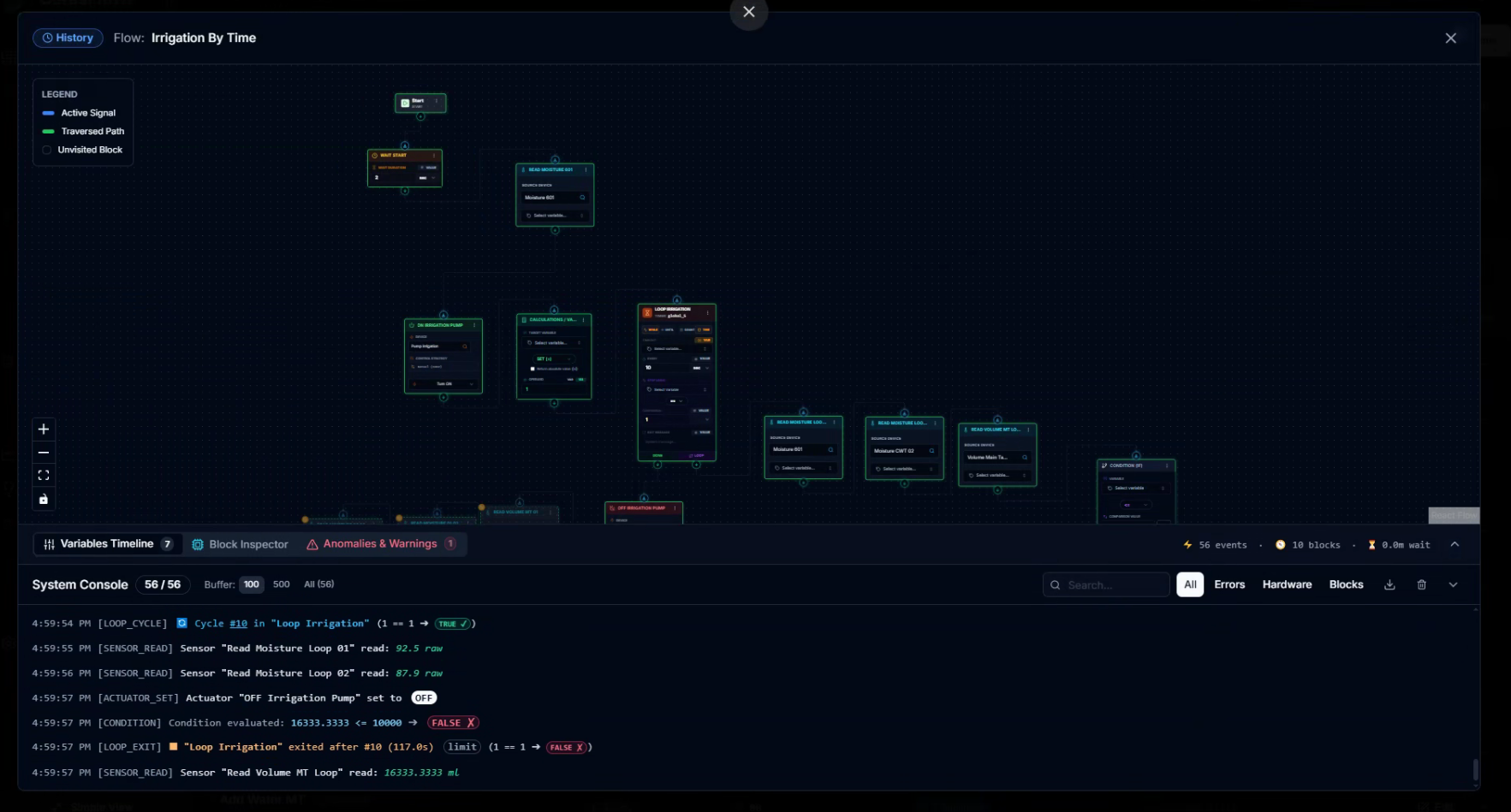
Execution History — Every Run, Recorded
Every time a flow runs — triggered by a program, by a manual test, or by a schedule —
CeresFlows records it. Open the Execution History for any flow and you see the complete
archive: when it ran, how long it took, whether it completed successfully, what triggered it,
and which time window it belonged to.
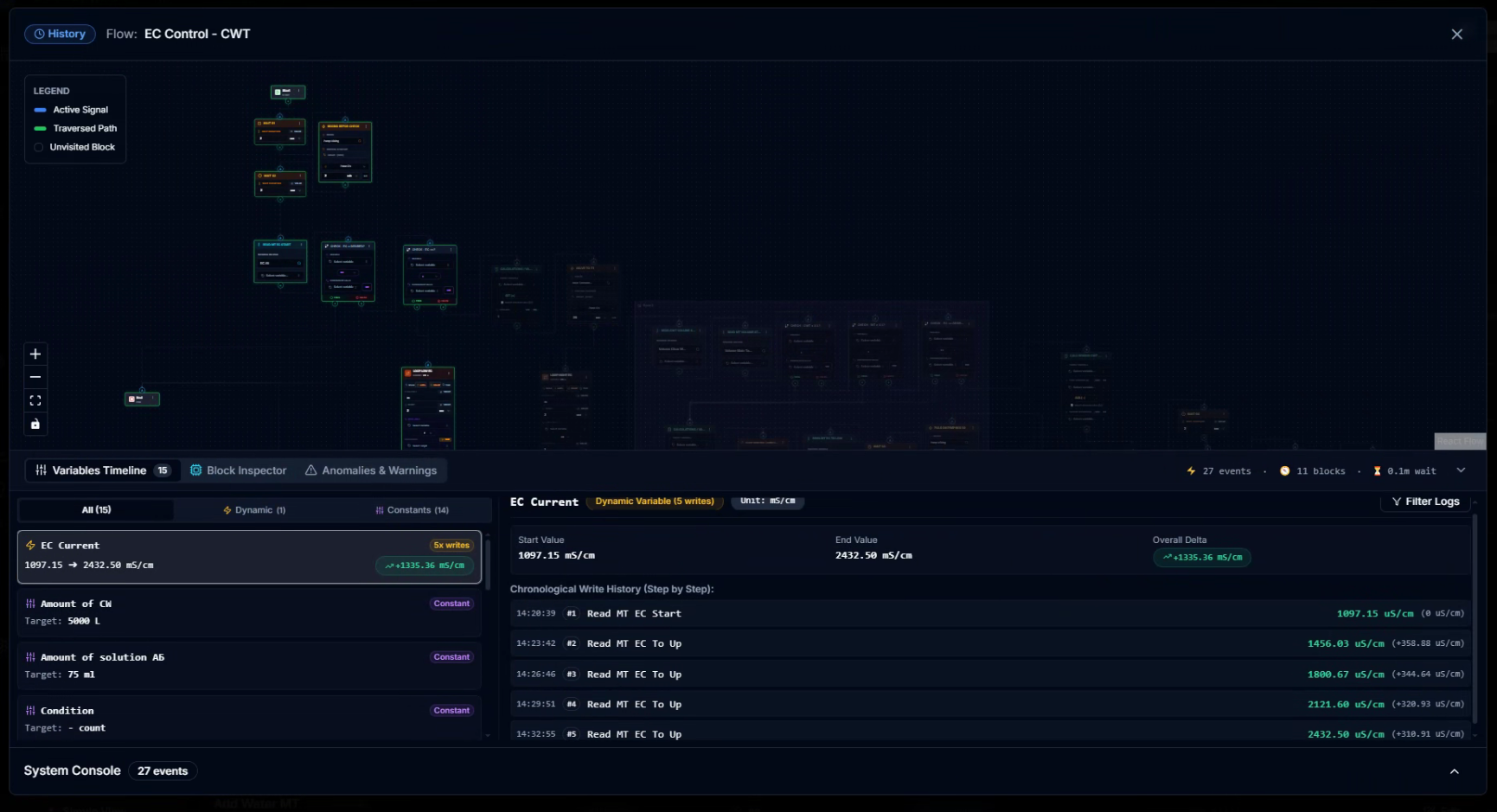
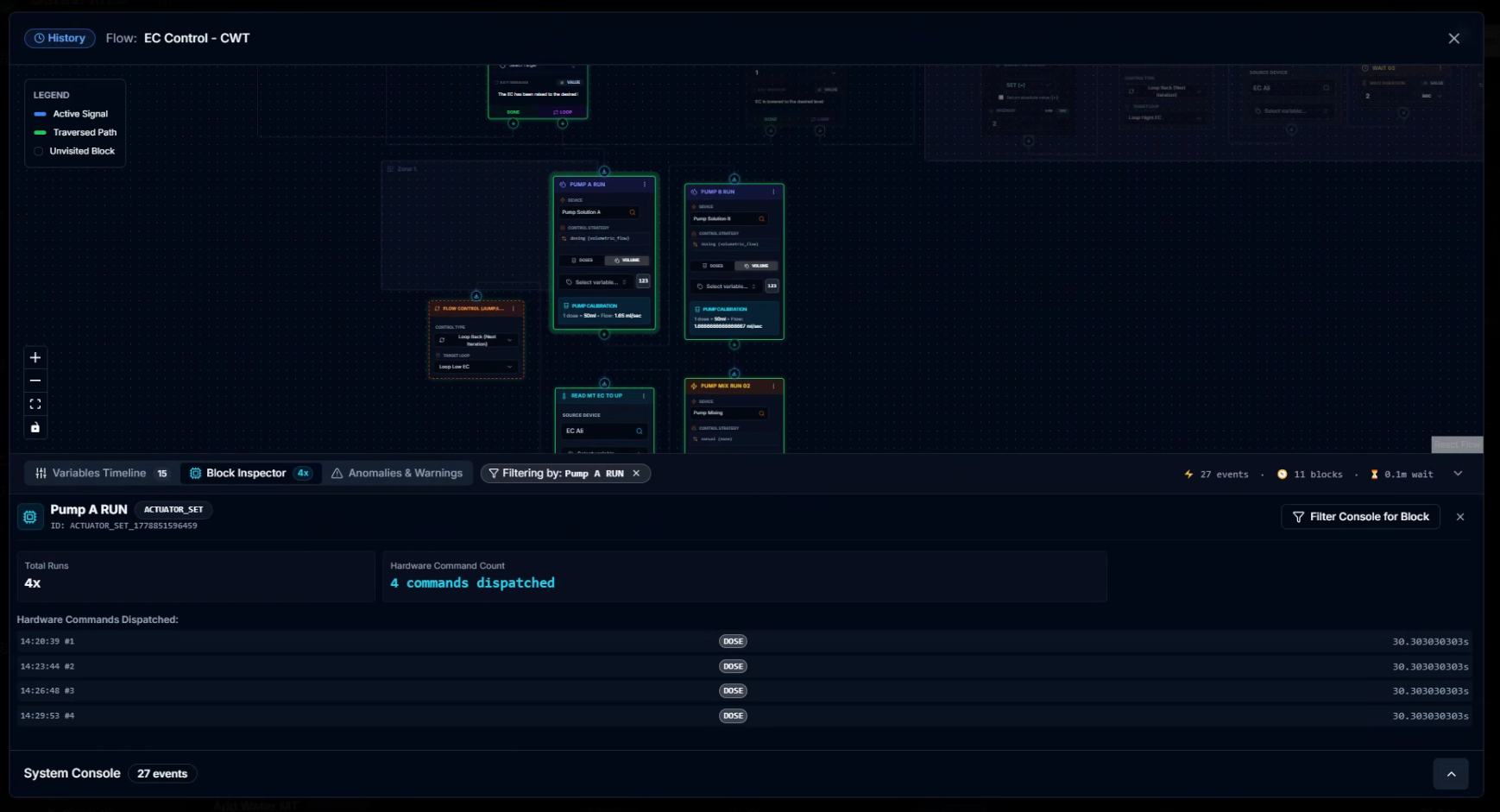
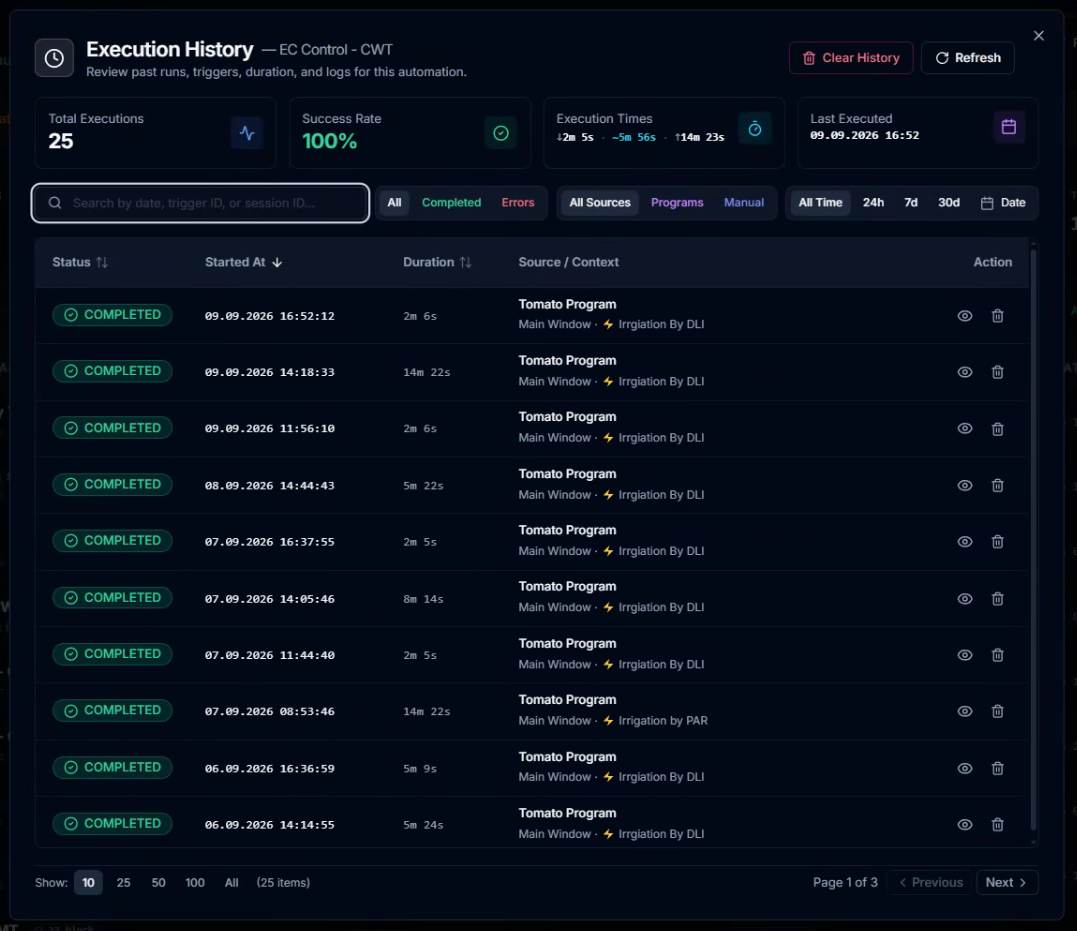
⏱️ Execution History — EC Control - CWT
● 100% SUCCESS RATE
🔍Click to inspect in Fullscreen
The summary header shows at a glance: total executions, success rate,
and min / average / max execution times. Below it, the full list shows every run —
sortable and filterable by date range, status (completed/error), and source (program-triggered vs.
manual). Each entry shows which program, which time window, and which trigger initiated the run.
Over time, this becomes an operational record of your automation. You can see how pH correction
duration varies across the season, spot runs that took unusually long, and compare performance
across weeks. Not just automation — accountable automation.
The Only Limit Is Imagination
A flow can be three blocks long — read, decide, act. Or it can be a complex multi-loop process
with twenty blocks, dynamic values, mathematical calculations, and nested condition trees.
Flows can call other flows. A master "Morning Routine" flow can trigger a pH check flow,
then an EC dosing flow, then an irrigation flow — each one focused, each one testable independently,
all of them orchestrated from a single starting point.
Flows can be organized into named Zones on the canvas — color-coded regions that
group related blocks visually without affecting logic. A large flow becomes readable at a glance
when its sections are labeled "pH Correction", "EC Adjustment", and "Irrigation Sequence".
The system keeps growing — new block types are added as real grower needs surface them. The
Dynamic Value block did not exist in the early versions. It was added because real-world dosing
logic demanded it. Every new block in the palette represents a problem that someone,
somewhere, actually needed to solve.
A flow is not a program written for you by someone else.
It is the logic you design, shaped by your crop, your hardware, your preferences.
The blocks provide the vocabulary. You write the sentence.
The only genuine constraint on what you can automate is what you can imagine.
Chapter 12
Programs & Time Windows
You have built your flows — individual recipes for each task. Now it is time to tell
the system when to run them, why, and under what conditions. This is the Program
Builder.
Template and Program — Two States of the Same Thing
In CeresFlows, the terms Template and Program refer to the same object at
different points in its lifecycle.
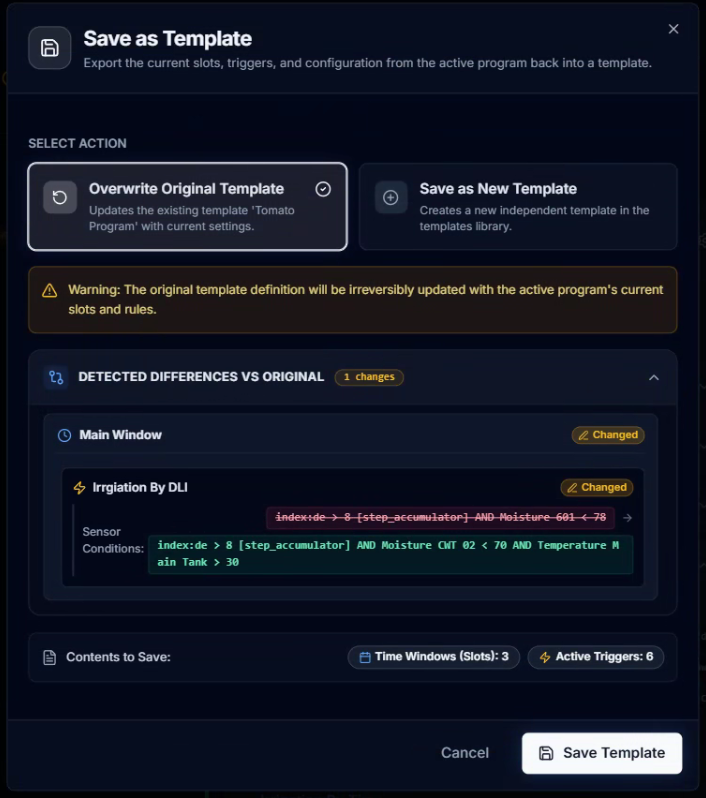
A Template is the blueprint — your written plan: which flows to run, when, and why.
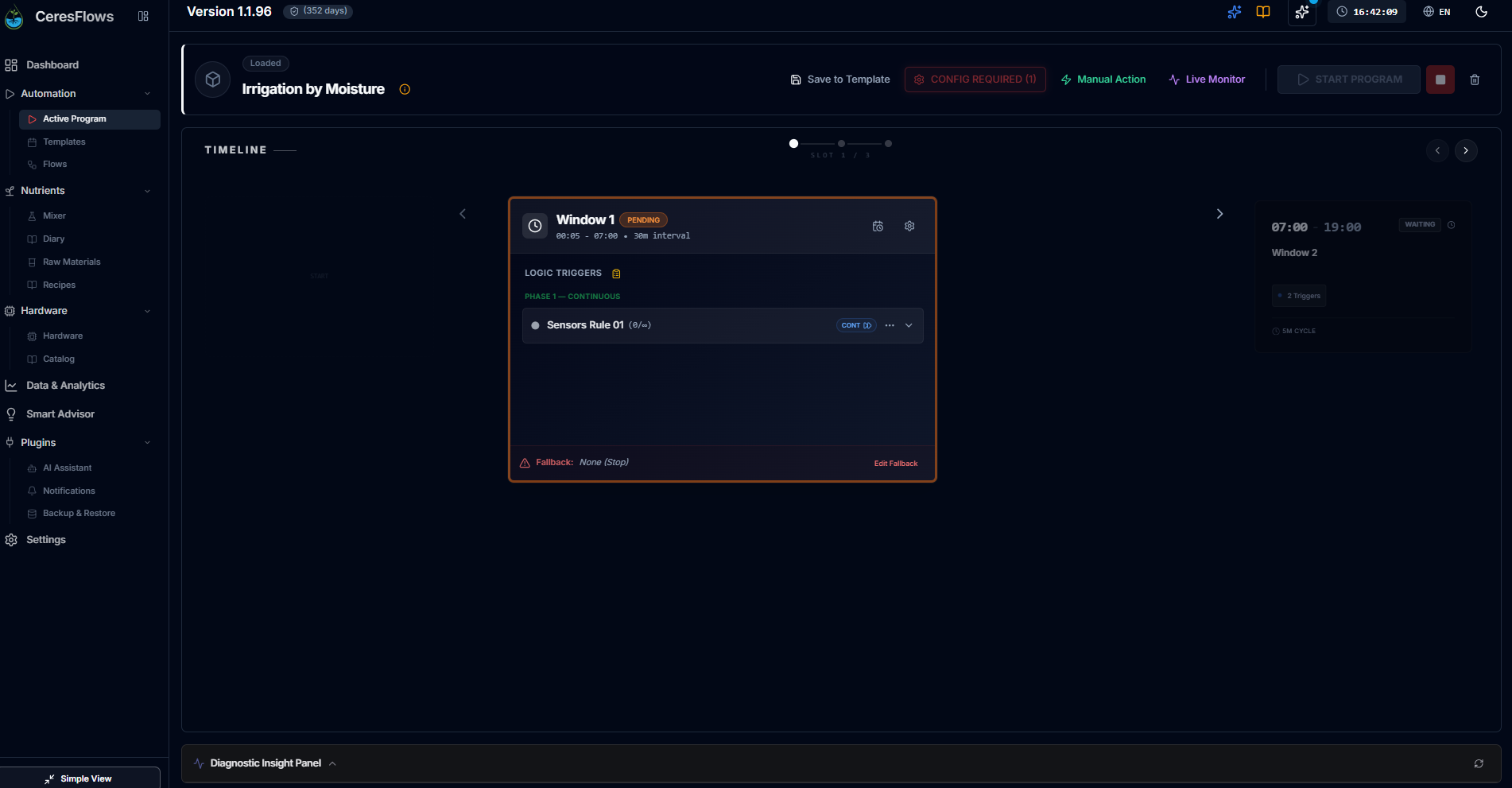
A Program is what that blueprint becomes the moment it is activated and starts executing.
The template sits in your library, editable, waiting. The program is live, running, doing work.
This distinction matters practically. You can have twelve templates in your library and only one active program
at a time. You can edit a template while a program is running — the running program is protected by a
frozen snapshot taken at the moment of activation. Your edits update the library template but
do not interrupt the live session until the next time you load and start it. Creation is separate from
execution. This chapter covers creation. Execution — the live dashboard, real-time monitoring, and active window
management — is covered in Chapter 14.
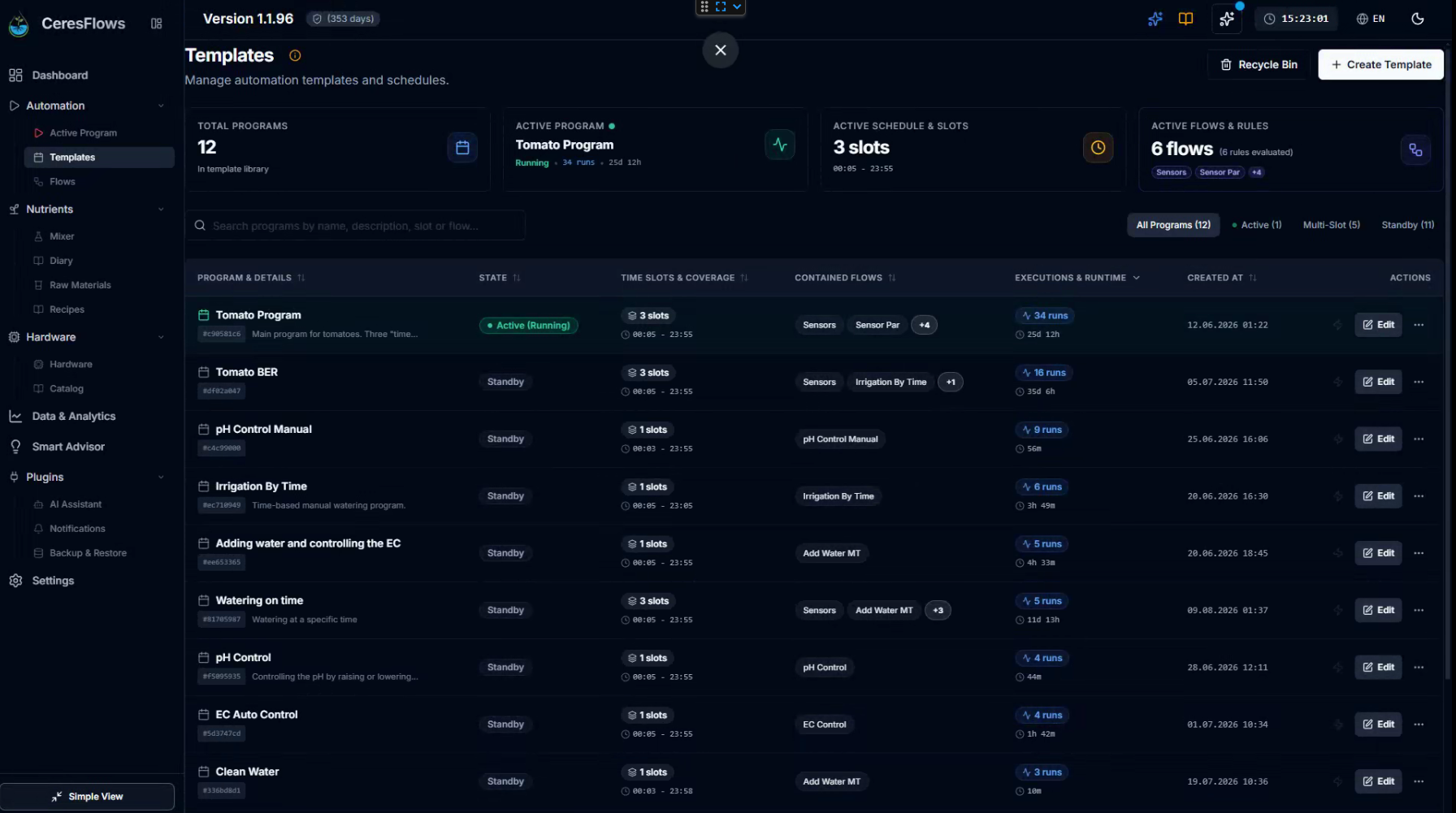
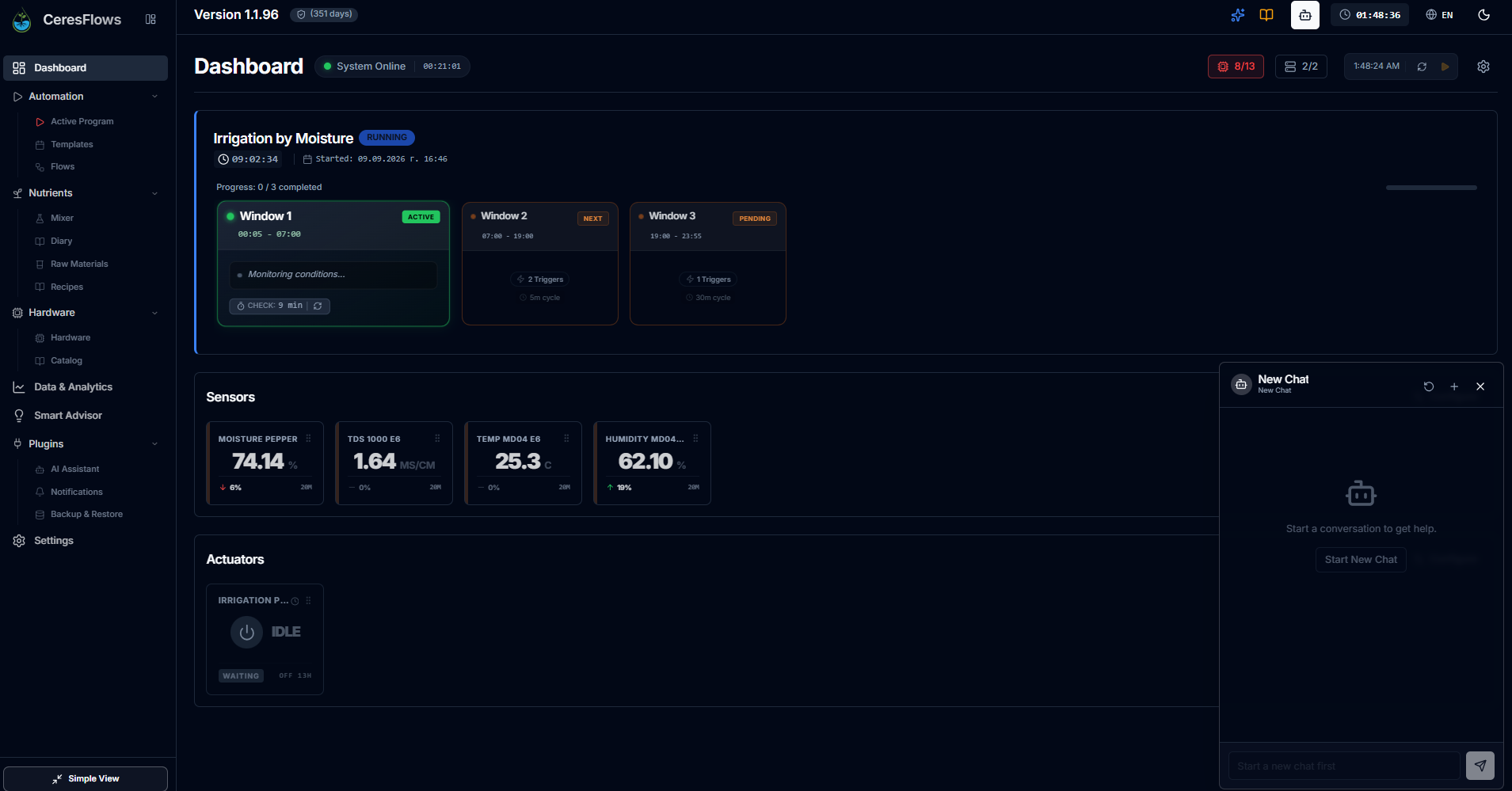
The Templates page gives you an instant overview of your entire library: how many slots each template uses,
which flows it contains, how many times it has been executed, and its total runtime. A dedicated row at the top
shows the currently active program — the one actually running your greenhouse right now.
The Hierarchy — How a Template Is Built
Every template is built from three nested layers. Understanding this structure is the key to understanding
everything else in this chapter.
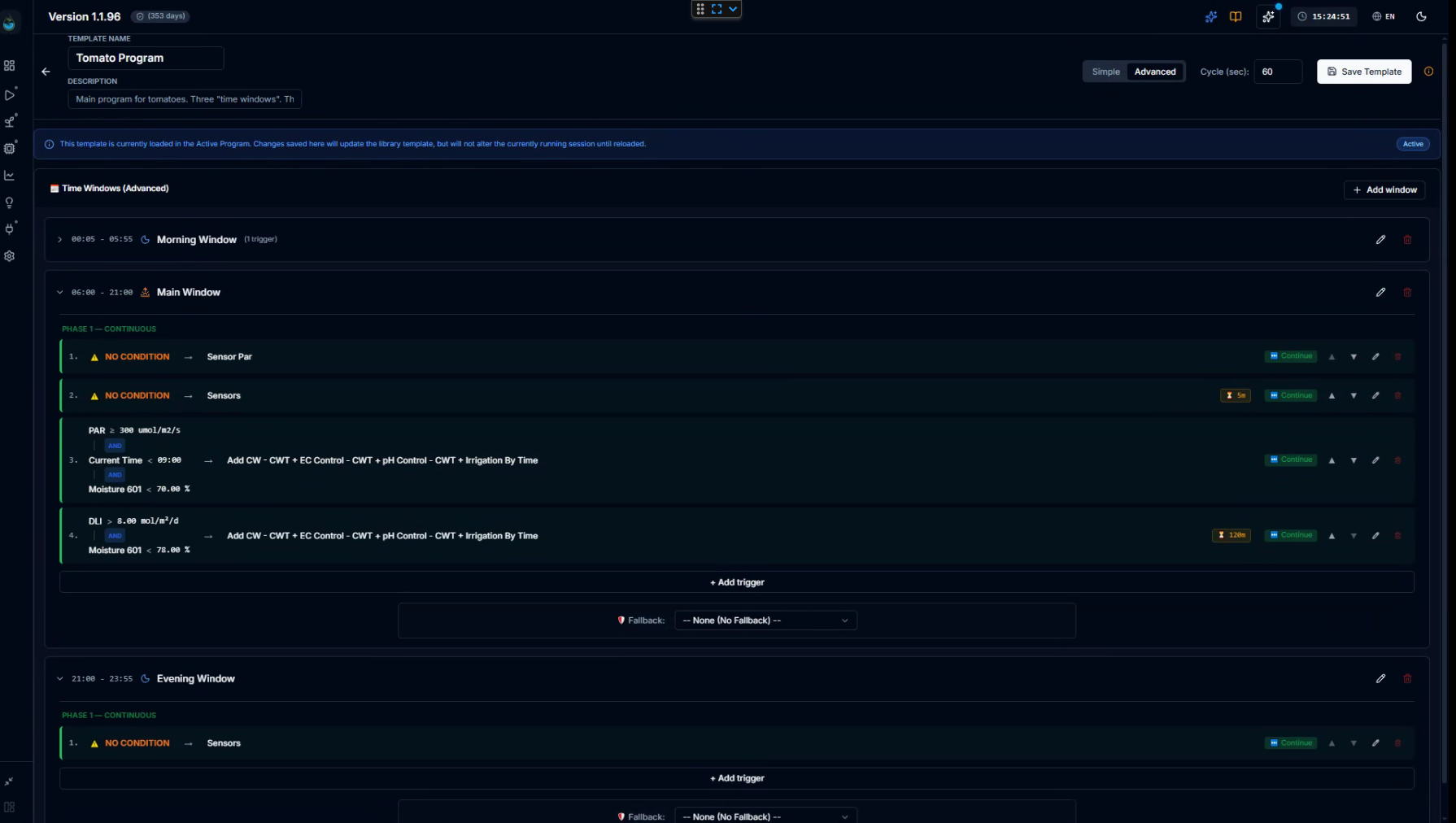
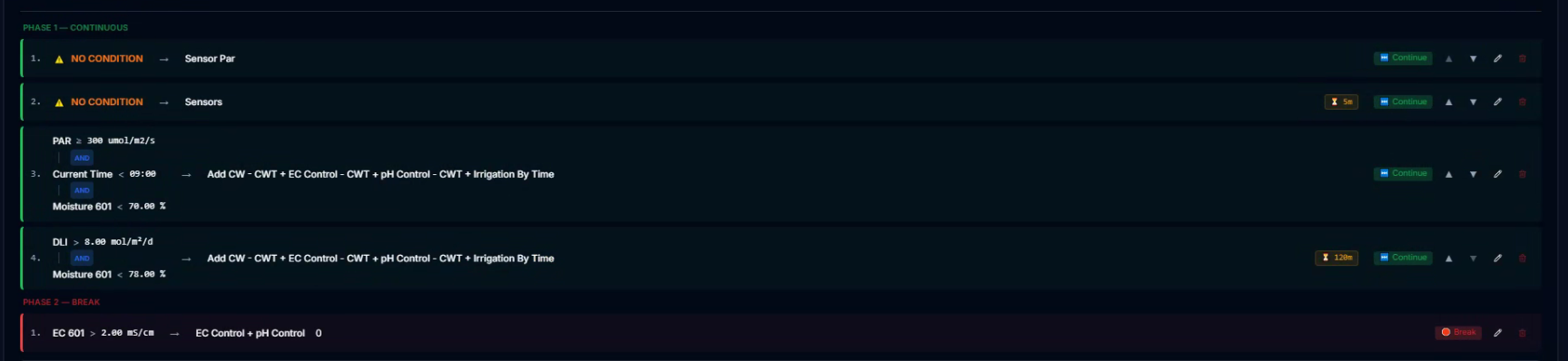
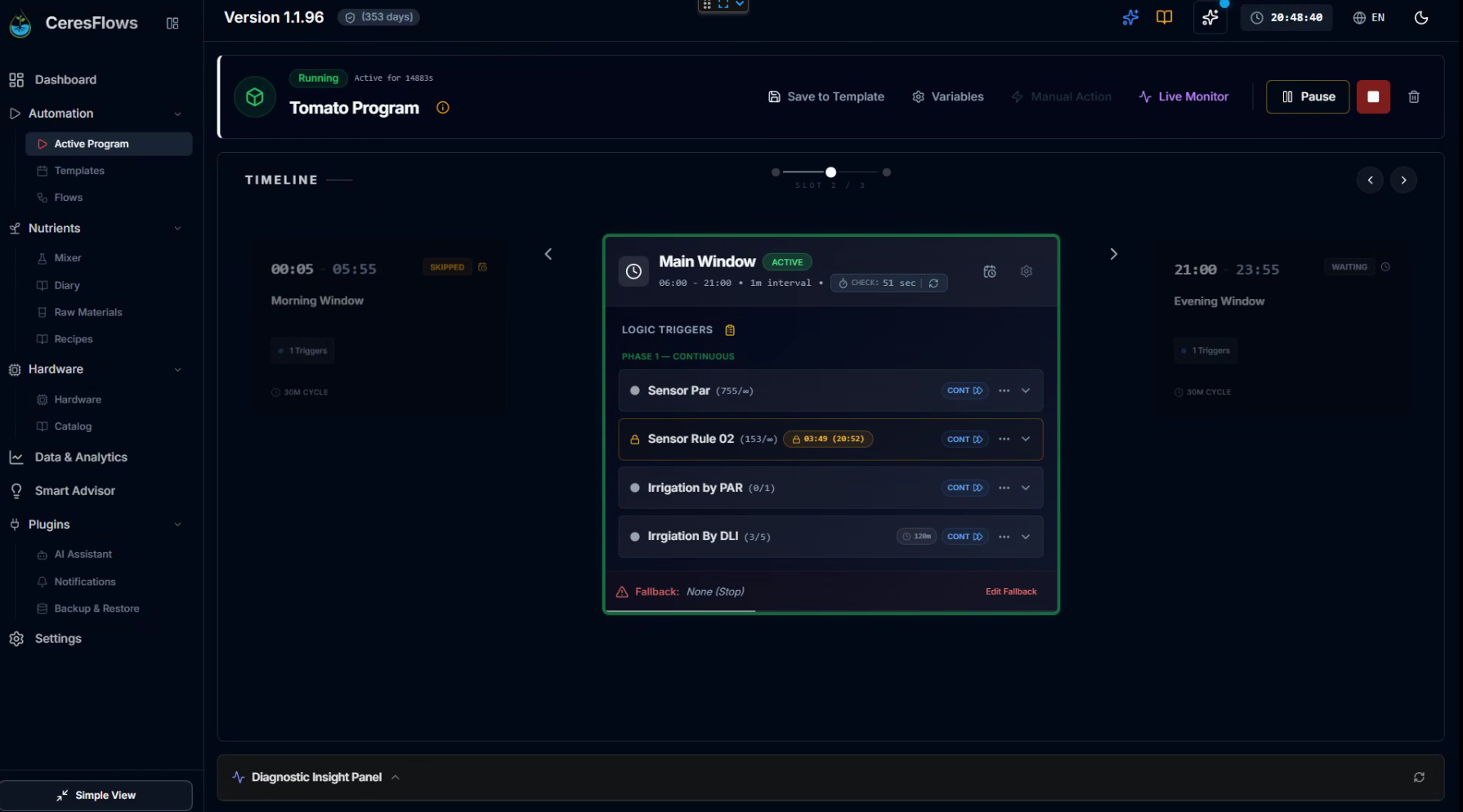
Template — "Tomato
Program"
├── Time Window: "Morning Window" (00:05 – 06:00)
│ └── Trigger: "Sensors" → Run Sensors flow
│
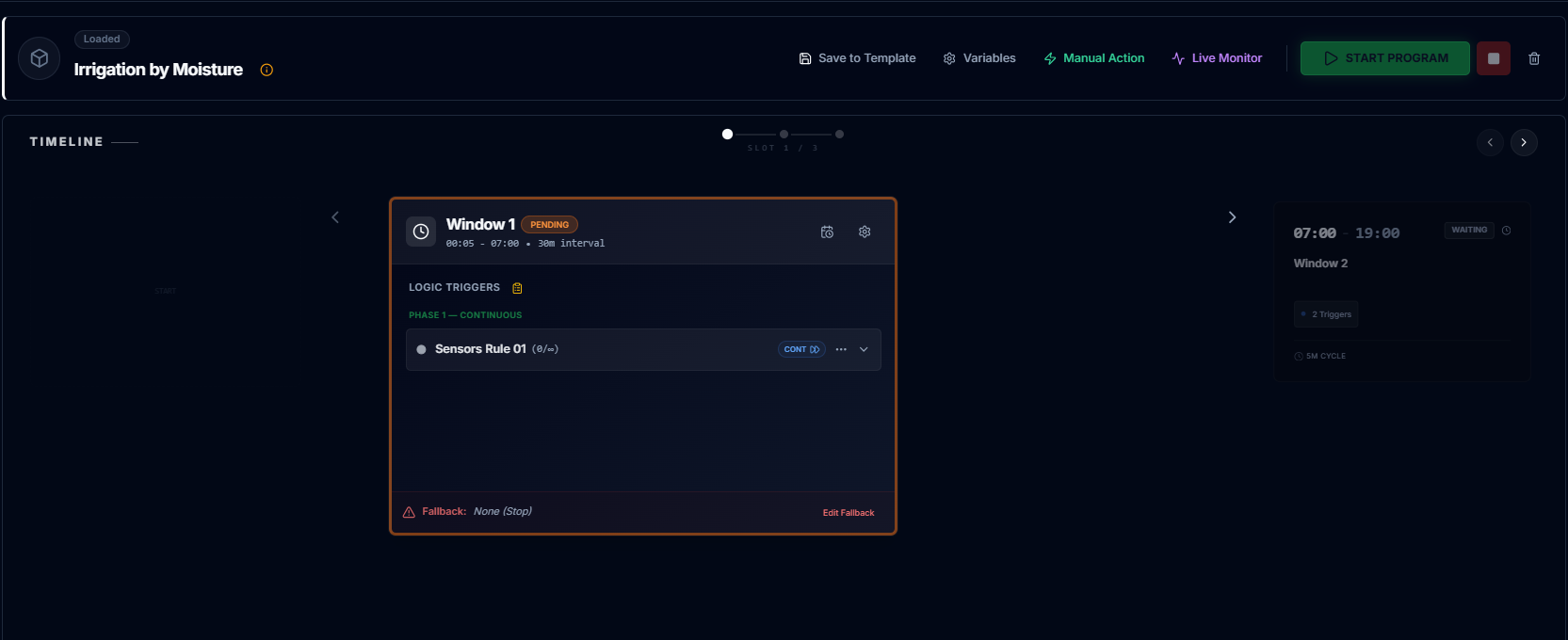
├── Time Window: "Main Window" (06:00 – 21:00) ← check every 1 min
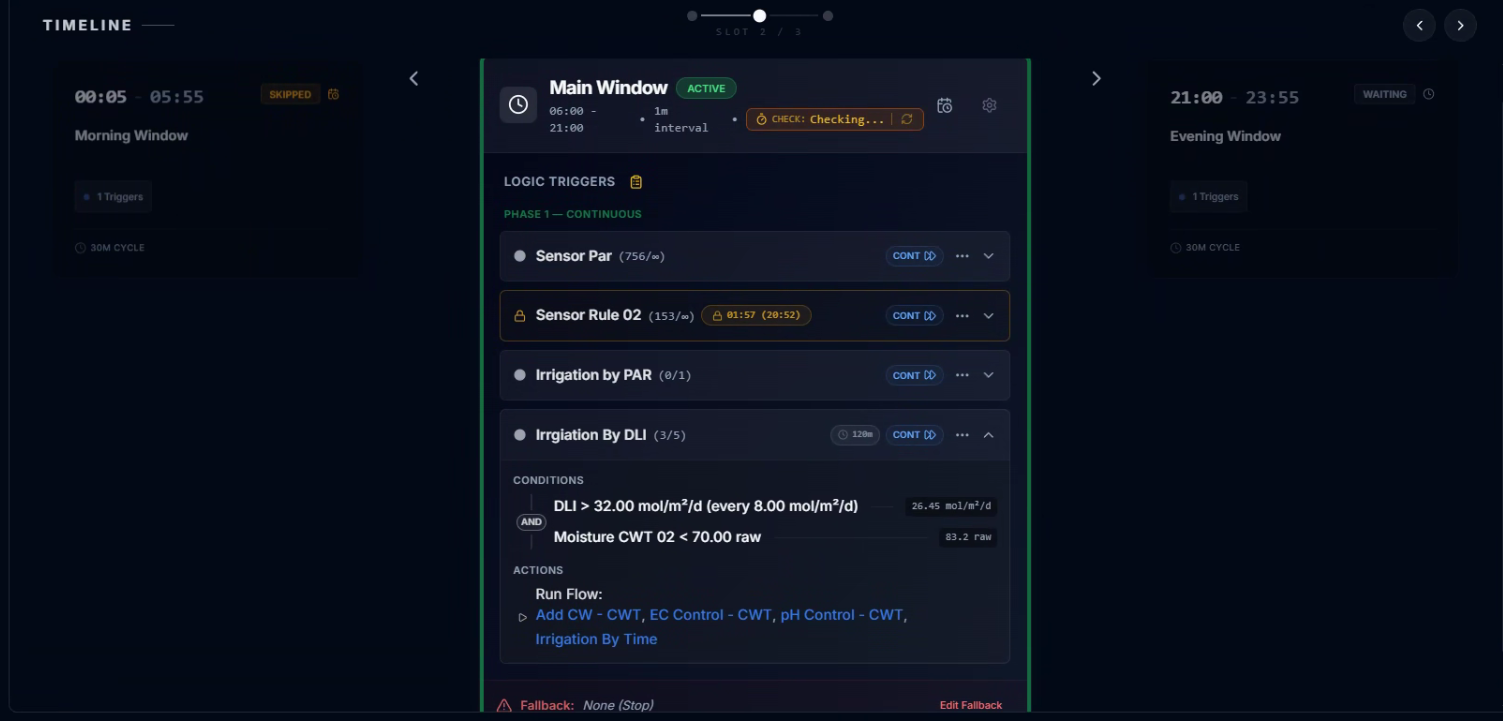
│ ├── Trigger 1: NO CONDITION → Run Sensor Par flow [Continue]
│ ├── Trigger 2: NO CONDITION → Run Sensors flow [Continue]
│ ├── Trigger 3: PAR < 380 AND Time < 09:00 AND Moisture < 70%
│ │ → Add CW + EC Control + pH Control + Irrigation [Continue]
│ └── Trigger 4: DLI condition → Add CW + EC Control + pH Control + Irrigation
[Break]
│ Fallback → "Sensor Par" trigger (if no Break fired by 21:00)
│
└── Time Window: "Evening Window" (21:00 – 23:55)
└── Trigger: "Sensors" → Run Sensors flow
🕐
Time Window
A scheduled block of the day. Defines when the system is active and checking. Can span any hours —
a single window can cover the entire day or a window may be as short as 30 minutes. A template can have one
window or many.
⚡
Trigger
A rule inside a window. Defines what to check and what to do. Each trigger can have
conditions (sensor values, time, calendar) or run unconditionally on every check cycle.
▶️
Action (Flow)
The actual work. One trigger can fire one or several flows in sequence — water addition, EC adjustment, pH
correction, irrigation — all chained in order, all from a single trigger.
Simple Mode — A Schedule in Minutes
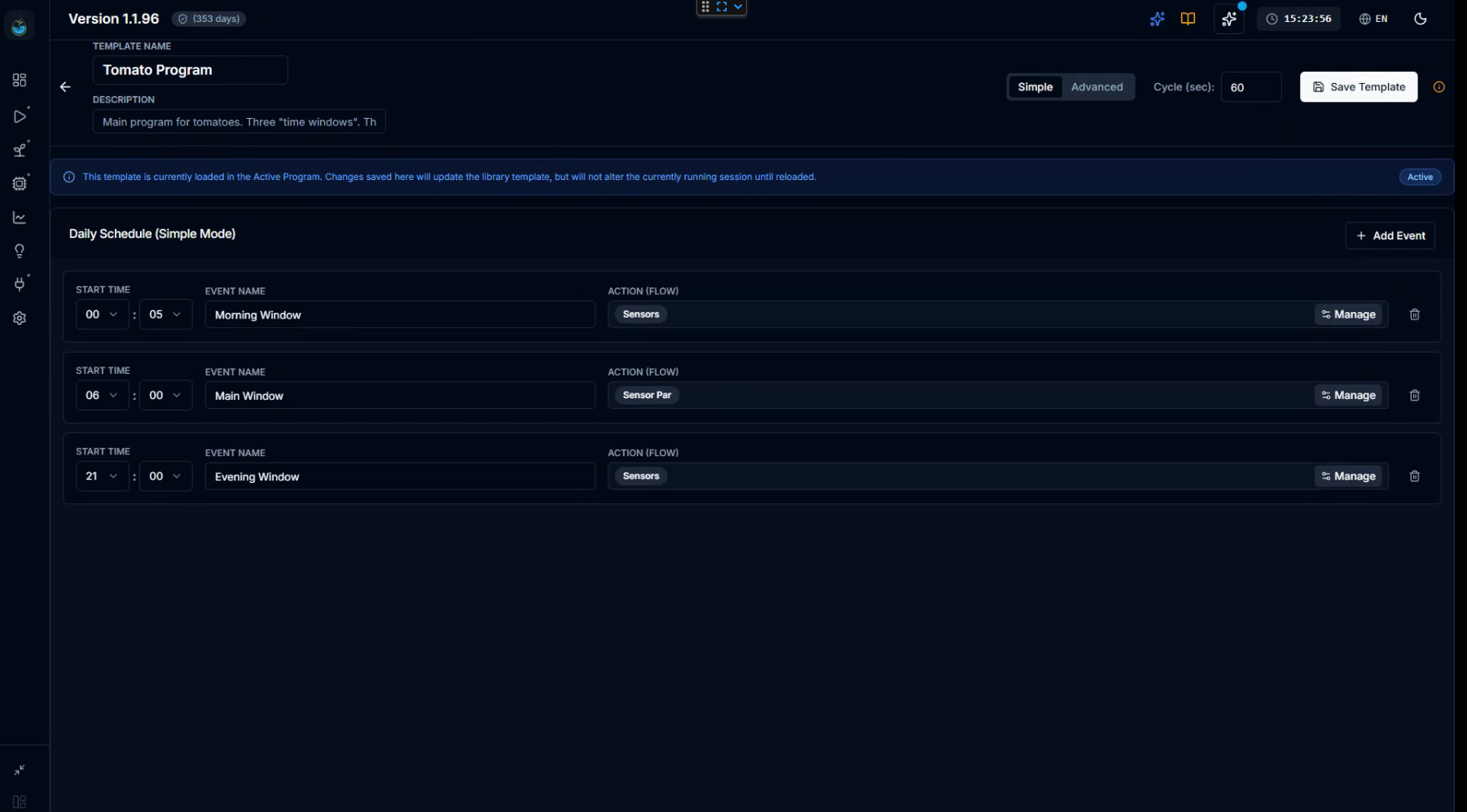
For growers who just need a time-based schedule — run this flow at 06:00, run that flow at 14:00 — CeresFlows
offers Simple Mode. No conditions, no trigger logic. Just events with start times and flows.
Each event has three fields: a Start Time, a descriptive name, and the
flow to execute. Click Add Event and the system suggests the next logical time based
on your configured Cycle interval. Build your daily routine in a few clicks.
Simple Mode is not a reduced version of the system. It is the same engine under the hood — time windows,
triggers, scheduler — just presented without the complexity you don't yet need. Switch to Advanced Mode at any
time, and your existing events are preserved and expanded into full trigger structures.
Advanced Mode — Full Orchestration
Advanced Mode gives you complete control over the daily automation logic. Here you work directly with Time
Windows and Triggers in their full form.
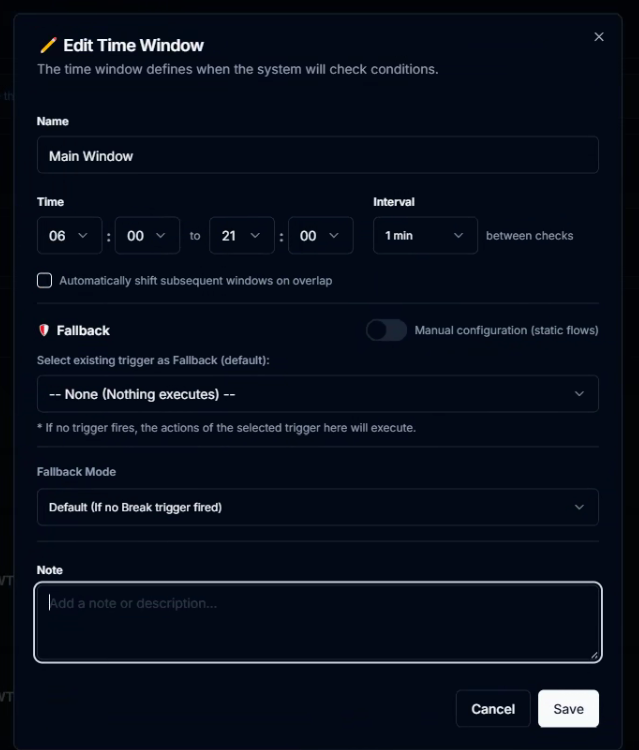
Time Windows — Scheduling the Day
A time window defines the hours during which the system is actively monitoring and evaluating triggers. Outside
a window's hours, the scheduler is idle for that window — no checks, no actions. Inside the window, the
scheduler wakes up at every Check Interval and evaluates all triggers.
SettingWhat It Does
Name"Morning Window", "Main Window" — identifies the window in logs and the
active dashboard
Start / End TimeHH:MM format. The window is active from start to end. An option to
auto-shift subsequent windows prevents overlap.
Check IntervalHow often (1 min, 5 min, 30 min…) the system evaluates triggers inside this
window. The scheduler auto-shortens the last interval if needed so the window closes precisely on
time.
Data SourceCached — use the last known
sensor reading (fast). Live — physically query the sensor at
each check (precise, slightly slower). Use Live for pH and EC, Cached for temperature and humidity.
Triggers — The Rules Inside a Window
A trigger is a conditional rule. It defines what the system checks, and what it does if the check passes. A time
window can have one trigger or ten — they are evaluated in sequence on every check cycle.
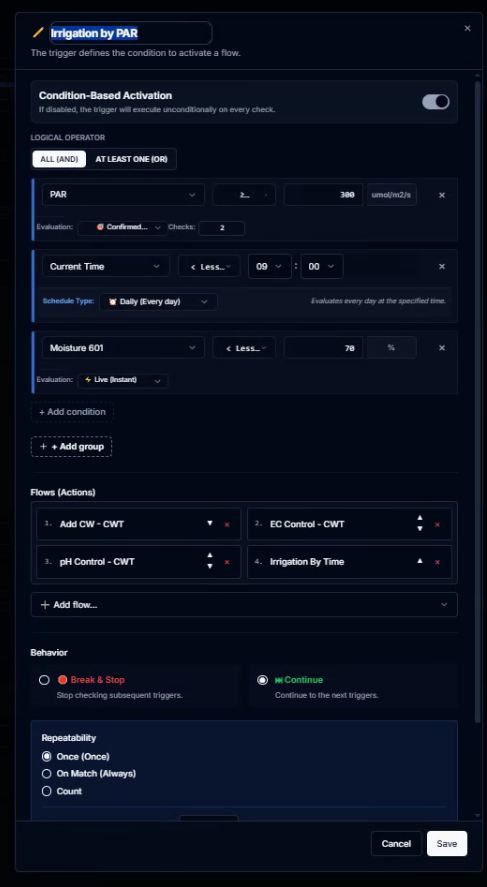
The trigger form is where the real intelligence lives. Let's walk through each component using the example from
the screenshots — a real irrigation trigger from a running tomato program.
Condition-Based ActivationToggle
When ON, the trigger only fires if the defined
conditions are met. When OFF, the trigger fires unconditionally on every check cycle —
useful for data collection flows that always need to run, like a sensor reading every 5 minutes.
Conditions — What the System Checks
Each condition compares a sensor or a time value against a
threshold. Conditions can be combined with ALL (AND) — all must be true — or AT
LEAST ONE (OR) — any one is enough. Multiple condition groups can be added, evaluated as OR
between groups.
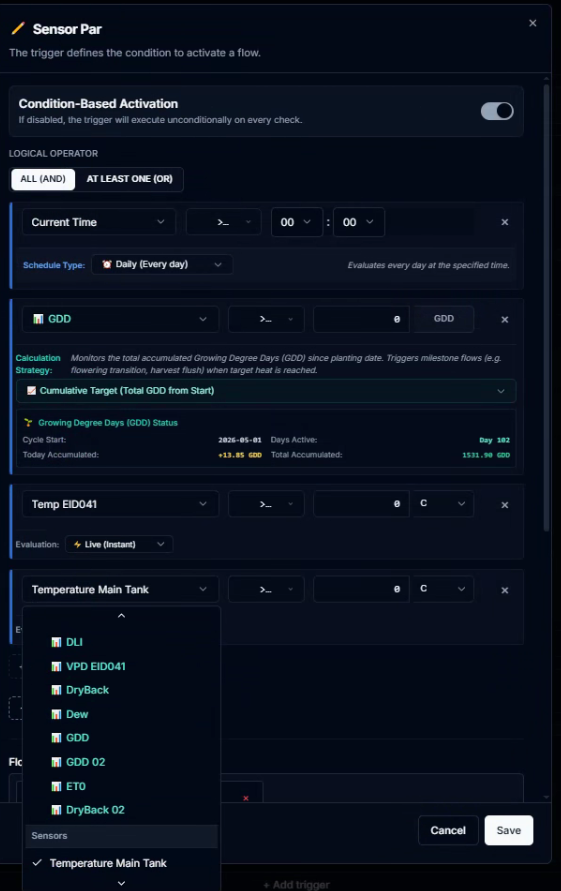
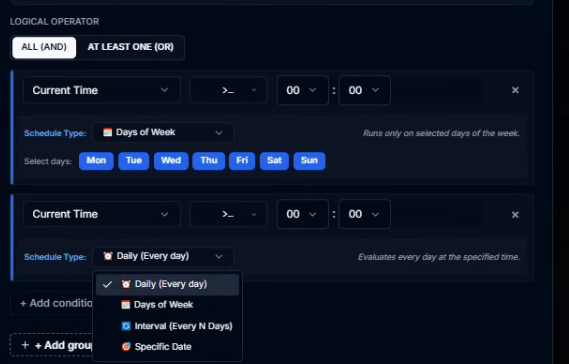
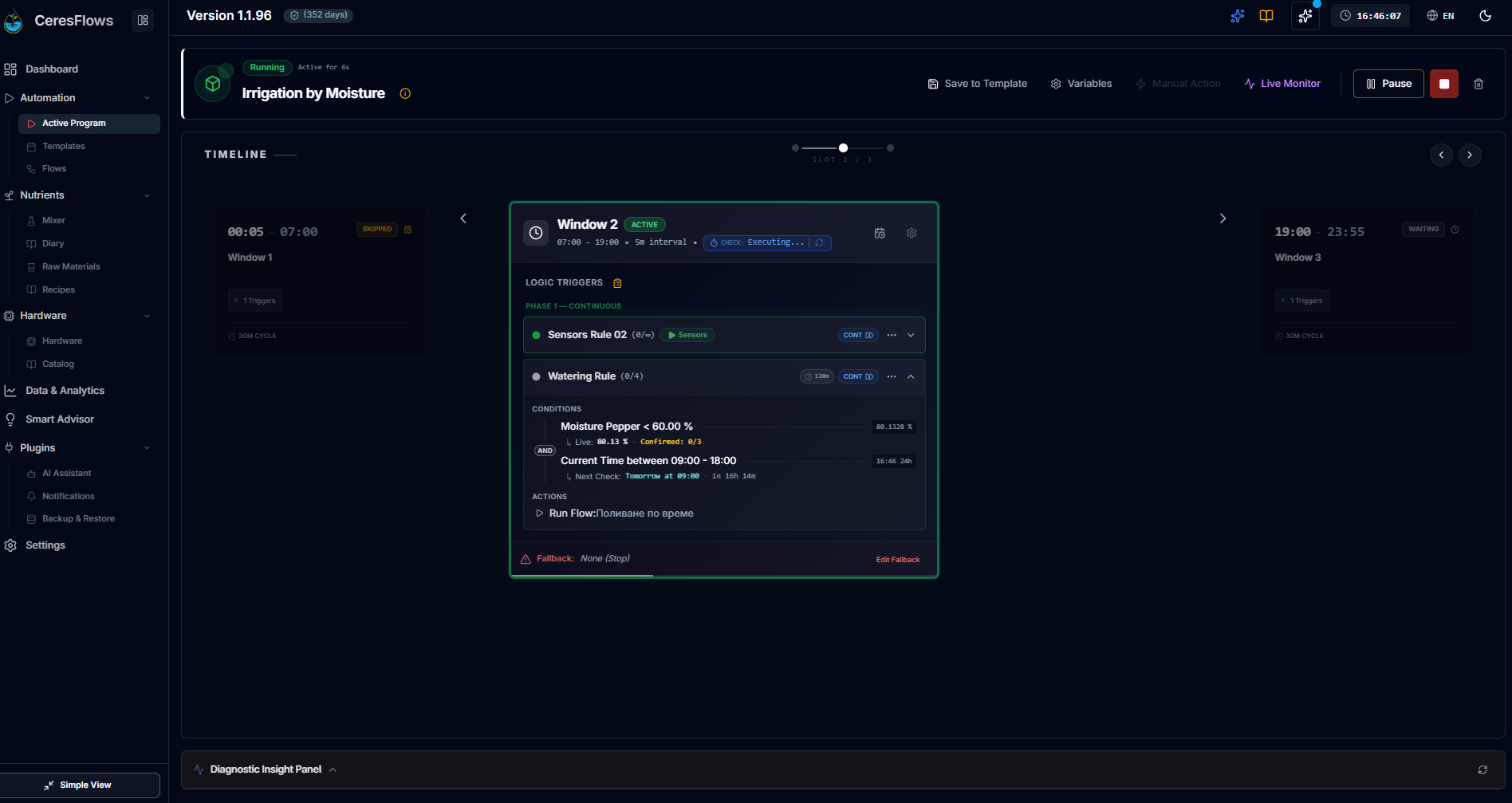
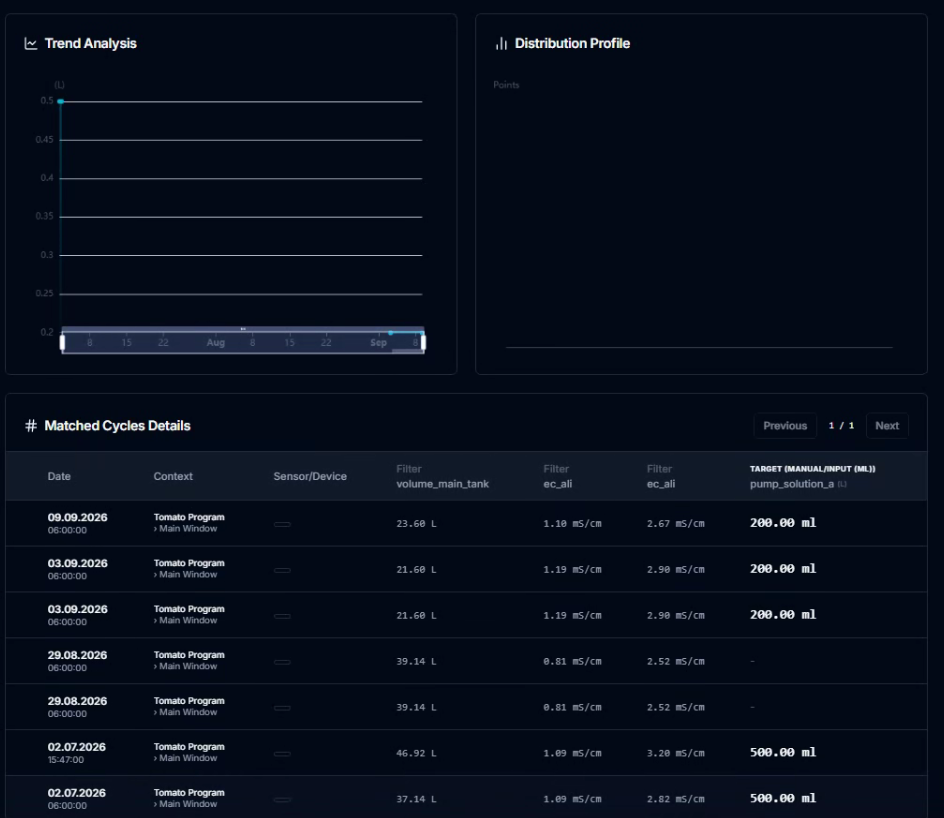
PAR < 380 umol/m²/s (Confirmed: 2 consecutive checks) Current Time < 09:00 (Schedule: Daily, every day) Moisture 601 < 70% (Evaluation: Live — instant reading)
Sensor conditions support operators: ><>=<==≠between.
Time conditions add schedule types: Daily, Days of Week, Every N Days,
Specific Date.
Flows (Actions) — What Happens When It Fires
Assign one or several flows. They execute in sequence, one after
another. A single trigger can chain an entire work order: add clean water → adjust EC → correct pH →
irrigate.
1. Add CW – CWT2. EC Control – CWT3. pH Control – CWT4. Irrigation By Time
Behavior — What Happens After
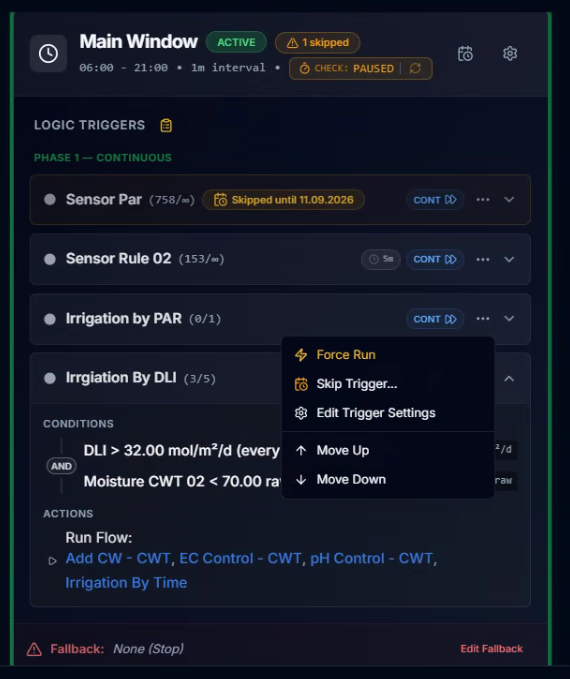
🔴 Break &
StopAfter this trigger fires, the window closes. No more
triggers are evaluated until the next window period. Use for decisive, exclusive actions.
🟢 ContinueAfter this trigger fires, the window remains active. The
next check interval proceeds normally. Use for monitoring flows and non-exclusive actions.
A single window can mix both behaviors:
continuous triggers collect sensor data every cycle while a Break trigger waits for the decisive condition
and closes the window when it fires.
Repeatability & Cooldown (Pacing)
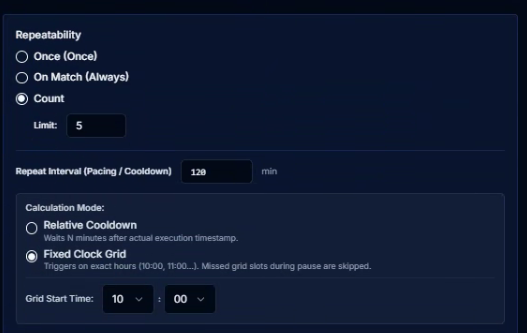
OnceThe trigger fires only the first time conditions are met during this
window. After that, it is marked done for the day and skipped on subsequent checks.
AlwaysFires every check cycle as long as conditions are met. Combined with a
Cooldown (e.g. 8 minutes), this prevents the trigger from running more often than the pacing interval,
even if conditions are continuously true.
CountFires up to N times per window period. After reaching the limit, the
trigger is skipped for the rest of the day.
Fallback — The Safety Net
Every time window can define a Fallback: flows (or an existing trigger) that execute when the
window's time expires and no Break trigger has fired during the entire period.
The most intuitive way to configure a fallback is to point it at one of the window's own triggers. If the
"Irrigation by PAR" trigger fires during the day, the fallback is skipped — the job is done. If it never fires —
perhaps the PAR light was bright enough all morning and moisture stayed high — the window closes at 21:00 and
the fallback executes the same irrigation sequence regardless. The plants get watered. No conditions needed at
that point, no manual intervention.
Scenario A — Trigger Fires at 09:30
PAR drops, moisture falls below 70%, time is
before 09:00. Trigger fires. Irrigation runs. Window closes. Fallback
skipped — job already done.
Scenario B — Window Expires at 21:00
Good light day. Moisture stayed above 70% all
day. No Break trigger ever fired. At 21:00 — Fallback
executes. Irrigation runs. Plants watered regardless.
This pattern gives you the best of both worlds: intelligent, condition-driven automation when the data supports
it — and a guaranteed baseline action when it doesn't. You are never one dry night away from a failed crop just
because a sensor stayed in range.
🗓️ Programs & Time Windows — Interactive Orchestration Tour
▶ Watch on YouTube (Full HD)YouTube Official • Opens in New Tab
Variables — The Configuration Knobs
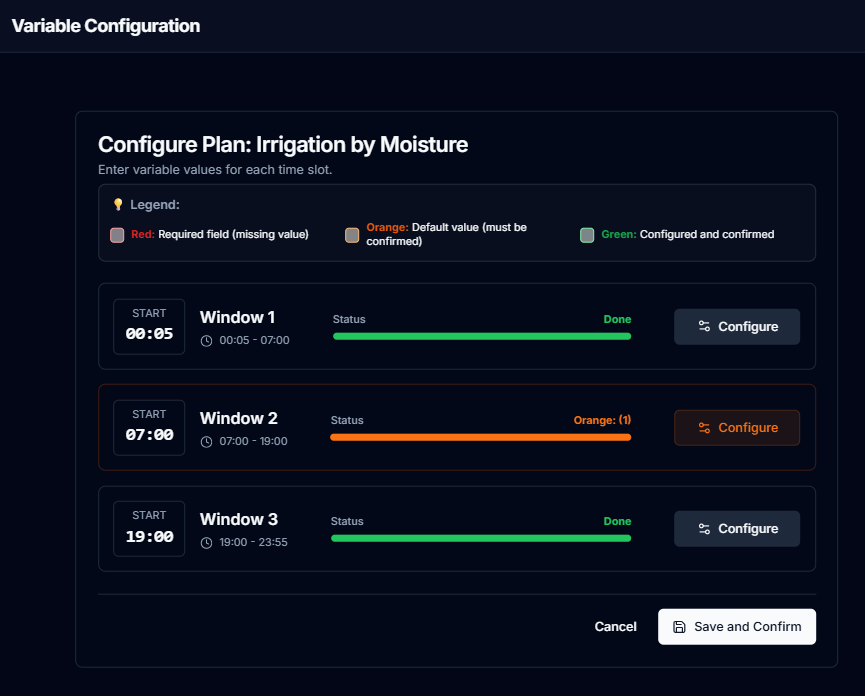
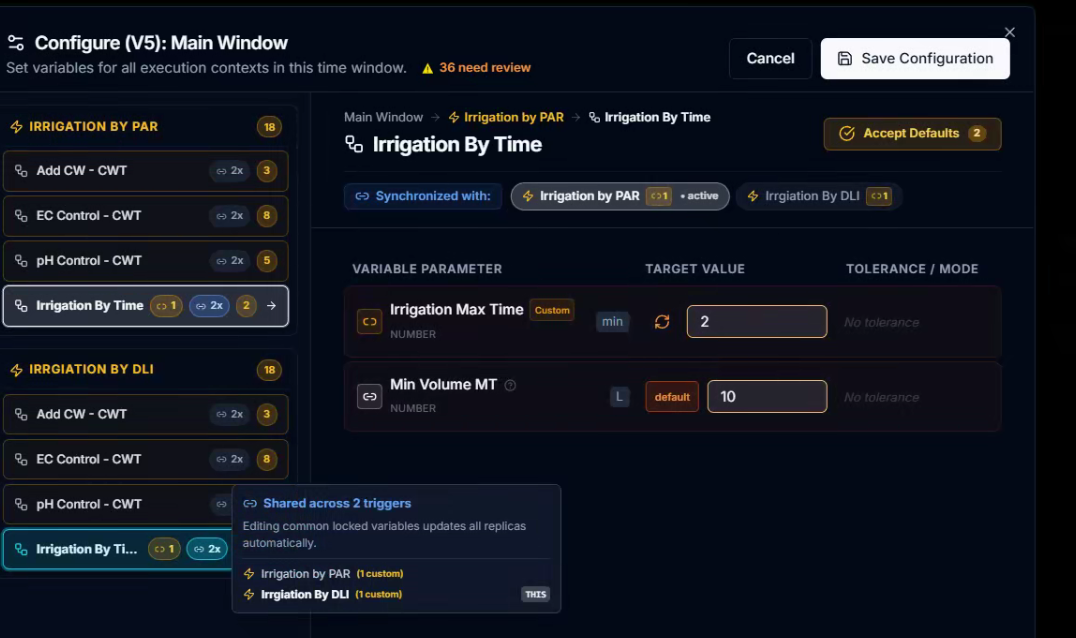
When you assign flows to triggers, CeresFlows automatically discovers all global variables used
by those flows. These become the adjustable parameters of your template — the knobs you turn without touching
the logic itself.
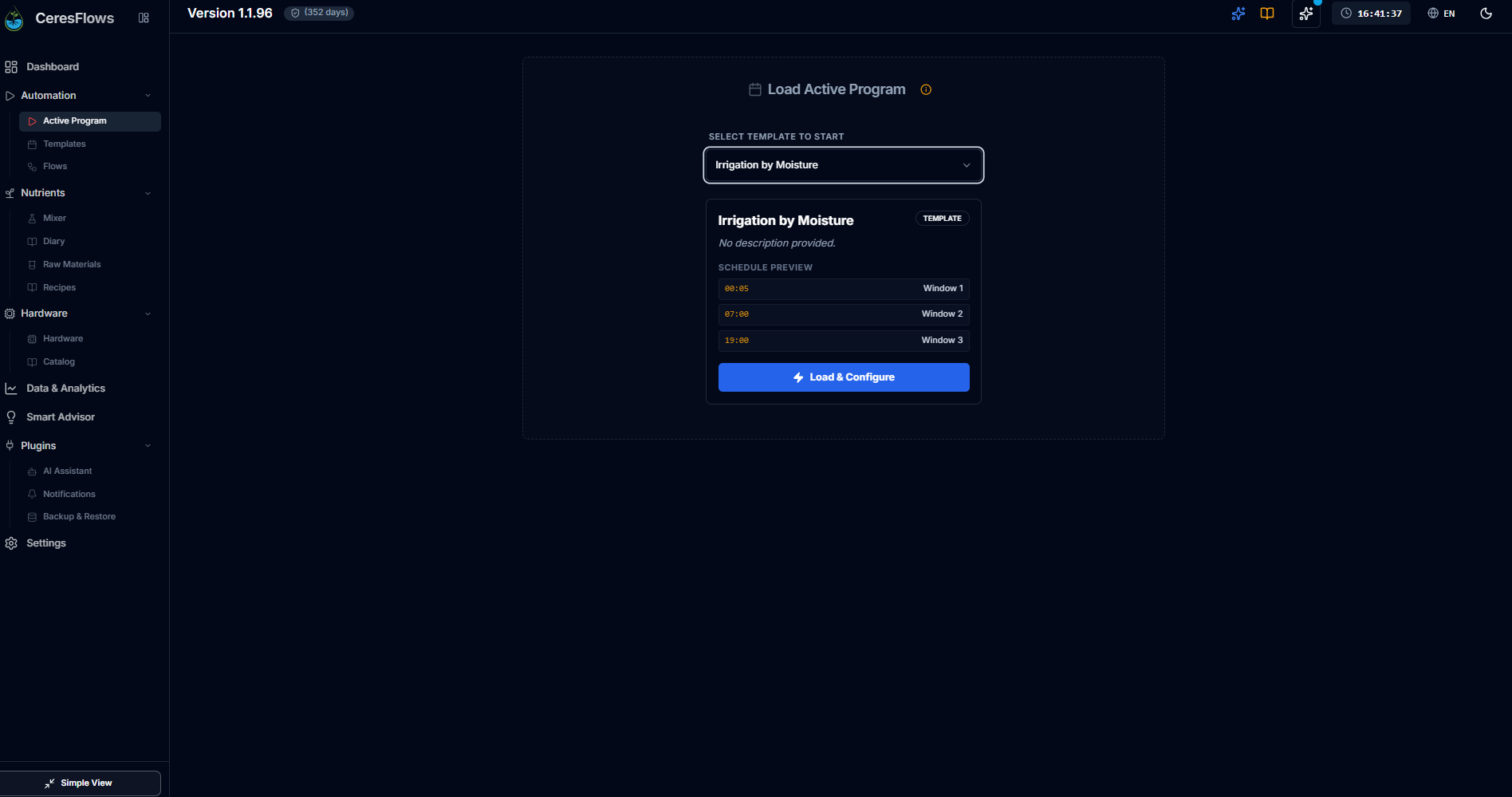
At the moment of activation (Load → Configure → Start), you are presented with every discovered variable and its
current value: target_pH, ec_target, dose_ml, irrigation_seconds. You
confirm or adjust them before the program goes live. Once running, most variables can still be adjusted in real
time from the active dashboard — no restart needed.
The same flow can behave differently in two different windows.
If the "pH Correction" flow is assigned to both the Morning Window trigger and the Evening Window trigger,
each window gets its own independent copy of the variable values. Morning pH target: 6.0. Evening pH target:
5.8. Same flow, same logic, different parameters — adjusted per context, not per code.
The Cycle Interval — Hardware Protection
Every template has a global Cycle Interval (in seconds, default 60). This is the minimum time
the system waits between consecutive trigger executions — a hardware protection layer. It prevents a pump from
being activated twice in 3 seconds due to rapidly fluctuating sensor values, protecting both hardware and the
growing environment from over-correction.
The Check Interval on each Time Window controls how often conditions are evaluated. The Cycle Interval controls
how often action can actually happen. Together, they define the rhythm of your automation: frequent enough to be
reactive, constrained enough to be safe.
A template is not code. It is your knowledge of your crop, your system, and your daily routine — expressed as
a schedule that the machine can follow precisely, every day, even when you are not there. The logic you would
have done manually at 6 AM and again at noon and again at dusk is now running itself. That is what the Program
Builder is for.
Chapter
13
Triggers & Conditions — When to Act
Chapter 12 introduced the anatomy of a trigger. This chapter goes inside it. The trigger editor is where the
real intelligence of CeresFlows lives — a layered system of conditions, sensor sources, evaluation strategies,
and pacing logic that lets you describe almost any real-world decision rule without writing a single line of
code.
Two-Tier Logic — Groups & Conditions
Every trigger can contain multiple Condition Groups. Within each group, conditions are combined
with ALL (AND) or AT LEAST ONE (OR). Between groups, the logic is always
OR. This gives you a 2-tier boolean structure without needing to know what "boolean" means.
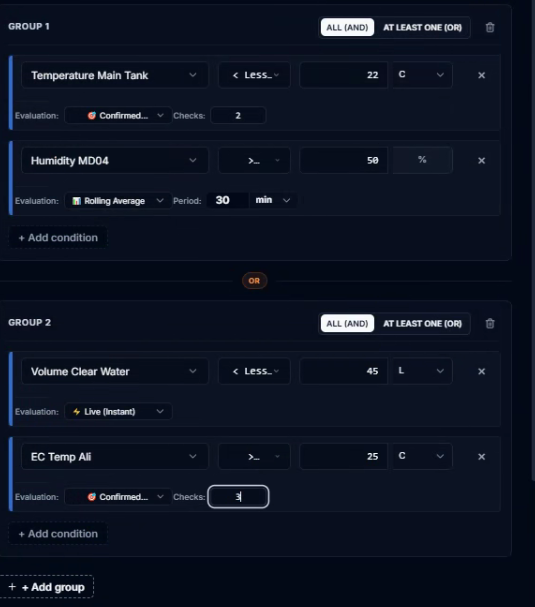
Trigger fires if:
GROUP 1 (DLI ≥ 1 AND Current Time ≤ 10:00)
— OR —
GROUP 2 (Temperature > 25°C AND Humidity > 65%)
→ Fires when either complete group
evaluates to true. Groups act as alternative scenarios.
In the screenshot above, the trigger covers two distinct irrigation scenarios: early morning light deficit
(Group 1), or heat and humidity stress at any hour (Group 2). You did not write (DLI ≥ 1 AND time ≤ 10:00) OR (temp > 25 AND humidity > 65)
— you clicked. The system built it.
ALL (AND)
Every condition in the group must be true
simultaneously. Use when you need multiple criteria to all align — low light and early morning
and dry substrate.
AT LEAST ONE (OR)
Any one condition being true is enough. Use when
multiple independent signals can each justify the same action — high VPD or high temperature
or low humidity.
What You Can Check — Three Source Types
Each condition picks a source — the thing being measured. The dropdown groups sources into
three distinct categories:
⏰ Virtual
Current Time
A built-in virtual sensor. Compares the
system clock against a time value. Used with a 24-hour time picker and a Schedule Type —
so a condition can read "time < 10:00 on Mondays, Wednesdays and Fridays" rather than every day.
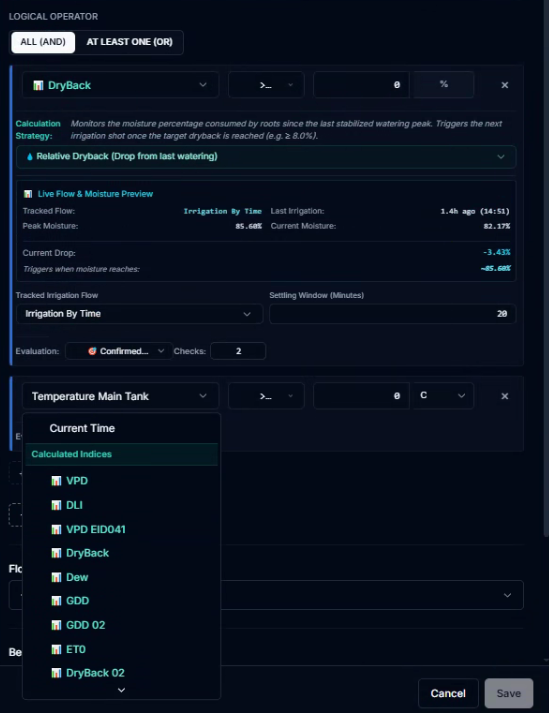
📊 Indices
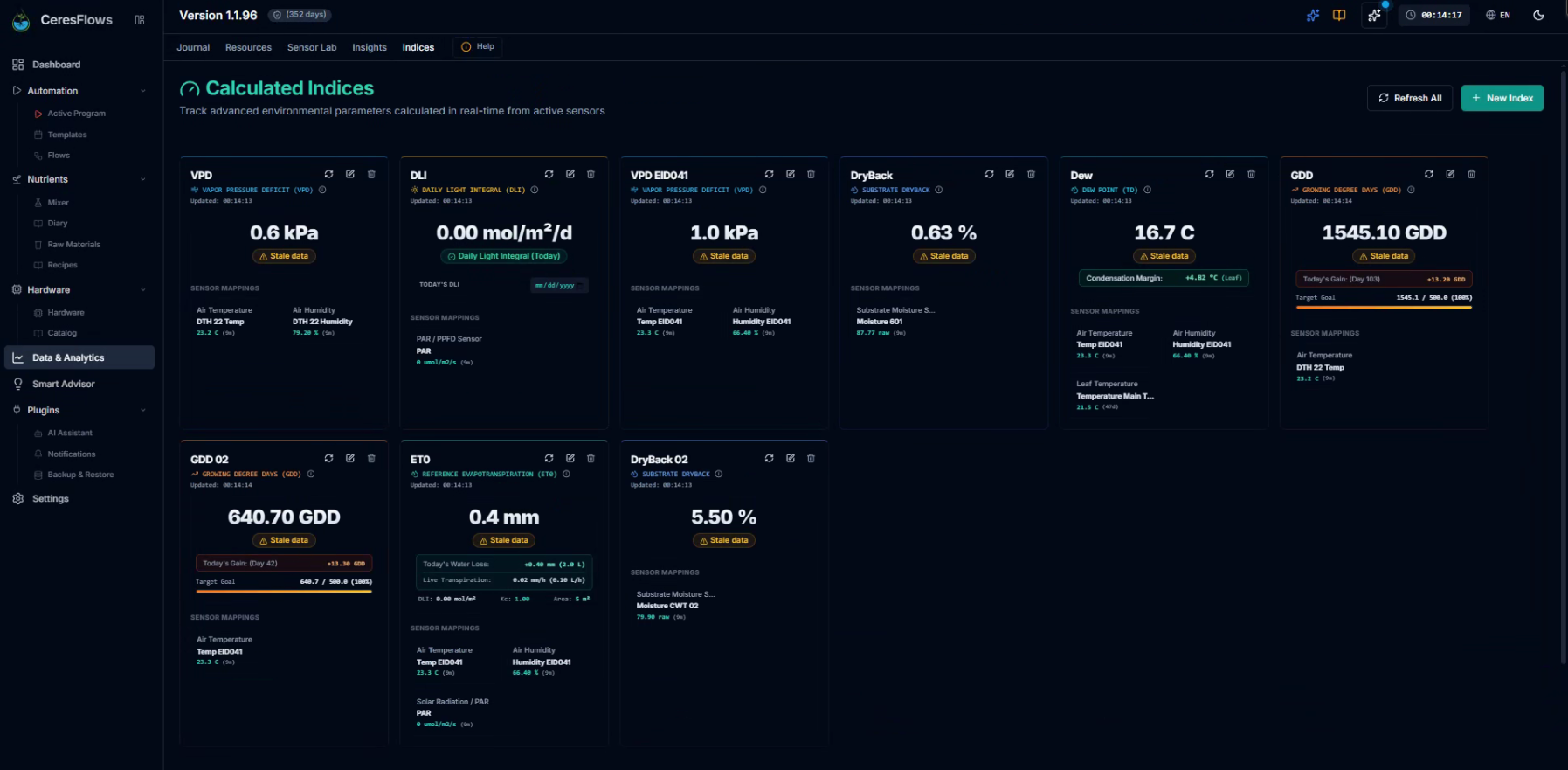
Calculated Indices
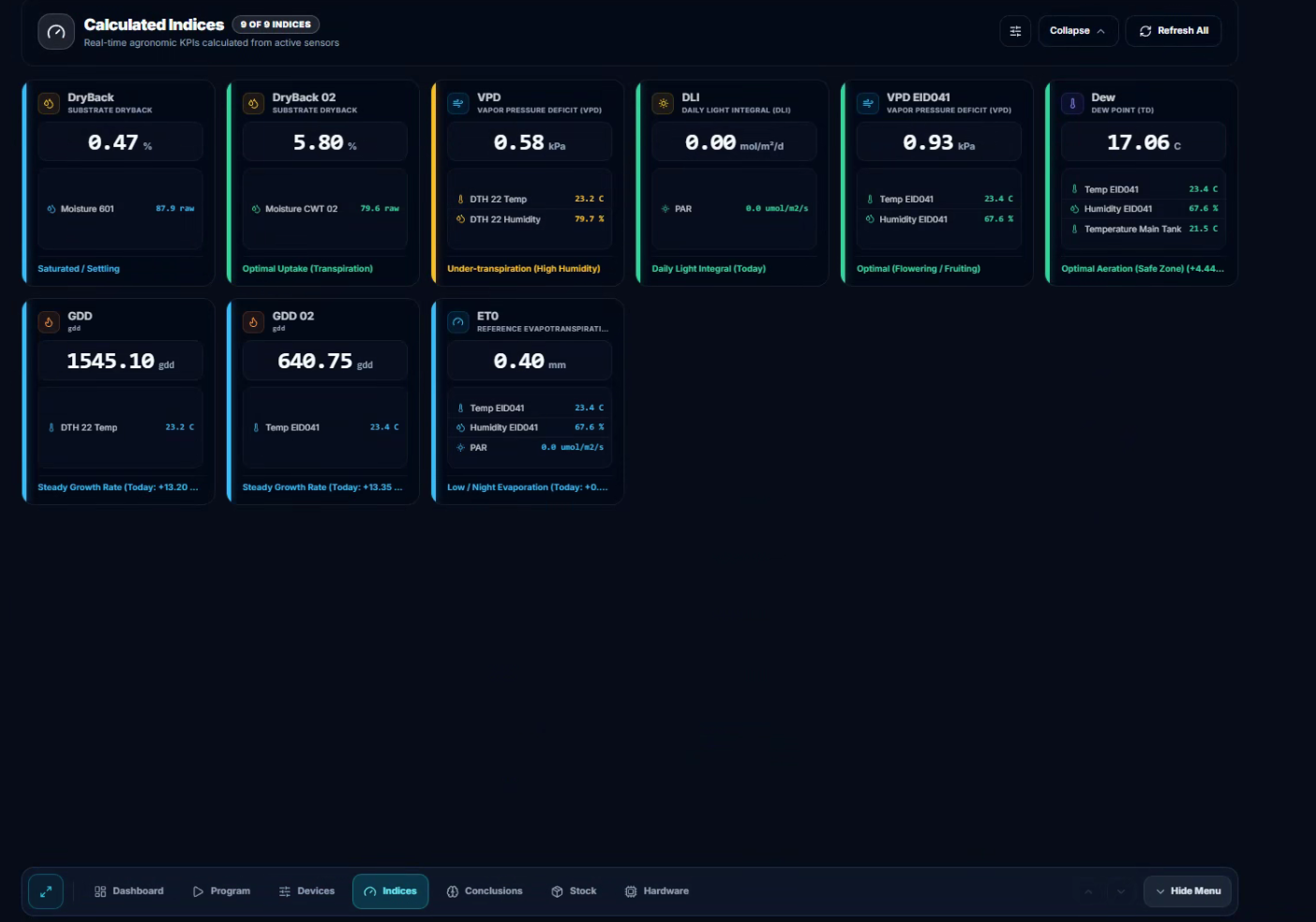
Agronomic intelligence computed from sensor
history — VPD, DLI, GDD, ET₀, DryBack, Dew Point, LTD, and others. Only indices that are enabled and
marked as trigger-eligible appear here. Each index has its own evaluation strategy
tailored to how it accumulates over time. More on what these indices mean in Chapter 18.
🌡️ Sensors
Physical Sensors
Every real sensor connected to the system —
temperature, humidity, pH, EC, moisture, CO₂, PAR, and more — grouped by category. Values are shown and
entered in your preferred display unit (°C or °F, kPa or psi); the system converts to and from the base
unit transparently.
Time Conditions — When the Clock Decides
When Current Time is selected as the source, an additional Schedule Type panel
expands below the condition row. This is what separates a basic timer from a true scheduler:
Schedule Type
What it means
Example use
Daily
Condition is active every day of
the week.
Water every morning before 07:00
Days of Week
Toggle specific days — Mon, Tue …
Sun. Only active on selected days.
Fertilize Mon / Wed / Fri only
Every N Days
Active once every N days, rolling
from program start.
Flush reservoir every 5 days
Specific Date
Active only on one chosen calendar
date. One-time event.
Run end-of-cycle flush on Oct 15
A trigger can combine a time condition with sensor conditions inside the same group. "Current Time
< 10:00 on Mondays and Fridays — AND — DLI < 8 mol/m²/d" is a single group with two
conditions. The system only acts on those specific mornings, and only if the light budget is still
insufficient. That kind of specificity used to require a programmer. Here it takes three clicks.
Evaluation Modes — How the Reading Is Taken
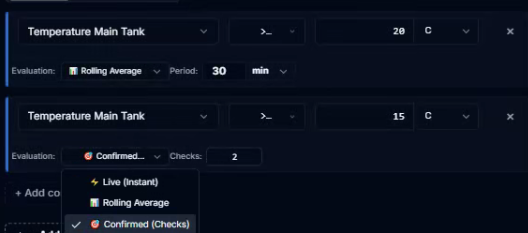
For physical sensors, you can choose how the reading is evaluated before comparing it to your
threshold. A single raw value can be misleading — a pH spike that lasts one second is not worth acting on. Three
evaluation modes let you control the signal quality:
⚡Live (Instant)Default for most sensors
Uses the most recent reading from the sensor.
Fastest response. Best for slow-changing values like substrate moisture or reservoir EC where noise is low.
📊Rolling AverageConfigurable time window (e.g. 30
min)
Averages the sensor readings over a configurable
time window — for example, the last 30 minutes. Smooths out short spikes and dips. Best for noisy or rapidly
fluctuating sensors like temperature in a greenhouse with opening vents, or ambient humidity affected by
irrigation mist.
🎯Confirmed (Consecutive Checks)Configurable N checks
The condition must be true on N consecutive check
cycles before the trigger fires. If it breaks the pattern even once, the counter resets. Best for critical
readings like pH or dissolved oxygen where a single false reading should not trigger a pump.
Triggers in Context — The Phase View
Inside the Time Window editor, triggers are grouped visually into two phases based on their behavior setting.
This makes the logic of a complex window immediately readable at a glance.
Phase 1 — Continuous
Triggers with Continue behavior.
They run on every check cycle — data collection, sensor reads, monitoring flows — and never stop the window.
The window stays alive and keeps evaluating.
Phase 2 — Break
Triggers with Break behavior. They
represent the decisive action. When one fires, its flows execute and the window closes. No further triggers
are evaluated until the next window cycle.
A typical window has one or two Continue triggers for telemetry and a single Break trigger for the main action.
The system evaluates Continue triggers first, then Break triggers — in the order you defined them. The moment a
Break fires, the sequence stops.
Pacing & Cooldown — Preventing Overdrive
For triggers set to Always repeat mode, an optional Repeat Interval prevents
the trigger from firing too frequently even when conditions are continuously true. There are two ways to
calculate when the next execution is allowed:
Relative CooldownRecommended
The timer starts from the actual execution
timestamp. If the trigger fires at 09:47, the next allowed execution is at 11:47 (if the interval is
120 minutes). This adapts naturally to irregular schedules — a trigger that fires late still gets its full
rest period before running again. Best for most irrigation and dosing scenarios where the response time
matters more than the clock position.
Fixed Clock Grid
The trigger fires on a fixed repeating grid
anchored to a start time. If you set the grid start to 10:00 with a 120-minute interval, the allowed slots
are 10:00 / 12:00 / 14:00 / 16:00 … A slot missed due to conditions not being met — or because the program
was paused — is simply skipped. The next slot takes over. Best for lighting cycles or CO₂ injection that
must follow a strict clock schedule regardless of when the last execution actually happened.
The same tools, applied differently. A DryBack irrigation trigger with Relative Cooldown of
90 minutes means: "water when dry enough, but never more than once every 90 minutes, regardless of what time
the last watering happened." A CO₂ injection trigger with Fixed Clock Grid at 06:00 / 2-hour interval means:
"inject at 06:00, 08:00, 10:00 — on the clock, not relative to when the last one ran." Two different
philosophies, two modes. Both live in the same form.
⚡ Triggers & Conditions — Interactive Rule Builder Tour
1 / 7
Triggers and conditions are where a grower's domain knowledge — their understanding of VPD and DLI and dry-back
curves and temperature swings — gets encoded into the system permanently. You stop reacting and start
describing. The machine learns your rules once, and then executes them precisely, every hour of every day,
without fatigue. That is the contract.
Part V
Running & Monitoring
Your automation is live. Here is what happens next.
14
Going Live
Load → Configure → Start. Your template becomes a running program.
You have built the template. You have drawn the flows, defined the triggers, set the time windows. Now it is
time to
make it real. This chapter is about the moment the logic stops being a design and starts being a running
automation —
and everything that keeps it running, day after day, without your intervention.
The Program Lifecycle
Every running program in CeresFlows follows a clear, linear path:
[ No Program ]→ Load[ Loaded ]→ Configure→ Start[ Running ] ↕ Pause / Resume ↓ [ Stopped ]→ Unload[ No Program ]
Step 1 — Load a Template
The Active Program page greets you with the Program Launcher when nothing is running. Select a
template from the dropdown — every template you have saved appears here. Choose one and you instantly see a
preview:
the template name, description, and a list of all its time windows with their start times. One click on
Load & Configure and the process begins.
Frozen Snapshot. The moment you load a template, CeresFlows takes a complete copy of it —
every window, trigger, flow, and condition — and freezes it into the running program. If you later edit the
original template, the running program is not affected. Your live automation is isolated from future
design changes. Only one program can be active at a time.
Step 2 — Configure Variables (The Most Important Step)
After loading, the dashboard shows your program in Loaded status — and a button immediately
lights
up in the header: CONFIG REQUIRED. This is not optional. It is the
bridge
between the frozen template logic and the real-world values you want to use today.
Inside your flows you define Global Variables — named placeholders for values that can change:
watering duration, target pH, desired EC level, minimum water volume. The Configure screen is where you set
those values before the program starts running. Only flows that actually use Global Variables appear
here —
if a flow has no globals, there is nothing to configure for it.
This is also the screen you will return to most often while a program is running — not to change the logic, but
to
tune the values. "Today we water for 10 minutes. Tomorrow conditions change, we come here and set it to 8.
Done."
No touching the flow. No recreating the template. One field, one save.
The Color System — What Each Color Means
Red — Required, no default
The flow uses this variable but no default was set when the flow was built. This field must have
a
value — otherwise the flow will throw an error when it tries to run. The button pulses to draw attention.
Orange — Default available, needs confirmation
A default value was set inside the flow itself and is shown as a suggestion. The system does not assume
you
want it — it asks you to explicitly confirm or change it. This prevents "I forgot to set it" mistakes.
Green — Configured and confirmed
This variable has a confirmed value. The progress bar for the window is full. Ready to run.
Inside the Configuration Screen
The configuration dialog uses a master-detail layout. On the left: a tree of every trigger in
the
current time window, with all the flows used by each trigger listed beneath it. On the right: the variables for
the selected trigger-flow context, laid out in a table — variable name, target value, unit, and tolerance.
At the top of the right panel, a breadcrumb shows you exactly where you are:
Window → Trigger → Flow.
An Accept Defaults button lets you confirm all orange values in one click.
Smart Sync — One Flow, Multiple Triggers
The same flow is often used in several triggers. An "Add Water" flow might appear in both a PAR-based trigger
and a DLI-based trigger. By default, CeresFlows synchronizes them: change the watering duration
in one, and it instantly changes in all other triggers that share the same flow. No need to update each one
individually. This is shown by the ⇔ Nx badge next to each flow item — it tells you in how many
triggers this flow appears and is currently synchronized.
Example: You have "Add CW - CWT" in two triggers: "Irrigation by PAR" and "Irrigation by
DLI".
Both need the same watering time. You set it to 5 minutes in one — the other updates automatically.
A tooltip confirms: "Shared across 2 triggers. Editing common locked variables updates all replicas
automatically."
Breaking the Sync — Independent Values per Trigger
Sometimes you want the same flow to behave differently in different triggers. Morning irrigation: 10
minutes.
Midday: 8 minutes. Same flow, same logic — but different durations. You unlock (unlink) the
specific
variable for that trigger. It becomes independent — editing it no longer propagates to the other triggers.
The left panel marks unlocked flows with a custom badge showing the count of independent
variables.
A tooltip explains: "N variable(s) unlocked with custom values for this trigger (will not sync from
master)."
You can re-lock at any time — the variable inherits the current master value when it rejoins the sync.
Step 3 — Start
Once all required fields are filled and confirmed, the START PROGRAM button becomes available.
Click it. The Scheduler activates and begins its work immediately:
Determines which time window is currently active (based on system time)
Begins evaluating triggers at the defined check interval
Executes flows when trigger conditions are met
Sends real-time telemetry events to the monitoring dashboard
Your automation is now live. 🟢 Running.
Midnight Reset — The New Day
Every night at midnight, the Scheduler performs a day reset. All time window statuses return to
Pending. Trigger execution counts go back to zero. The cycle begins fresh.
But not everything resets. Skip Counts are preserved — if you told the system to skip a window
the next 3 days, it counts down through midnight boundaries and never forgets. The same applies to any custom
trigger skip configurations.
There is also a reliability mechanism: the reset date is persisted to the database. If the server was offline
exactly at midnight (power outage, restart), the reset executes automatically the next time the server starts —
no day is ever skipped, no stale state carries over.
Starting Mid-Day
What if you start a program at 2 PM and your template has time windows for 06:00–12:00? The system does not
try to "catch up." Windows whose time has already passed are automatically marked as Skipped.
Current and future windows activate normally. Fallback flows are not triggered for skipped windows —
the system was simply not running during that time. This prevents unexpected behavior like running morning
irrigation at 2 PM because it was "missed."
Force Tick. While the program is running, you can trigger an immediate evaluation cycle
without
waiting for the next scheduled check interval. Useful after changing a variable value and wanting to see the
effect right away, or when debugging whether a specific sensor reading meets your trigger conditions.
🚀 Going Live — Load → Configure → Start Interactive Tour
▶ Watch on YouTube (Full HD)YouTube Official • Opens in New Tab
The program is running. The triggers are evaluating. The flows are executing. But watching it work — seeing
which
window is active, which trigger just fired, what the current sensor readings are — is a chapter of its own.
15
Active Program Dashboard
What happens while you sleep.
The program is running. Somewhere in the greenhouse, a pump is waiting for soil moisture to drop below 65%.
A light sensor is accumulating today's DLI. A night window is about to open at 22:00. You do not need to be
there. But when you want to look — when you open the laptop at midnight and wonder "what is it doing right now?"
— this is the page that tells you everything.
The Command Bar — Status at a Glance
At the top of the Active Program page, a persistent header card acts as the control tower for your running
automation. On the left: a status icon that changes color and behavior depending on what the program is doing.
On the right: every action you might need, always within reach.
📦
Green — Running
Scheduler is active. The pulsing dot
confirms the system is alive and evaluating. Triggers are being checked at the defined interval.
📦
Yellow — Paused
Scheduler is frozen. All hardware has
stopped. State is fully preserved — resume picks up exactly where it left off.
📦
Red — Stopped
The program has ended. History is
preserved. You can restart from this state without reloading the template.
The Controls
Six tools live in the right side of the command bar — each one purpose-built for a specific moment:
Control
When to Use It
Save as Template
You have hot-edited the live program and want to make
those changes permanent in the original template — or create a new variant based on the current
configuration.
Variables(pulses red when values are missing)
Adjust target values while the program is
running. No restart required. Changes take effect at the next check interval.
Manual Action
Execute a flow immediately, outside the normal trigger
cycle. For emergency dosing, manual flushing, or quick tests. Only available when no flow is executing.
Live Monitor
Opens the Flow Viewer in Monitor mode — a real-time
window into what the automation engine is doing at this exact moment.
Pause / Resume / Start
The context-sensitive primary action. One button — its
label changes depending on whether the program is running, paused, or stopped.
Stop ■ +
Unload
Stop ends the current session (history preserved). Unload
removes the program entirely and returns to the launcher.
The Timeline Carousel — Your Day at a Glance
Below the command bar, the entire screen is given to the Timeline Carousel. This is not a list.
It is a spatial, navigable view of your automation day — each Time Window occupying its own card, arranged in
chronological order.
Dot Navigation. Across the top of the timeline, a row of dots represents all your time
windows — connected by a horizontal line that fills as windows complete. The active window's dot is bright and
enlarged. Click any dot to jump directly to that window's card. The counter below reads
"2 / 4" — you are viewing the second of four windows for today.
The carousel uses a 3-column layout:
Previous Window
Compact card. Shows name, time range, and final status
(Completed / Skipped). Click to navigate to it.
Active Window — Hero
Full detail. All triggers, live conditions, flow actions,
context menus. This is where you watch the automation work.
Next Window
Compact card. Shows name, time range, and Pending status.
Click to preview it ahead of time.
Inside the Active Window
The central card — the Active Window Hero — is where the real information lives.
It shows you not just which triggers exist, but what the system is actually seeing and deciding right now.
Triggers are shown in two groups, mirroring the logic defined in Chapter 13:
Phase 1 — Continuous Triggers
Each trigger shows its name, condition logic, and — critically — the live sensor values
being evaluated right now. You see: "PAR ≥ 300 µmol/m²/s · Live: 0 µmol/m²/s · Confirmed: 0/2".
The system is not just checking — it is telling you exactly what it found and why the trigger has not fired
yet.
Phase 2 — Break Trigger
The exit condition. When this fires, the window is done. Shown separately so it is always clear what
will end the current cycle — and what its current condition state is.
Per-Trigger Context Menu
Every trigger in the Active Window Hero has a context menu — accessible via the ⋯ button —
with four targeted actions:
Action
What It Does
Force Run
Execute this trigger's flows immediately, bypassing the
condition check. Useful for testing or emergency overrides.
Skip Trigger
Skip this trigger for the next N days. The skip count
persists across midnight boundaries.
Edit Trigger Settings
Modify the trigger's conditions, cooldown, and repeat
settings directly from the dashboard. Available only while paused.
Move Up / Move Down
Reorder Continue triggers within the evaluation sequence.
Execution order matters — the first trigger that fires first in a cycle.
The flows listed under each trigger are also clickable. Click a flow that is currently
running → the Flow Viewer opens in Live mode and you watch it
execute block by block in real time. Click a flow that has already
completed → it opens in History mode, showing the full execution
trace of the last run. Click a pending flow → preview mode, so you can inspect its logic before it fires.
Adjusting Values While Running
One of the most practical features of the dashboard is the ability to change variable values
without stopping or restarting the program. The automation continues — the next check interval
simply picks up the new values.
Click the Variables button in the command bar. The same master-detail configuration
interface appears — but this time, the program keeps running in the background. Change a watering
duration from 10 minutes to 8. Raise the EC target from 1.8 to 2.2 because your plants are consuming
faster than expected. Hit save. Done. No restart. No downtime.
Real scenario: You wake up at 7 AM and check the dashboard. The PAR trigger is firing
but soil moisture is recovering faster than yesterday — probably because it is cloudier. You open Variables,
reduce the minimum watering duration from 12 minutes to 8, and close the panel. The next cycle uses 8.
The system adapted in 30 seconds, without touching the template.
Manual Action — Override When You Need It
Automation handles the routine. But sometimes you need to act now, outside the schedule.
Maybe the reservoir needs an extra dose of nutrients. Maybe you want to flush a line. The
Manual Action button gives you exactly that — a way to execute any flow immediately,
attributed to the correct program context so it shows up in your journal and statistics.
You choose the flow, optionally configure its variables for this one-shot execution, and click
Load in Viewer. The Flow Viewer opens and you watch it execute live — block by block.
While the manual flow is running, an amber-green banner appears at the top of the dashboard:
"Manual Flow Running: EC Control — [View Live] [■ Stop]". You can watch it or stop it at any moment.
Live Monitor — Inside the Engine
The Live Monitor button opens the Flow Viewer in a special monitor mode — a
real-time window into the automation engine itself. You see the flow canvas as it executes: active blocks
highlighted with a green glow, traversed paths marked, sensor READ values streaming in. At the bottom, three
tabs give you three simultaneous angles on the execution:
Variables Timeline
A time-series view of every variable value as
it changes during execution. You can see a pump duration being evaluated, a target compared to a reading, a
tolerance check passing or failing.
Block Inspector
Click any block in the canvas to inspect its
last known state: input values, output result, execution time, any error it encountered.
System Console
A real-time log: every sensor READ, every
hardware command, every decision. Timestamped. Filterable by Errors, Hardware, and Blocks.
The Global Pause Banner
When you pause the program, an amber ribbon appears at the very top of the entire
application — visible on every page, not just the Active Program page. It tells you the program name,
and counts down to the configured auto-action:
PROGRAM
PAUSED:Tomato Program
Auto-Resume
in: 59:42▶
Resume+30
min
Three controls are available directly from the banner — no need to navigate anywhere:
Resume restarts immediately, +30 min extends the pause by 30 minutes
(resetting the countdown), and the settings icon takes you to the pause timeout configuration.
When the countdown reaches zero, a modal appears with a 120-second grace period. If you do not respond,
the system automatically resumes or stops — whichever you have configured in Settings.
As the timeout approaches under 5 minutes, the banner turns red and pulses — a hard-to-miss
signal that the automation is about to make a decision on your behalf.
Save As Template — Making Live Changes Permanent
Over time, while a program runs, you might hot-edit triggers, adjust time window settings, and tune
conditions through the paused-state editors. These changes exist in the live program but the original
template in your library is untouched. Save as Template closes that gap.
The dialog shows a clear diff before you commit: exactly which time windows changed,
which triggers were modified, and what the before/after values are. You choose to either
overwrite the original template (updates it permanently with the current live configuration)
or save as a new template (creates an independent copy, leaving the original intact).
When Hardware Fails — Safety Banners
CeresFlows performs a pre-flight check before executing any flow: it verifies that every
hardware device the flow needs — pumps, relays, sensors — is online and responding. If even one is offline
or unresponsive, the flow is skipped and a red banner appears:
SYSTEM
HALTEDHardware Pre-Flight Failure— 2 hardware issues detected.
View
DetailsDismiss
View Details opens a grouped list of the failing devices — organized by flow name,
deduplicated, and showing the exact failure reason for each device. This is enough information to diagnose
and fix the issue without guessing. Once fixed, you dismiss the error and restart the program.
A separate RUNTIME HALTED banner appears if a flow fails during execution
(as opposed to before it starts) — covering hardware disconnects, timeouts, or unexpected responses
mid-flow.
Diagnostic Insight Panel — The Program's Event Feed
At the bottom of the dashboard, a collapsible panel quietly accumulates the history of
everything this program has done since it started. Expand it and you see the last 50 system events,
sorted newest-first, refreshing every 10 seconds:
PROGRAM_START
21:10:03 — Tomato Program started
PROGRAM_RESUME
21:07:44 — Resumed after 58 min pause
This is not a debug log for developers. It is a human-readable audit trail for the grower — a way to look
back and understand exactly what happened and when, without needing to decode anything.
🎛️ Active Program Dashboard — Real-Time Monitoring & Operations Tour
▶ Watch on YouTube (Full HD)YouTube Official • Opens in New Tab
The Active Program Dashboard gives you everything you need to watch, understand, adjust, and
intervene in your running automation — without ever touching the underlying template. The logic stays
intact. The behavior adapts. But everything the automation engine has actually done — every
trigger that evaluated, every flow that executed, every block that ran — is recorded in detail, and that
record is the subject of the next chapter.
Chapter 16
Flight Recorder — Your System's Black Box
An airplane's black box doesn't prevent accidents — it explains them. It records every signal, every
decision, every state change, so that when something goes wrong (or goes right), you have an exact,
irrefutable account of what happened and why.
CeresFlows has the same thing for every flow execution. It's called the Flow Viewer,
and it's not a debug tool for developers. It's a transparency layer for growers — a way to look inside
your own automation logic and understand exactly what it did, one block at a time, in full detail.
Opening the Flight Recorder
Every flow that appears on your Active Program Dashboard is clickable. When you click the name of a
flow attached to a trigger — whether it's currently running, just finished, or waiting — the Flow Viewer
opens as a full-screen overlay. The system automatically selects the right mode based on context:
🕐
HISTORY
Flow already finished. The complete execution
trace is replayed on the canvas — every block that ran, every path that was taken, every decision that was
made.
🟢
LIVE
Flow is executing right now. Blocks light up in
real time via WebSocket as the engine visits them. When it finishes, the viewer automatically switches to
History mode for the same session.
⚪
PREVIEW
Flow hasn't run yet in this context. The full
structure is visible — all blocks, all connections — but nothing is highlighted yet. Use it to verify the
logic before it executes.
🧪
TEST
Run the flow in isolation — outside any program —
with custom variable values. The full inspector and console are active. Pause, resume, stop, inspect. Safe
to run at any time.
⚡
MANUAL
Triggered directly from the Active Program
Dashboard via Manual Action. Executes against real hardware with real variable values. The viewer shows live
progress and then the full trace.
The Canvas — Execution Made Visible
The first thing you see when the Flow Viewer opens is the full flow canvas — every block, every
connection, exactly as it was built in the Flow Editor. But now it tells a different story.
Blocks are shown in two visual states:
Traversed Path — This block executed. Full opacity, green-tinted
connections leading to it.
Active Signal — This block is executing right now. Highlighted in
blue, pulsing. Only visible in Live mode.
Unvisited Block — This block was not reached in this execution.
Dimmed. A condition branch was taken elsewhere, or a loop exited before reaching it.
This alone answers a question growers ask constantly: "Did my pump actually run? Did the EC check
pass? Which branch of the loop did it take?" You don't need to read logs to know — you can
see the path the engine took, drawn out on the canvas in front of you.
Any block on the canvas is clickable. Clicking it opens the Block Inspector for that
specific block and simultaneously filters the Console to show only the log entries from that block.
The canvas and the panels below it are fully synchronized.
The State Inspector — Three Windows Into the Execution
Below the canvas sits the Flight Recorder State Inspector — a collapsible panel with
three tabs. A quick facts bar in the top-right always shows the summary: total events, unique blocks
visited, and total wait time accumulated. These three tabs give you everything you need to understand
what the automation actually did.
① Variables Timeline
Every variable that existed inside the flow during this execution is listed here — the values they
started with, the values they ended with, and a full chronological write history in between.
Variables are split into two categories:
⚡Dynamic VariablesN×
writes
These variables were modified during the flow — by Math Operation blocks, Dynamic Value
blocks, or Loop logic. Each write is tracked. You see the initial value, the final value, and a
delta badge showing the net change.
🎚Global ConstantsConstant
These are the target values you set when you configured the program — pH 5.8, EC 2.0, dose
duration 5s. They were read by the flow but never modified. Shown as static references.
Clicking any variable on the left expands its full detail on the right: a chronological table of every
write, showing the exact timestamp, which block wrote it, the new value, and the delta from the
previous write. For a variable that was rewritten 8 times during a loop, you can trace exactly how
it evolved — step by step, write by write.
A Filter Logs button in the variable detail panel instantly filters the Console below
to show only the log entries that involve that variable. The two panels stay in sync.
② Block Inspector
Click any highlighted block on the canvas, and the Block Inspector tab activates automatically. It
shows everything that happened inside that specific block across every execution cycle it was visited.
5×
Total Runs
209004.26
Initial Reading (ml)
207763.83
Final Reading (ml)
−1240.43
Total Change (ml)
For sensor blocks: first reading, last reading, total drift. For actuator blocks: how many commands
were dispatched, and a log of each one with timestamp, action, and duration. For condition blocks:
a table of every evaluation — the left value, the operator, the right value, and whether it resolved
TRUE or FALSE.
This is the tool that answers: "My pump ran 5 times — did it read the correct sensor value each
time? Did the EC actually drop? Did the condition pass on the third cycle?"
All of it is here, reconstructed from the actual execution trace.
③ Anomalies & Warnings
The third tab runs automatically on every completed execution. It analyzes the full trace for
patterns that indicate something may have gone wrong — not errors, necessarily, but situations worth
knowing about.
Each anomaly card shows a title, a severity level (Critical
or Warning),
and a plain-language description. Two action buttons are always present:
Inspect Block → (jumps to the Block Inspector for that specific block) and
Logs (filters the Console to that block's entries).
The example above tells a real story: a Loop block that measured reservoir volume ran 85 cycles without
achieving the target — the EC didn't reach the desired level before the safety limit stopped it. That's
not a system error. That's agronomic data. The system ran correctly. But the result tells you something
about your nutrient concentration, your pump flow rate, or your target value that deserves attention.
If no anomalies were detected, the tab shows a clean green state: "All loop cycles, sensor reads,
and variable mutations executed within expected operating parameters."
The System Console — Every Event, Line by Line
Below the State Inspector, the Console records every event the engine generated during execution.
This is the raw stream — not filtered, not summarized — the actual sequence of decisions and actions,
in order, with timestamps.
4:16:33 PM [SENSOR_READ] Sensor "Read CWT" read: 209417.73
ml
Each entry is fully rendered — not raw JSON. A sensor read shows the actual value with its unit
highlighted in green. A WAIT block shows a live countdown badge that ticks down while you watch.
A loop exit tells you which cycle it stopped at, and why (condition turned false, or safety limit
reached). A condition evaluation shows the exact comparison: left value, operator, right value, result.
The Console has three controls that make it useful at scale:
Buffer: 100 | 500 | All — for long-running flows with thousands of events, start with 100
(newest) and expand only if needed.
Filters: All | Errors | Hardware | Blocks — isolate sensor reads and actuator commands
(Hardware), or loop and condition logic (Blocks), or only failures (Errors).
Export to JSON — download the full log for offline analysis or record-keeping.
The synchronized filter is the most powerful tool: click a block on the canvas, or click "Filter Logs"
from the Variable Timeline or Block Inspector, and the Console instantly narrows to only the entries
from that block or variable. The filter is shown as a pill tag in the header and can be cleared with
a single click.
Execution History — Every Run, Ever
The Flight Recorder isn't just for the current execution. From the viewer header, a
History button opens the Execution History — a full archive of every
time this flow has run since it was created.
Each record in the history shows:
StatusStarted AtDurationSource / ContextAction
✓
COMPLETED08.09.2026 16:163m 42sTomato Program · Morning EC Control
· ⚡ EC Correction👁
View
✗
ERROR08.09.2026 14:050sTomato Program · Morning EC Control · ⚡ EC Correction👁
View
The history is filterable by status (Completed / Error / Running), by source (Program schedule vs.
Manual), and by time range (24h / 7d / 30d / custom date picker). It's sortable by start time,
duration, or status. Clicking 👁 View on any row reopens the Flight Recorder for
that specific session — the full canvas trace, the variable timeline, the console — exactly as it
was at the moment of execution.
Most automation systems are black boxes in the worst sense — they act, but they don't explain.
You press start, things happen, and you either trust them or you don't. CeresFlows chose a different
path: every execution is fully recorded, fully inspectable, and permanently archived. You can open
any flow from any day, at any time, and understand exactly what it did — not from a summary, but
from the actual trace. That's not just transparency. That's the kind of accountability that lets
you refine your recipes, catch problems before they repeat, and grow with confidence — knowing that
your automation is not a mystery, but a tool you understand.
With a complete picture of what your system is doing in real time and in the past, the next question
naturally follows: what does all that data actually mean? That's the domain of the next part —
analytics, calculated indices, and the intelligence layer that turns sensor readings into agronomic insight.
Part VI
Intelligence & Analytics
From raw numbers to agronomic insight — understanding what your system is telling you.
Chapter 17
Analytics Suite — Four Modules
Your system has been running for weeks. Thousands of sensor reads. Hundreds of pump
activations. The data is there. Now what?
Most automation systems collect data as a side effect — it goes into a database and stays there.
CeresFlows treats data as a first-class citizen. The Analytics Suite is a dedicated intelligence
layer built to answer the questions a grower actually asks: What did my system do last night?
How much nutrient solution did I use this week? Is my pH trending in the wrong direction?
Why did my pump run twice as long on Tuesday?
The Analytics section is organized into four specialized modules, each accessible
as a dedicated tab. Every module is a licensed feature — your license determines which are active.
If a module is licensed but not yet installed, the tab shows a clear "Not Installed" prompt with
activation instructions.
📓
Journal
The system's daily diary — what happened, in which window,
and what the sensors showed before and after.
📦
Resources
Consumption tracking — how much of every liquid, chemical,
or energy resource was used and what it cost.
📈
Sensor Lab
Time-series visualization — overlay multiple sensors on
one chart, zoom into anomalies, export CSV.
🔍
Insight Engine
Advanced query — search execution history by sensor
conditions to find patterns and correlations.
📓 Journal — The System's Diary
The Journal answers the most fundamental question a grower asks every morning:
"What did my system do while I was asleep?"
Select any date from the calendar on the left. The Journal shows every Time Window that was
active that day, each with a status badge:
Status
Meaning
✅ Completed
Window finished normally — a Break trigger fired or fallback executed
⚠️ Incomplete
Window is still active or didn't reach a conclusion
❌ Error
Something went wrong during execution
⏭️ Skipped
Manually skipped or system started after the window ended
Click any window to expand it. This is where the real intelligence lives. The Journal shows a
before-and-after sensor snapshot for every device that was active — two categories:
Controlled Parameters — sensors tied to actions in this window (reservoir volume, EC, pH,
etc.) with their Start / Peak / End values, the configured setpoint, and a sparkline trend.
Environment Telemetry — all other sensors that were reading during the window (moisture,
temperature, humidity, PAR, etc.) with their delta (Δ) for the period.
Below the sensor snapshot, you see Actuator Usage — exactly which devices ran,
for how long, and how many milliliters (or liters) were dispensed. Below that: a
Flow Summary listing which flows executed and how many times.
The Witness Sensor — Precision Without a Flow Meter
How does CeresFlows know that a pump dispensed exactly 15 mL if there is no flow meter?
Through the Witness Sensor — a paired volume sensor (e.g. an ultrasonic level sensor
in the reservoir) that takes a reading the moment the pump starts and another reading after it stops.
The difference is the consumed volume. If a stabilization delay is configured, the system waits a
few seconds for the liquid to settle before capturing the final value — giving a precise, physically
verified measurement. No flow meter required.
The Journal is powered by a Tiered Memory architecture. When a Time Window closes,
a background aggregator compresses the entire window's data into a single pre-built snapshot — sensor
sparklines included, with a 1% deadband algorithm that reduces the JSON by over 90%. Your morning
review loads instantly, no matter how much data the system collected overnight. Even if the server
crashes mid-window, a boot-time recovery process automatically regenerates any missing snapshots
from the raw trace archive.
📦 Resources — Consumption Tracking
The Resource Manager answers: "How much am I using — and what is it costing me?"
The dashboard is split into two layers. At the top: Tracking Profiles — logical
consumers you define (pH+, pH−, Fertilize A, Fertilize B, Irrigation Water, Clear Water Valve…).
Each card shows total consumption for the selected period with a percentage trend indicator.
Below that: Stock Inventory — the physical containers (barrels, bottles, tanks)
behind each tracking profile, showing remaining volume, supplied vs consumed amounts, and estimated
days remaining. A progress bar turns red as the container runs low.
Click any Tracking Profile to open the Resource Detail View — a full drill-down
with three summary cards (Total Amount, Avg Daily, Peak Day), a daily consumption bar chart,
and a paginated Detailed Log showing every activation event: date & time, window name, device,
duration, and amount consumed.
The Resource Manager also tracks Runtime Analysis — how long each actuator ran,
what percentage of total runtime it represents, and (if you enter the device's wattage) the
estimated energy consumed in kWh. A stacked area chart shows the overlapping activity of all
tracked devices across the selected time range.
CeresFlows supports three independent calculation strategies per resource:
Smart Dosing
Direct volume from DOSE commands. Exact to the milliliter.
Best for precision peristaltic pumps.
Duration-Based
Time between ON and OFF × flow rate. For pumps without
dosing commands.
Witness Sensor
Volume delta from a paired level sensor. Self-correcting —
compensates for pump wear and tube aging.
When tube wear or calibration drift causes the calculated volumes to diverge from reality, you can
create a Stock Reconciliation Checkpoint — physically measure the container, enter
the actual volume, and the system recalibrates all future calculations from that verified baseline.
Your historical data is untouched; only the forward projection changes.
📈 Sensor Lab — Data Visualization
The Sensor Lab answers: "What are my readings doing over time?"
Select the sensors you want to plot (checkboxes in the left panel), choose a time range, and the
chart renders immediately. Multiple sensors overlay on the same timeline with distinct colors and
dual Y-axes — so you can see EC, temperature, and PAR on one graph without any of them becoming
illegible.
The Sensor Lab uses a Hybrid HOT/WARM data architecture to balance resolution and
performance across any time scale:
Time Range
Data Layer
Resolution
≤ 6 hours
HOT (raw traces)
Every reading — full resolution
≤ 24 hours
HOT
5-minute averages
1–31 days
HOT + WARM hybrid
Hourly aggregates
> 31 days
WARM (compacted buckets)
Daily aggregates
A critical design detail: the Sensor Lab tracks sensors by their Analytics Label,
not by hardware UUID. If a pH probe fails and you replace the physical sensor, the new device
inherits the same analytics label — and every historical chart seamlessly continues with no gap
or duplication. Your data outlives your hardware.
The chart is fully interactive: zoom into any period by dragging the minimap at the bottom,
hover for cross-sensor tooltips, switch between Chart and Table view, and export the full dataset
as CSV for external analysis.
🔍 Insight Engine — Advanced Query
The Insight Engine answers the questions the other three modules cannot:
"When my reservoir was at 70 L and EC was between 1.0 and 1.2 mS/cm, how much nutrient
solution did my pump inject — and was it consistent?"
It works in two steps:
1. Define Context Criteria (The "When")
Add one or more sensor conditions: select a resource role, pick a device by analytics label,
choose a metric (Start / End / Peak value), set a target value and tolerance.
Multiple criteria are combined — all must match simultaneously.
2. Select Target Resources (The "What")
Define which actuator or resource you want to analyze across the matched sessions — for example,
the nutrient pump's dose amount. The engine shows how that resource behaved every time the
criteria were met.
Click View Details to open the Full Analysis — a rich breakdown of every matched
cycle. The engine calculates statistics across all matching sessions (Average Expected, Deviation,
Min/Max Achieved) and performs an Impact Analysis: given the resource dosed and
the sensor that changed, it calculates the impact coefficient — how many mS/cm of EC
change you get per milliliter of nutrient solution. This is calibration-grade data, generated
automatically from your own history.
Queries can be saved and named for reuse — select from a dropdown at the top of
the page to reload any previously defined search with one click.
Under the Hood — One Pipeline, Four Windows
All four modules read from the same data pipeline. Every sensor reading and every actuator
command flows through this chain:
Engine executes blocks
    → Event Bus broadcasts events
    → Historian records every event to SQLite
    → Background aggregators compress data (journal_windows, insight_sessions, sensor_readings_compact)
    → Analytics modules query the compressed layers — not the raw traces

Result: instant dashboards. Zero impact on live automation.
SQLite runs in WAL (Write-Ahead Logging) mode, meaning analytics queries
never compete with live automation writes. Your Flow Editor, your triggers, your sensors — none
of them pause while the dashboard loads.
📊 Analytics Suite — Four Dedicated Agronomic Intelligence Modules
▶ Watch Journal Walkthrough on YouTubeYouTube Official • Opens in New Tab
▶ Watch Sensor Lab Walkthrough on YouTubeYouTube Official • Opens in New Tab
▶ Watch Resources Walkthrough on YouTubeYouTube Official • Opens in New Tab
▶ Watch Insight Engine Walkthrough on YouTubeYouTube Official • Opens in New Tab
Your Data Works for You
Most systems give you a graph. CeresFlows gives you four lenses into the same reality — each
one designed to answer a different kind of question. The Journal tells you what happened.
Resources tell you what it cost. The Sensor Lab shows you the shape of things over time.
The Insight Engine lets you ask "why." Together, they turn months of automation data into
genuine agronomic knowledge — about your specific plants, your specific hardware, your specific conditions.
No generic advice. Just your data, made legible.
But raw sensor data only tells part of the story. CeresFlows goes further — it computes
agronomic indices from your sensors: VPD, DLI, GDD, water deficit, dew point risk, and more.
These calculated values can trigger automation just like any sensor reading. That's the subject
of the next chapter.
A temperature sensor gives you a number. A humidity sensor gives you another number.
But neither tells you what your plant is actually experiencing at this moment —
whether it is transpiring at the right rate, accumulating enough daily light,
approaching the developmental stage that demands a nutrient shift, or quietly
running out of substrate water between irrigations.
Calculated Indices solve this. Instead of reading a single sensor, each index
fuses two or more physical readings through validated agronomic formulas
and produces a single, actionable number. That number then lives in CeresFlows as
a first-class data source — it can be monitored, trended historically, and most
importantly, it can trigger automation exactly like any physical sensor reading.
Seven Lenses on Your Crop
CeresFlows ships with seven built-in index types, each targeting a different aspect of plant
physiology or resource management:
💨VPD — Vapor Pressure Deficit
The "suction strength" of the air — how hard it is pulling moisture from your leaves.
Low VPD: plants suffocate and disease pressure rises. High VPD: plants wilt and close stomata.
Inputs: Air Temperature + Air Humidity. Unit: kPa.
☀️DLI — Daily Light Integral
Total photons delivered to the canopy since midnight, integrated continuously from your
PAR sensor. Lettuce wants 14–17 mol/m²/d. Tomatoes want 22–30.
Input: PAR/PPFD Sensor. Unit: mol/m²/d.
Historical values queryable by date.
🌡️GDD — Growing Degree Days
Thermal time accumulation above a baseline temperature — the biological clock plants use
for developmental transitions. Configure T_base, T_upper cutoff, planting date, and a
target GDD goal.
Input: Air Temperature. Unit: °C·d.
Tracks season-long (120–250+ days) with zero data loss.
💧ET₀ — Reference
Evapotranspiration
FAO-56 Penman-Monteith — how much water your crop is losing to the air right now.
Configure Crop Coefficient (Kc) and canopy area (m²) to get real liters, not just mm.
Inputs: Temp + Humidity + PAR (+ optional Wind). Unit: mm/h →
Liters.
📉DryBack — Substrate Moisture
Drop
Tracks the percentage drop from the moisture peak that formed after the last irrigation
settled. Link to a specific irrigation Flow; the index waits for the configurable
settling window (default 20 min) before locking the peak.
Input: Substrate Moisture Sensor. Unit: %Δ.
🌫️Dew Point + Condensation
Margin
Magnus formula dew point temperature, plus an inline Condensation Margin
banner showing how many degrees separate your leaf surface from condensation. Drops below
1.5°C → disease risk. Below 0 → mold guaranteed.
Inputs: Air Temp + Humidity (+ optional Leaf Temp). Unit: °C.
🍃LTD — Leaf Temperature
Depression
The difference between air temperature and leaf surface temperature (T_air − T_leaf).
A healthy, transpiring plant cools itself — its leaves are typically 2–4°C below air temperature.
When LTD collapses toward zero, transpiration has stopped. When it goes negative (leaf hotter than air),
something is seriously wrong: water stress, root disease, or sensor failure.
Inputs: Air Temp + Leaf Temp sensor. Unit: °C.
Index Cards — Live at a Glance
Every configured index lives in the Calculated Indices tab (within Analytics)
as a dedicated card. Each card renders in its own color scheme — blue for VPD, amber for DLI,
orange for GDD, teal for ET₀ — so at a glance you know what you're looking at.
The card shows the computed value large and bold, a status badge (success / warning / error),
and the live readings of every mapped sensor with timestamps. If a sensor goes silent for more
than 3× its poll interval, the card flips to a Stale badge — a tooltip shows
exactly which sensor lagged and by how long.
Three index types get special card expansions:
GDD Card
Today's heat gain banner · Progress bar toward target GDD ·
Smart Forecast ETA (estimated completion date calculated from rolling daily average)
ET₀ Card
Today's total water loss (mm + Liters for your canopy area) ·
Live transpiration rate (mm/h + L/h) · DLI, Kc, and Area context badges
Dew Point Card
Condensation Margin banner (green / amber / red) showing the exact °C gap between leaf
surface and dew point temperature
The DLI card adds a date picker — select any past date and the card recomputes the full day's
integral from the archived PAR trace, down to the exact trapezoidal integration.
Configuration — Sensor Mapping + Risk Zones
Creating an index takes seconds. You give it a name, pick the type, and map your physical
sensors to the required roles. The sensor picker is grouped into three tiers:
Recommended (exact role match), Compatible (same unit category),
and All Sensors — so even non-standard setups can be connected.
Each index also has a Max Data Age setting. When sensor readings exceed this
threshold, the index flips to stale — and any automation trigger that depends on it automatically
pauses until fresh telemetry arrives. This is not a soft warning. It is a hard execution block,
because an index built on stale data cannot be trusted to make decisions.
For VPD and similar indices, you can customize the Diagnostic Thresholds
(Risk Zones): adjust the min/max values of each warning and error zone to match your specific
crop and growth stage. The defaults match published agronomic literature, but reality sometimes
needs fine-tuning.
A Reference Guide (ℹ️ button on each card) opens a crop-specific target
table: for GDD, it shows target ranges for tomatoes, cucumbers, leafy greens, and specialty
herbs across vegetative, flowering, and harvest stages. For VPD, it lists targets by growth
phase. No need to look these up externally.
Nine Ways to Pull the Trigger
The moment you enable an index for triggers (one toggle in its settings), it becomes available
as a condition source in every Program Trigger — exactly like a physical sensor, but with richer
evaluation strategies. There are nine, tuned to each index type:
Strategy
Applicable Indices
Real-World Use
instantaneous
VPD, LTD, Dew Point, ET₀
Open fogger when live VPD exceeds 1.8 kPa
moving_average
VPD, LTD, Dew Point
15-min smoothed VPD — prevents relay chatter from door openings or passing clouds
stress_duration
VPD, LTD
Deploy shade screen if leaves were above VPD 2.5 kPa for more than 45 min today
step_accumulator
DLI, ET₀
Irrigate every 3 mol/m² of accumulated light (solar-correlated irrigation)
absolute_value
DLI
Shut off supplemental lighting once DLI reaches the daily ceiling (e.g. 25 mol/m²/d)
relative_dryback
DryBack
Irrigate when substrate has dried back 8% from the post-irrigation moisture peak
dew_point_margin
Dew Point
Run dehumidifier + heater when leaf surface is within 1.5°C of dew point
cumulative_target
GDD
Trigger flowering nutrient profile automatically at 450 GDD from planting date
daily_progress
GDD
Run supplemental heating if today's thermal accumulation falls below the daily quota
When a step accumulator fires, the Active Program Dashboard shows the dynamic next target:
"DLI > 9.00 mol/m² (every 3.00 mol/m²)" — so you always know both the current
total and exactly when the next trigger will fire. No guesswork.
The Safety Net: Stale Data Guard
If a sensor feeding a Calculated Index goes silent, the index is marked stale and
all automation depending on it is immediately suspended — until fresh
telemetry arrives. An index built on yesterday's VPD reading should not be running your
climate control today. CeresFlows enforces this automatically, with no configuration required.
Below the index cards lives a second, distinct subsystem: Diagnostic Conclusions.
Where indices give you single calculated values, Conclusions give you
multi-factor pattern analysis — rule engines that watch a combination of indices and
sensor readings over a selected day and produce a structured diagnosis.
Each Conclusion card shows: a status badge (Normal / Warning / Critical), the peak stress
window of the day (e.g. "Peak: 12:01 – 17:08 (5h 6m)"), any actionable insight text,
and the exact indices and sensors that fed the analysis. Cards can be drag-and-drop reordered
to match your monitoring priorities.
Like indices, each Conclusion type has a Reference Guide — showing Optimal and
Critical/Action thresholds per parameter. The thresholds are dynamic: when you customize the
risk zones of a linked index, the Reference Guide table updates to reflect your exact
configured values, not the generic defaults.
🌿 Calculated Indices & Diagnostic Conclusions — Agronomic Intelligence Tour
1 / 6
Sensors Measure. Indices Think.
A temperature sensor tells you it is 34°C in your greenhouse. A VPD index tells you
that at 34°C and 52% humidity, your plants are under moderate transpiration stress —
and that if the 15-minute average crosses 1.8 kPa, your fogger should fire.
That is the difference between data collection and agronomic intelligence.
Calculated Indices do not add complexity. They remove ambiguity — turning the question
"how is my crop doing?" into a number you can act on automatically, right now.
With the analytics layer complete, the next chapter turns to something more active:
the Smart Advisor, a data-driven calibration engine that analyzes your
actual irrigation events to help you refine exactly how much water your crop needs — and when.
Chapter 19
Smart Advisor — Data-Driven Calibration
Stop guessing your irrigation timers. Let your own sensor history tell you exactly
how long to water — and when.
Every grower who has set up an automated irrigation system has faced the same moment of
uncertainty: how long should the pump actually run? Two minutes? Five? And at what
moisture level should the trigger fire — 45%? 50%? The honest answer is: it depends on your
substrate, your crop stage, your ambient temperature, and a dozen other variables that change
every week.
Most systems force you to start with a guess, watch, adjust, watch again — a manual loop that
can take weeks to converge, and restarts from zero every time you change your setup. The
Smart Advisor breaks that loop. Instead of asking you to guess, it reads your
own sensor history — the actual moisture curves your substrate produced during real irrigation
events — and extracts the physical parameters of your specific environment. It turns weeks of
trial-and-error into a single analysis run.
🧠 The Advisor Gallery
Smart Advisor is organized as a template gallery — a collection of analytical
engines, each designed to answer a specific agronomic calibration question. The gallery shows
every available and upcoming template at a glance, with search, filter, and view mode controls.
💧
Irrigation Calibration
● Active
Analyzes real moisture absorption cycles to calculate optimal pump duration and dryback dynamics.
soil_moistureair_humidity
🌡️
VPD Optimization
⏳ Coming Soon
Finds VPD sweet spots for transpiration and leaf temperature balance.
☀️
DLI & Light Cycle Tuner
⏳ Coming Soon
Calculates Daily Light Integral and recommends photometric photoperiod adjustments.
⚡
EC Drift & Salt Buildup
⏳ Coming Soon
Monitors root-zone salinity drift and suggests flushing or target EC adjustments.
💧 Irrigation Calibration — How It Works
The Irrigation Calibration template is the first fully active advisor.
Open it and you are taken to a focused two-column workspace: setup on the left,
results on the right.
Left — Setup Panel
🎯 Moisture Sensor — pick which sensor to analyze
🗄️ Data Source — Live DB or Archive (if available)
Full long-term history. Appears only if an archive exists for the sensor.
The Data Source toggle appears automatically in the Setup Panel only when the
selected sensor has an archive file. No archive? Only Live DB is shown — no unnecessary
controls. When Archive is selected, a small banner confirms the record count and date span
being analyzed (e.g., "Analyzing 9,782 archived records (2026-07-22 → 2026-09-07)").
Switching sensors resets the toggle back to Live DB — because a different sensor may have a
different archive state.
💡 The Suggested Trigger — Density-Guided Start Point
Before you even configure anything, the system runs a quick scan on the selected sensor's
history. It uses a sliding density window to find the moisture percentage
where the most natural irrigation events actually started in the past. This becomes the
Suggested Trigger — displayed as a green banner with the detected threshold
and the number of cycles that support it.
💡 Dense data around ~68% (69 cycles) — Set 68%
One click applies the suggestion to the Trigger Threshold field. You can still override it
manually if your crop stage or strategy requires a different entry point.
🌱 Substrate Presets — Physics Built In
Different growing media behave very differently when wet. Rockwool absorbs and stabilizes in
minutes. Soil takes almost an hour to distribute moisture evenly. These physical differences
directly affect how the algorithm interprets the sensor data. The Substrate Type and Irrigation
Method dropdowns select a preset profile that configures two key detection parameters:
Substrate
Method
Settling Window
Rise Threshold
Rockwool
Drip / Direct
15 min
2.0 %/min
Coco
Drip
25 min
1.0 %/min
Coco + Perlite
Drip / Direct
20 min
1.2 %/min
Soil
Drip / Direct
50 min
0.5 %/min
Perlite / Hydroton
Flood & Drain
15 min
3.0 %/min
Custom
Custom
20 min (default)
1.0 %/min (default)
If you know your substrate's exact physical behavior — perhaps from prior lab measurements or
a previous calibration — the Advanced Physical Parameters accordion lets you
override both values manually. Your custom numbers take full priority over the preset.
⚙️ The Algorithm — What Happens When You Click Analyze
When you click Analyze Sensor Data, the backend AdvisorService scans the
entire selected data source — potentially thousands of sensor readings spanning months — and
runs a two-phase Finite State Machine to detect every irrigation event:
① STATE: DRYING
Sensor reading: flat or slow decline.
Watching for: moisture rise rate ≥ threshold
Gap > 45 min? → Reset to this state.
Baseline, peak, settled value saved.
Inter-cycle gap → dryback speed measured.
Return to DRYING state.
Auto-Tuning: If no cycles are found with the preset rise threshold
→ system automatically re-runs at 50% lower sensitivity. Result is marked LOW confidence with a warning
notice.
The detected cycles are then filtered by the Trigger Range you configured
(±5% tolerance around your trigger threshold). Cycles within that range contribute to the
statistical calculations. If none match exactly, the system falls back to the nearest recorded
cycles and notes this in the results.
📊 Reading the Results
The Results Panel is structured in three sections, from the most important answer to the
deepest physical detail.
⏱ Recommended Duration
1.74 min
(1m 44s) — Calculated pump run time to
reach target saturation
📈 Absorption Rate (Fill Rate)
5.58 %/min
Speed of moisture increase during
active pump watering
💧 Drainage Drop (Run-off)
7.74 %
Gravitational water lost during
post-irrigation stabilization
The Recommended Duration already accounts for drain drop. The formula:
This is why the drain drop matters: if your substrate loses 7.74% of moisture to gravity after
the pump stops, the system pumps proportionally longer to ensure the substrate actually reaches
your target moisture — not just approaches it before settling back down.
📉 Dryback Dynamics — Understanding Your Crop's Thirst
Below the three hero KPIs, the Dryback Dynamics section answers a different
set of questions: not how long to water, but how quickly your substrate dries —
and therefore how often irrigation should trigger.
Metric
What it tells you
Average Dryback
How many minutes it takes the substrate to drop by 1% moisture on average (~164 min / 1% in the example
above)
Fastest / Slowest
The range of dryback speed observed — fastest during peak transpiration (heat of day), slowest overnight
or on cloudy days
Interval Between Shots
Estimated time between irrigation events at your configured trigger/target range (~5.5 h in the archive
example)
ETA to Next Shot
Based on current moisture level and average dryback, how long until the trigger threshold is reached
This data transforms the Smart Advisor from a one-time calibration tool into an ongoing
agronomic intelligence layer. If your dryback speed doubles between spring and summer, you will
see it here — and know that your irrigation frequency should roughly double too.
🎖️ The Confidence Badge — Know When to Trust the Numbers
Every analysis result carries a Confidence Badge — a colored indicator that
tells you how statistically reliable the recommendation is, based on how many irrigation cycles
were detected within your configured trigger range:
✅
HIGH
≥ 10 cycles in range. Statistically robust. Apply with
confidence.
⚠️
MEDIUM
3–9 cycles. Good starting point. Monitor for a few days.
⚠️
LOW
1–2 cycles, or auto-tuned threshold. Treat as rough
estimate.
❌
NONE
No data. System has not observed any cycles to analyze.
The badge is interactive — hovering it shows a tooltip explaining exactly what it means for
this specific analysis. A HIGH confidence result (like the 72-cycle archive
example) means CeresFlows has analyzed enough events to produce a statistically reliable
pump duration. A LOW confidence result is still useful — it gives a starting point — but
the system tells you honestly that you should watch and verify.
🔬 Detailed Telemetry & Physics Breakdown
At the bottom of the Results Panel, the Detailed Telemetry section surfaces
the raw statistics that fed the analysis — useful for verifying the results and understanding
what the system actually saw:
Total Cycles Found
177
All irrigation events detected in the data source
Cycles in Trigger Range
72
Cycles starting within ±5% of your trigger threshold
Current Moisture Level
88.4%
Live baseline from the sensor right now
Recent Trend
Stable (Equilibrium)
falling / stable / rising
Analyzed Period
2026-07-22 → 2026-09-07
Archive date range
Settling Window / Rise Threshold
20 min / 1.2 %/min
Physical parameters used for this run
A small Preset / Manual Override badge in the results header always indicates
whether the analysis used the substrate's built-in parameters or your custom overrides — so
you always know the basis of the recommendation without having to remember what you configured.
🧠 Smart Advisor — Data-Driven Agronomic Calibration Tour
1 / 3
Stop Guessing. Start Calibrating.
A timer set to "5 minutes because it seemed about right" is a guess dressed up as a setting.
The Smart Advisor replaces that guess with something extracted from your own plants, your
own substrate, your own climate — the actual moisture curves from the last weeks of growth.
It does not tell you what settings worked in someone else's grow room. It reads what worked
in yours.
With the data layer and advisory engine covered, the next chapter moves to nutrition —
the Fertilizer & Nutrition Lab, where CeresFlows brings the same
precision to solution mixing, PPM calculation, and feeding recipe management.
Part VII
Extended Universe
Beyond automation — tools for the grower who demands more
Chapter 20
Fertilizer & Nutrition Lab
Precision Feeding — from Raw Salts to the Perfect PPM
Every plant has a hunger. And every grower who has mixed nutrients by hand knows the tedium:
consult the target table, weigh each salt, do the math, adjust for the water's own mineral
load, then do it again in three weeks when the crop enters the next growth stage. A mistake
in the math means a plant that suffers in silence — because it cannot tell you its magnesium
is wrong. It just grows slower. Or stops.
The Fertilizer & Nutrition Lab is CeresFlows's answer to that problem.
It combines a raw material library, a PPM recipe database, an interactive solution mixer with
a real-time element balance engine, and a structured crop diary — all in one coherent workspace.
From entering your fertilizer bag data once to mixing a 1 000-litre batch with a single click,
every step is covered.
📦 Raw Materials
Your personal fertilizer library — nutrients,
correctors, and stock solutions — each with full elemental composition and inventory tracking.
🎯 Target Recipes
Stage-by-stage PPM profiles per crop. Define what the
plant needs at each growth stage; the Mixer will figure out how to get there.
⚗️ Solution Mixer
The interactive mixing workspace. Real-time PPM
feedback, element balance analysis, stock solution prep, EC correction, and an AI-driven Auto-Mix generator.
📓 Nutrition Diary
A structured farmer's log — track feedings, solution
changes, EC/pH measurements, plant observations, and free notes per crop or zone.
Raw Materials — Your Fertilizer Library
Before any mix can be calculated, CeresFlows needs to know what is in your feed room.
The Raw Materials page is where you build that library. Add each dry salt
or liquid product once, enter its elemental composition from the bag label (up to 14 fields:
N-NO₃, N-NH₄, P, K, Ca, Mg, S, Fe, Mn, Zn, Cu, B, Mo, and density for liquids), and it
becomes available to every mix calculation from that point forward.
The page is organized into three tabs, each for a different material category:
Nutrients
Standard fertilizer salts used for the primary mix — KNO₃, Ca(NO₃)₂, KH₂PO₄, MgSO₄,
micronutrient blends, and similar. Each carries a full composition profile
and a default tank assignment (A, B, or C).
Correctors & Additives
pH adjusters (citric acid, potassium hydroxide, Bio pH±) and plant
biostimulants. Managed separately — they appear in the fertilizer
search but are not targeted by PPM optimization.
Stock Solutions
Pre-made liquid concentrates (e.g. EDTA chelate blends, proprietary
stock mixes). The Dilution Wizard helps you convert a
dry salt formula into a registered liquid product, including density
and dilution factor.
Each row in the table shows the fertilizer's elemental Composition
as a row of color-coded percentage badges — so at a glance you know a material is
heavy on K, light on Ca, or carries sulfur as a side element. A Mix toggle
controls whether a material is eligible for the Auto-Mix generator. A small
Chart icon opens the Inventory Dashboard for that specific product.
Inventory Management
Every raw material has its own Inventory Dashboard — a live stock ledger
that tracks what you bought, what you consumed, and what it cost.
Current Stock
live balance
Total Purchased
cumulative g/ml
Total Consumed
all batches
Funds Spent
total €
Avg. Price
€ / g
The dual-axis chart (grams on the left, euros on the right) shows stock level as a line
and each purchase or consumption event as colored bars. Every entry in the history table
carries a typed badge — CONSUMPTION (auto-logged when you run a Batch
Preparation), or manual entries for purchases and stock corrections. Notes like
"Batch: Tomato — Stage 4 (500 L)" are attached so you always know where the
product went.
Target Recipes — Defining What the Plant Needs
A Target Recipe is a PPM profile — the nutrient concentrations a crop
should receive at a given growth stage. CeresFlows stores them separately from the mix
itself, because the target does not change; only the mix of fertilizers used to reach it changes
depending on what's available in your feed room.
Each recipe carries 12 PPM targets (N, P, K, Ca, Mg, S, Fe, Mn, Zn, Cu, B, Mo)
plus target EC and target pH. The recipe page renders every element as a colored badge in the row,
so you can compare the nitrogen climb and the calcium shift across four growth stages without
opening a single dialog. A crop filter narrows the list; pagination handles large recipe libraries.
The Recipe is the Intent. The Mix is the Execution.
Changing a recipe does not touch any saved mix. Changing a mix does not alter the recipe.
They are independent objects linked at calculation time — so you can freely update
your "Tomato Stage 2" target without invalidating your entire saved mix history.
Solution Mixer — The Calculation Workspace
The Solution Mixer is the center of the lab. It combines everything:
your fertilizer library, your recipe, your source water, and the volume you need to prepare
— and it turns them into exact gram or milliliter quantities, live element status,
and actionable mixing instructions.
Configuring the Mix
Every mix starts with four parameters in the top configuration bar:
Mix Name
Free-form label. Starts empty to force the grower to give it a meaningful
name before saving.
Target Recipe
Select the PPM profile you are mixing toward. The NutrientStatusHUD instantly
shows your distance from that target.
Water Profile
Your source water's own mineral load. If your tap water carries 80 ppm Ca,
the mixer deducts it before calculating what the fertilizers must contribute.
Reservoir Volume
The tank size (supports L, mL, gal, fl oz). Change this at any point — every
fertilizer amount auto-rescales instantly.
The Working Area — Lead Element Logic
For each fertilizer you add to the mix, you assign a Lead Element — the
nutrient that this fertilizer is primarily responsible for delivering. You then set a
Target PPM for that lead element, and the system back-calculates
the exact physical mass or volume needed. The Side Effects column shows
what other PPM contributions that fertilizer brings along (every real-world salt delivers
more than one element).
The core formula driving every calculation:
PPM = (grams × element% × 10) / liters
When you change the reservoir volume, a useEffect re-runs
gramsFromLeadPPM() for every entry simultaneously — the PPM profile stays
constant, only the physical amounts scale. Moving from 100 L to 1 000 L requires no manual
recalculation; just change the number.
Nutrient Status HUD — Real-Time Feedback
The sticky right panel updates with every keystroke. It shows three header badges —
Target EC (from the recipe), Estimated EC (calculated from
your current mix using empirical ionic contribution factors, R²=0.985), and
Target pH — followed by a full element-by-element table:
EL
WTR
SOL
TGT
+/−
%
N
—
190
190
+0
ok
S
—
175
80
+95
+119%
Ca
—
200
200
+0
ok
EL = element · WTR = baseline from water profile · SOL = what your current mix delivers · TGT = recipe
target · +/− = delta · % = percentage of target achieved.
Clicking any row filters the fertilizer search to show only products that supply that element.
The panel also offers a Chart view — an ECharts bar chart comparing SOL vs TGT
side by side for every element.
Element Balance Warnings — Nutrient Antagonism
Detection
Raw PPM numbers alone are not enough. Two elements can both hit their targets and still
antagonize each other in the root zone if their ratio is wrong. The
Element Balance Warnings collapsible runs four agronomic ratio checks
in real time:
K : Ca : Mg
Checked in meq/L (milliequivalents), not raw PPM. Ideal: 1 : 2–5 : 0.3–1.4.
An imbalance here is the most common cause of Blossom End Rot (BER) in tomatoes.
NH₄ / Total N
Ammonium fraction as % of total nitrogen. Ideal: <10%. High NH₄ suppresses
Ca and Mg uptake and can cause root burn at elevated temperatures.
Fe : Mn
Iron to manganese ratio. Ideal: 1.5–1 : 1. These two compete directly for the
same uptake channels; excess Mn blocks Fe even when iron PPM is correct.
N : K (Weight)
Nitrogen to potassium by weight. Ideal: Veg 1:1 · Fruit 1:2. A K-dominant
profile is excellent for fruiting/ripening but may limit structural growth if used too early.
Each check is graded ok / info / warning / critical. The collapsible header
shows a summary badge ("2 Notes/Warnings") so you see the worst-case status without
expanding the panel.
Stock Solution Preparation — A+B Split System
Mixing a 1 000-litre reservoir directly is rarely practical. Most growers prepare
concentrated stock solutions — Tank A and Tank B — that are then diluted into the
final reservoir. The Stock Solution Prep collapsible guides that process.
For each tank (A, B, C), you choose a dilution ratio from the preset
dropdown — 1:50, 1:100, 1:150, 1:200, 1:250, 1:300, 1:400, or Custom. The system
instantly calculates:
Total Salt — total grams/ml for this tank at the chosen ratio
Actual Ratio — effective dilution given your reservoir volume
Add per 1 L — how many ml of stock to add per litre of final solution
Status — ✅ SOLUBLE or ⚠
concentration warning
The solubility check is critical: if the chosen ratio would produce a stock concentration
above 400 g/L (the safe dissolution limit), the status turns amber and a
warning banner appears: "Stock B concentration is 1345 g/L which exceeds the safe limit
of 400 g/L. Minimum required water: 3.36 L." Ratios exceeding this limit are
automatically disabled (shown as "Dense") in the preset dropdown.
Why A and B? Calcium and phosphate / sulfate cannot coexist in concentrated solution — they
precipitate. The Tank A / Tank B separation keeps them apart until they reach the reservoir,
where the final dilution prevents precipitation.
EC Correction — Dialing In the Final
Conductivity
After building the mix, the EC Correction collapsible helps you hit the
exact conductivity target without recalculating from scratch. Two modes:
Raise EC
Add more fertilizer concentrate to increase the solution strength.
Lower EC
Dilute with clean water. Enter current EC and target EC; the system
calculates: how many litres to add, the new final volume, and the resulting EC.
Example from a real session: Current EC = 3.0 mS/cm, reservoir = 100 L, recipe target = 2.4 mS/cm.
The EC Correction immediately shows: Add 25.00 L → Final Volume 125.00 L → Result EC 2.40
mS/cm.
No spreadsheet needed.
Generate Optimal Mix — The Solver
Manual mixing requires knowledge. Auto-Mix removes that barrier. Press
Generate Optimal Mix, and CeresFlows runs a Nelder-Mead optimizer
(from the gonum numerical library) against your eligible fertilizer library
and the active recipe. The algorithm finds the combination and quantities of fertilizers
that minimizes the sum of squared errors between achieved and target PPM — while also
preferring cheaper fertilizers among equally valid solutions.
The result appears in a Coverage Report — a table of all 14 elements with
target vs. achieved PPM, a percentage bar, and a status icon (✓ on target · ⚠ overshoot ·
✗ unreachable with available fertilizers). A Warnings section below explains
any deviations: "S is 218% of target — normal when using sulfate-based Mg and K sources."
You can apply the result directly to the working area or tweak it manually first.
AutoMix Settings — Configuring the Solver
The solver's behavior is fully configurable via the AutoMix Settings panel.
Settings are persisted to the system database so they survive restarts.
Element Priority
Drag-to-reorder the Macros and Micros lists. The solver fills elements from
top to bottom — P first, then Ca, then N, etc. — so the most important element is always satisfied first
when a compromise is needed.
Thresholds
Overshoot Warning %: flag elements whose achieved value
exceeds target by this margin (default 115%). NH₄ Max Ratio: maximum ammonium as % of total
N (default 10%).
Exclude Elements
Toggle any element out of the optimization. Excluded elements still appear in
the coverage report, shown muted without warnings — useful when you intentionally ignore sulfur or boron.
Mix Library & Batch Preparation
Every completed mix can be saved to the Mix Library — a named archive of your
formulations organized by crop. The library shows each saved mix with its historical cost (€),
live market price at current stock prices, and estimated EC.
Loading a mix restores the full working state: recipe, water profile, volume, tank assignments,
and all fertilizer entries. From there, the Batch Preparation workflow scales
the mix to any target volume. Enter "1 000 L" for a formula stored at 100 L, and every
ingredient auto-scales (×10.00 in this case) and is displayed by tank with the required
physical amount.
Pressing Done (Finish Batch) auto-logs consumption entries in the inventory
of every ingredient — so your stock levels and running cost figures update automatically.
No separate stock adjustment needed.
Nutrition Diary — The Farmer's Field Log
Numbers tell half the story. The other half is what you saw with your eyes: a leaf curling
at the tip on Tuesday, the solution change that brought the plant back to green on Friday,
the note about the batch number you sprayed last month. The Nutrition Diary
captures that half.
The diary is organized around Objects — tracked entities you define.
An object might be a crop batch ("Tomatoes 2026 Row A"), a greenhouse zone, a reservoir,
or anything else worth observing. Each object has a type, a growth stage, and an archive
state. The main page shows all active objects as cards or in a table, with a toggle
to reveal archived ones.
Inside each object, logs are listed chronologically. Each log is created in the
DiaryLogModal — a full-screen editor where you compose structured blocks,
each capturing a different type of information:
📊
Measurements
Log Recorded EC (mS/cm), Recorded pH,
Water Level, Solution Temp, Air Temp,
Humidity (%RH), Drain EC, and Drain pH
— all with unit selectors. Each field is optional; record only what you measured.
⚡
Action / Feeding
Log a structured action with type, volume, and parameters. Action types include:
Top Up, Full Solution Change, pH Correction, EC Correction, Pest & Disease Control,
Foliar Feeding, Plant Training & Pruning, Transplanting, Flush with Clean Water,
Water Addition, Sowing (Seeding). Searchable dropdown — no free-form typos.
🌱
Observation
Visual health status: Green (Excellent) / Yellow (Warning) /
Red (Critical). Growth stage toggle: Seedling / Vegetative / Flowering /
Fruiting / Harvest. The last status color is cached per object, so the object card always
shows the most recent plant health at a glance.
📝
Text Note
Free-form text for anything that does not fit a structured block — a batch code,
an observation, a reminder, a photo description. Rendered as plain text with
full search indexing.
Blocks within a log are drag-and-drop reorderable. Multiple blocks of the same type can
coexist in one log entry — so a single feeding session can record measurements, log the
solution change action, and add an observation, all in one chronological entry.
Logs can be filtered by template type and by date range; Expand All / Collapse All
control the view density in long crop histories.
🧪 Fertilizer & Nutrition Lab — Precision Feeding Tour
▶ Watch Fertilizer Lab Walkthrough on YouTubeYouTube Official • Opens in New Tab
Chemistry Is Not Guesswork — It's Calculation
The Fertilizer & Nutrition Lab does not simplify nutrition — it makes the full
complexity manageable. Whether you are mixing by hand with a scale and beaker, or
managing four stock tanks for a commercial greenhouse, the same engine does the math:
what does the plant need, what do I have, and how much of each does it take to get there.
The Nutrition Diary closes the loop — because knowing what you mixed is only useful if
you also know what you observed after.
With nutrition covered, the next chapter steps outside the local network entirely —
CFL Remote Monitoring, which lets you watch your system from any browser
in the world without a VPN, a static IP, or any cloud dependency.
Chapter 21 — Extended Universe
CeresFlows Link — Your Greenhouse from Anywhere
Remote monitoring without VPN, without a static IP, without complexity.
It is 2 AM. Your irrigation program is running autonomously, your sensors are live,
your relays are switching exactly when they should. The system is doing its job —
but you are not there. You are 300 kilometres away, and the only thing you know is
that you set it up correctly yesterday.
For most growers, the solution is a VPN, a remote desktop tool, or a static IP
address — layers of networking complexity that exist only to answer one simple
question: is my system OK?
CeresFlows Link (CFL) is built to answer that question without any
of that infrastructure. It is a lightweight remote monitoring bridge —
a window into your local system that opens from any browser in the world,
with nothing more than a username and a password.
Offline-First. Remote-Second.
CeresFlows was designed from the first line of code to run entirely locally —
no internet required, no cloud subscription, no external dependency.
That principle does not change with CFL. The automation engine keeps running
whether the remote connection is active or not. If the internet goes down at 3 AM,
your irrigation program does not pause and wait. It continues exactly as programmed.
CFL is an addition, not a requirement. It extends the system's reach without
touching its core. Think of it as a one-way observation window into a room
that keeps running whether anyone is watching or not.
The Five Principles Behind CFL
1.
Local-First & Safety-First. The local system is 100% autonomous.
CFL never controls the hardware — it only observes it.
2.
Zero NAT — Zero Port Forwarding. The local server opens an outgoing
WebSocket connection to the Hub. The router never needs a rule. The firewall never
needs an exception.
3.
On-Demand — Zero Bandwidth Waste. Data is sent only when a viewer
asks for it. There is no continuous stream, no heartbeat of sensor values — just
snapshots, on request.
4.
HMAC-SHA256 Authentication. A shared secret never travels
over the network in plaintext. The protocol uses a cryptographic challenge-response
to verify identity without exposing the key.
5.
Whitelist Sanitizer. The remote snapshot contains only public
information — sensor readings, relay states, program status. Wi-Fi passwords,
GPIO pin assignments, MQTT credentials, and internal IP addresses never leave
the local machine.
How the Connection Works
The local CeresFlows server opens a persistent WebSocket connection to the CFL Hub —
a relay server that bridges local nodes with remote viewers.
This is an outgoing connection from the greenhouse to the Hub, not an
incoming one. The router never needs to expose any port to the internet.
Connection Flow
Greenhouse (Raspberry Pi / Android / Windows)
└── CeresFlows Server
└── Outgoing WebSocket
──────────────► CFL Hub
│
▼
ceresflows.com
│
▼
Web
Viewer (any browser, anywhere)
Authentication uses a HMAC-SHA256 challenge-response: the Hub sends a random
single-use nonce, the local server signs it with the shared cluster secret
and returns the hash. If the signature matches, the tunnel is established.
The secret itself never crosses the network.
If the internet connection drops, the server retries automatically using
exponential backoff — starting at 1 second and capping at 30 seconds,
with random jitter to prevent thundering-herd reconnection storms.
The automation program running locally is completely unaffected.
The CeresFlows Link Web Viewer
Once connected, remote viewers access the system through a purpose-built web interface
at ceresflows.com. This is not a generic dashboard — it is designed specifically
to mirror the state of the local CeresFlows system: active programs, sensor readings,
relay states, controllers, and more.
The viewer is organised into five tabs. Each one focuses on a specific aspect
of the running system.
Tab
What You See
📊
Dashboard
The active automation program — current time window, active trigger,
live sensor values in card grid, actuator states. A near-mirror of what the local Active Program
Dashboard shows.
🌡
Devices & Relays
Full searchable, filterable table of every device — sensors, actuators,
expanders. Columns: status, node type, model, analytics label, interface, live reading. Filter by All /
Sensors / Actuators / Expanders.
🖥
Controllers
Table of all registered controllers with type, firmware version, and
online/offline status from the snapshot.
🌐
Fleet Overview
All greenhouse nodes registered to your account — paired name, HWID,
pairing date, online/offline status. Includes a live section showing which HWIDs are currently connected
to the Hub in real time. Open any dashboard with one click.
⚙
Settings & Logs
Hub WebSocket URL, auto-refresh frequency, live communication log
showing every connection event and snapshot exchange in real time.
Managing Your Fleet
Every greenhouse is managed as a named node in your account. Pairing a new greenhouse
requires three things: a display name, the Hardware ID (HWID) of the local server,
and optionally a viewer access code — a PIN or password set on the local side
that the viewer must enter to unlock monitoring access.
A single account can manage multiple greenhouse nodes — a second polytunnel,
a rooftop installation, a friend's system that has been shared with you.
Switching between them is a single click in the Greenhouse selector in the top bar.
Each node has its own dashboard, its own device list, its own program state.
Setting It Up — Local Configuration
On the local CeresFlows installation, CFL is configured in Settings → Remote Access.
The setup is straightforward:
1
Greenhouse Name / Label The human-readable name shown in the remote viewer
header — e.g. "Main Greenhouse" or "Rooftop Tomatoes".
2
Viewer Access Code (optional) A PIN or password required by the remote viewer before
monitoring access is granted. Without a code, any viewer who knows the HWID can connect.
3
Hub WebSocket URL + Cluster Secret The address of the CFL Hub relay server and the shared
HMAC key. The secret can be generated directly in the UI. Both sides (local server and Hub) must use the
same key.
4
Auto-Connect on Startup Toggle whether the local server establishes the CFL
tunnel automatically on boot. Can also be connected and disconnected manually at any time with a single
button click.
The Tunnel Live Status card on the right side of the Settings page shows the current
connection state in real time: green pulsing dot when connected to Hub,
amber when reconnecting after a drop, grey when manually disconnected.
It also logs total snapshots served — so you can see exactly how many times
remote viewers have refreshed data from this greenhouse.
On-Demand Snapshots — Not a Live Stream
The remote viewer does not receive a continuous stream of sensor values.
When a viewer clicks ⟳ Refresh, a request travels from the browser
to the Hub, and from the Hub to the local node. The node collects the current
state — all sensors, all relays, all controllers, the active program — packages it
into a snapshot, and sends it back. The viewer updates.
This design has an important implication: if ten people open the same greenhouse's
dashboard simultaneously and all click Refresh at the same time, only one request
reaches the local server. The Hub holds the other nine in a queue and delivers the
same snapshot to all of them the moment it arrives. The local system never receives
more than one request per three seconds regardless of how many people are watching.
This is called SingleFlight debouncing.
Phase 1: Read-Only. Always Growing.
CFL is openly described as a feature in active development — and intentionally so.
The first phase provides what matters most: visibility. You can see what your system
is doing, from anywhere, at any time, without any networking expertise.
No command can be sent to the hardware remotely. The greenhouse operates on the
automation logic it was given locally, and CFL only watches.
What comes next is already being planned: the ability to issue limited commands
remotely (manual relay overrides, pause/resume programs), a cloud-hosted historical
archive that retains telemetry data even when the local server is offline
(Cloud Vault), multi-node comparison dashboards for operators running several
facilities, and mobile viewer integration. The system will expand —
but the offline-first architecture at its core will not change.
🌐 CeresFlows Link — Remote Monitoring Tour
1 / 5
What CFL Is — and What It Is Not
CFL is not a cloud system. CeresFlows does not depend on any cloud to run.
It is a bridge that you can raise when you need remote eyes, and lower when you do not.
Your automation logic, your sensor history, your programs — all of it lives locally,
on hardware you own. CFL simply gives you a window into that local world
from wherever you happen to be standing.
Next: Simple Mode — a touch-optimised interface designed
for field operators who need to check sensors, run a relay, or read diagnostics
without navigating the full system UI.
Chapter 22
Simple Mode
Your greenhouse at a glance — from a tablet on the wall or a screen next to the
hardware.
Not every interaction with CeresFlows requires sitting at a full workstation.
Sometimes you walk into the greenhouse, glance at the screen by the controller rack,
and need to know three things immediately: is the program running, what are the sensors reading,
and is anything wrong. You do not want to navigate menus. You do not want information density
designed for a 27-inch monitor. You want the answer — right now, on a 10-inch touch panel,
with your finger.
Simple Mode is CeresFlows' answer to that scenario. It is not a stripped-down version of the
system. It is the same system, presented through a different lens — one that
trades density for clarity, sidebars for touch targets, and configuration menus for the
five things a field operator actually needs.
Same Engine. Different Window.
Simple Mode shares every API call, every WebSocket event, every unit conversion,
and every business rule with Advanced Mode. Switching between them is instant — one tap —
and both show the same live data. The only thing that changes is how much of it is on screen
at once, and how large the touch targets are.
Where Simple Mode Lives
The intended environments are exactly those where Advanced Mode becomes impractical:
🖥️
Wall Panel
A small touch screen mounted next to the controller rack.
Quick status at a glance without leaving the work area.
📱
Greenhouse Tablet
A 10-inch tablet on a stand in the growing zone — check sensors,
run a relay, confirm the active window, all without a keyboard.
🚀
Future: Mobile APK
Simple Mode is already architected as the foundation for a future
Android app — the same interface, packaged for a phone.
The Interface
Simple Mode discards the sidebar entirely. There is no navigation rail on the left, no AI Chat widget,
no welcome overlays. Instead, the entire screen is dedicated to content, and navigation lives in
a floating dock at the bottom — always reachable, never in the way.
The dock has two states. When collapsed, it shrinks to a single small "Menu" button in the
corner — invisible until you need it, so it does not steal screen real estate from sensor readings.
When expanded, it reveals the full navigation bar with all tabs, plus two scroll arrows
so you can page through content without lifting your hand to drag.
Switching back to Advanced Mode takes one tap — a small icon in the dock sends you
directly to the full interface. The preference is remembered, so the system always
opens in the mode you last used.
Seven Tabs. Everything You Need.
The navigation dock currently holds seven tabs, each selected because it answers a specific
question a field operator asks daily. They are not a reduced copy of Advanced Mode —
they are a curated selection of what matters when you are standing next to the hardware.
New tabs will be added over time, but only when a genuine field need justifies them.
① Dashboard — Everything at Once
The Dashboard mirrors the structure of Advanced Mode's home screen, but with touch-sized cards
and no noise. At the top, a compact program card shows the active automation program —
its name, current status, which time window is active, and the next scheduled check.
Below that, two collapsible sections: Sensors and Actuators & Relays.
You choose which devices appear here. The dashboard is configurable: tap the settings icon,
pick the sensors and actuators that matter most for your daily routine, and those are
what you see every time you open Simple Mode. If nothing has been configured yet,
the system shows the first six sensors and four actuators automatically as a sensible default.
Each sensor card shows the live reading, the last update timestamp, and a percentage trend
for the past 24 hours — so you can see at a glance whether moisture is rising or
EC has been drifting. Each actuator card shows ON/OFF state with a colour indicator.
If a sensor goes offline or shows an error, its card immediately turns red.
The dashboard does not require any action — it is designed to be read in under ten seconds.
② Program — The Running Logic, Laid Bare
The Program tab opens the active automation program in its full structural form —
but stripped of the editor controls that belong in Advanced Mode.
You see the three-panel time window carousel (Previous → Active → Upcoming),
and below it, the full trigger pipeline for the active window.
Every trigger is listed with its name, execution count, and live condition state.
When a trigger has conditions attached, those conditions are shown with their current sensor
readings, their targets, and whether the reading is confirmed or still being evaluated.
The flow pipeline assigned to each trigger is visible as a sequence of named steps.
This is the tab you open when the irrigation ran but you are not sure which trigger
fired, or when you want to confirm that the PAR-based condition is actually being
checked against the right value right now. No editing from here — but complete visibility.
③ Devices — All Sensors & Actuators in One List
The Devices tab shows every device in the system — sensors and actuators together —
as a clean, scrollable list. Search by name, model, analytics key, or role.
Filter to sensors only, actuators only, or by specific controller. Each row shows
the device name, its live reading or ON/OFF state, and a colour-coded status badge
(Online / Offline / Disabled / Error).
Tap any device to open its full detail modal. For sensors, that means three tabs:
Monitor & Test (read once, start a live stream, view trend history),
Calibration (full calibration suite — linear, offset, pH, EC, volumetric flow —
all accessible with a touch numpad, no keyboard required), and Settings
(analytics label, noise filter thresholds, fallback values, and more).
The calibration tools deserve a specific mention: the entire calibration workflow has been
rebuilt for touch. A large numeric keypad replaces any text field, quick-step buttons
let you nudge values by ±10, ±1, or ±0.1 without typing, and an SVG curve chart
shows the calibration function in real time. You can calibrate an EC or pH probe
standing next to it, tablet in hand, without needing a laptop.
④ & ⑤ Indices and Conclusions — The Agronomic Pulse
In Advanced Mode, calculated indices and diagnostic conclusions share space
in the analytics suite. In Simple Mode they are two separate tabs — deliberately so.
Reading a VPD value while simultaneously reviewing a stress conclusion on the same
dense screen is asking too much of a glance.
The Indices tab shows a summary card for each active index:
VPD, DLI, GDD, ET₀, DryBack, Dew Point, Leaf Temperature Delta.
Each card displays the current value, its risk zone (optimal / warning / critical),
a stale-data indicator if the sensor feeding it has not reported recently,
and a tap-to-expand detail view if you need the full breakdown.
The Conclusions tab lists the diagnostic assessments — the system's
interpretation of combined index behaviour over time. Is the plant experiencing
chronic heat stress? Is VPD consistently outside the optimal window during the
light period? Conclusions convert raw numbers into actionable sentences.
Each conclusion card shows severity, a short description, and a timeline modal
for inspecting how the pattern developed over the last 24 hours.
⑥ Stock — Resources at a Glance
The Stock tab is a field-ready view of the Resources module. It shows active tracking
profiles (nutrient solutions, water, electricity) and stock inventory levels —
how much is left, how much was consumed today, and at what rate.
A touch date picker lets you switch between Today, Yesterday, and the last 7 days
to review consumption for any period without typing a date. When stock drops below
a threshold, the card colour shifts to amber. If a refill needs to be logged,
tap the profile and enter the quantity via the same touch numpad used in calibration.
The stock reconciliation checkpoint is also accessible here — the point where
what the system tracked is compared against what you physically measured.
⑦ Hardware — Controller Status
The Hardware tab shows all registered controllers with their connection status,
transport type, and last seen timestamp. It is not a setup tool — it is a status check.
If a controller goes offline, this is where you confirm it and see when it was
last reachable. For field operators, this is the tab that answers
"why did the relay not fire?" — the controller it lives on may have dropped.
📱 Simple Mode — Touch & Field Operator UI Tour
1 / 10
Advanced Mode Is Still the Leader
Simple Mode covers the daily operational cycle: check, monitor, calibrate, confirm.
It does not replace Advanced Mode for building flows, defining programs, adding new
controllers, or tuning automation logic. Those tasks require precision and context
that belongs on a full workstation with a proper screen.
The two modes are designed to work in tandem. A grower might configure a program
in Advanced Mode once, then rely entirely on Simple Mode for day-to-day operations —
checking the morning dashboard, confirming the evening irrigation ran, and calibrating
the EC probe when solution gets changed. Advanced Mode and Simple Mode are not competitors.
They are two views of the same greenhouse: one for building, one for running.
A Panel That Grows With You
The seven tabs in Simple Mode today were chosen because they cover the vast majority
of what a grower needs to see and do during a routine check.
As new field needs emerge — and they always do — new tabs will be added.
The rule is the same as everywhere in CeresFlows: a tab earns its place
by solving a real problem, not by making the list look longer.
Next: Notifications — how CeresFlows reaches you when something
needs your attention, even when you are not watching any screen at all.
Part VII — Extended Universe · Chapter 23
Notifications — Never Miss a Beat
The greenhouse does not stop when you leave the building. CeresFlows keeps
watch — and reaches you the moment something needs your attention.
It is 02:14. Your irrigation program completed an hour ago, but the EC
sensor reading that was supposed to drop after dilution never moved.
The system logged it. A rule fired. And before you put your phone down
for the night, a Telegram message arrived in your pocket:
"⚠️ Device Offline — EC Probe Nutrient Tank (Offline)".
You did not have to be awake. You did not have to be watching. The system
told you exactly what happened, at the moment it happened. That is what the
Notification system is for.
Three Layers, One Flow
CeresFlows notifications are built on three distinct concepts that stack on
top of each other. Understanding all three makes the system feel obvious —
and lets you build exactly the alerting strategy your operation needs.
① Provider — The Transport
A Provider is a delivery mechanism: the thing that physically carries a
message from CeresFlows to the outside world. Today, Telegram is the
primary supported provider. You register a Telegram Bot token, configure
the target chat ID, and optionally define a whitelist of chat IDs allowed
to interact with the bot. That is the entire setup.
Provider credentials are sensitive — they contain API tokens and chat IDs.
CeresFlows does not store them in plain text. Every provider configuration
is encrypted using AES-256-GCM before being written to the database.
The encryption key is generated automatically on first run and stored
separately from the database. Even if the database file is exposed,
the credentials remain protected.
The bot starts automatically when CeresFlows launches. If the provider is
later disabled or deleted, the bot is stopped immediately — no restart
required. If you update the token, the bot performs a hot-reload: the old
instance is stopped and the new one starts without any downtime in your
automation.
② Channel — The Group
A Channel is a named logical group that bundles one or more Providers
together. Think of it as an audience: "All-Staff Alerts" might include both
a Telegram bot for the head grower and a webhook for the farm management
system. "Critical Errors Only" might go to a single silent-ringtone number
that only pages during emergencies.
When a notification is dispatched, it goes to a Channel — not to an
individual Provider. The channel then fans the message out to every Provider
it contains. This separation matters: you can add a new phone to an
existing channel without touching the automation rules that reference it.
The rules do not know or care how many Providers are in the channel.
③ Rule — The Trigger
A Rule maps a system event to a Channel. It also holds the message template
— the exact text that will be sent, with variables substituted at the moment
of dispatch.
Built-in System Events
The following events are available as rule triggers out of the box:
Event
When it fires
PROGRAM_START
An automation program begins
execution
PROGRAM_STOP
A program completes or is stopped
manually
CRITICAL_ERROR
The engine encounters a blocking
error
DEVICE_OFFLINE
A sensor or actuator loses connection
SYSTEM_STARTUP
CeresFlows starts up (boot confirmation)
Templates use {{variable}}
placeholders that are filled
automatically from the event payload. A DEVICE_OFFLINE
rule
might look like: "⚠️ Device Offline — {{deviceName}} ({{message}})".
When the event fires, the device name and reason are substituted in place —
no code required.
Per-Block Notifications in Flows
System-level events cover the big moments: start, stop, error, offline.
But sometimes you need finer resolution. CeresFlows supports per-block
notifications directly inside the Flow Editor.
Each block in a flow can have its own notification mode and its own target
channel. Three modes are available:
🔕
MUTE
Never send anything for this block, regardless of outcome.
Useful for high-frequency polling blocks where you only care
about the aggregate result.
⚙️
AUTO
Send only on failure. Normal completions are silent.
A good default for most production blocks — you hear about
problems without drowning in success messages.
📢
ALWAYS
Send on every completion, success or failure. Useful during
initial testing or for high-value steps you want a receipt for
every single time they run.
Block notifications carry contextual telemetry automatically. A completed
Sensor Read block will include the sensor name and the reading
that was captured. A completed Actuator Set block will include the
device name, the action taken, duration, volume dispensed, and — if a
witness sensor was configured — the before/after delta:
✅ Block Completed: Irrigation Cycle A Actuator: Pump Zone 1 Action: ON (Timed) Duration: 120.0s Volume: 4800.0 ml
This is a real message — not a mock. The format above is what arrives in
Telegram when an actuator block completes with a witness sensor configured.
The Bot Goes Both Ways
Notifications are outbound by default: CeresFlows sends, you read.
But the Telegram integration is a fully bidirectional bot — meaning you can
also query and control the system by typing commands directly into the chat.
/status
Returns whether the system is online and which program is currently
active — name and execution state.
/sensors
Pulls the live reading and status of every sensor configured on
the main dashboard. Online sensors show their latest value and unit.
Offline sensors are flagged clearly.
/actuators
Shows every actuator on the dashboard with its current state:
Running or Idle, plus offline indicators for any that have dropped.
/stop
Issues an emergency stop for the currently active program.
If nothing is running, the bot responds immediately. If a program
is running, it is stopped cleanly and confirmation is sent back.
Every command goes through whitelist verification before executing. If the
incoming chat ID is not on the provider's whitelist, the bot responds with
an access denied message and logs the attempt. Your greenhouse does not
accept commands from strangers.
🔔 Notifications & Bidirectional Telegram Bot Tour
1 / 7
Rate Limiting — The Silence You Need
An alarm system that sends a message every second is worse than no alarm
system. When a controller goes offline, every single sensor attached to it
would normally fire a DEVICE_OFFLINE
event simultaneously. Without
rate limiting, your phone receives a storm of identical messages.
CeresFlows solves this with a built-in sliding window rate limiter. The
default configuration allows a maximum of 5 messages per 60 seconds
per event scope. System events and block notifications are tracked
independently — a flood of block notifications does not block a critical
system alert from getting through.
When the limit is reached, additional messages for that event are silently
dropped for the remainder of the window. The window resets automatically.
The next event after the window expires is delivered as normal. You stay
informed without being overwhelmed.
Resilient by Design
CeresFlows runs on the devices growers actually have: Raspberry Pis, old
Android phones, small Linux servers. These environments do not always have
clean, well-behaved internet access. On Android in particular, Private DNS
settings can block standard UDP port 53 lookups — which would silently
prevent the Telegram bot from connecting.
The Telegram provider handles this automatically. If a standard DNS
resolution for api.telegram.org
fails, the bot falls back to a
DNS-over-HTTPS (DoH) query via Cloudflare's 1.1.1.1
resolver.
This gives the connection a second path to succeed even when the
host's DNS is restricted. No configuration required — it just works.
What It Adds Up To
The notification system is not an afterthought. It is a structured,
three-layer architecture — Provider, Channel, Rule — that gives you
full control over who gets notified, when, and how. Per-block
telemetry keeps the messages meaningful. Rate limiting keeps them
manageable. The bidirectional bot lets you act, not just read.
And DNS resilience means it works wherever CeresFlows runs.
Next: Safety Architecture — what happens when something goes
wrong that even the notification system cannot fix, and why CeresFlows is
built to fail safely by design.
Chapter 24
Safety Architecture
Built to Fail Safe — Five Layers of Defense Between Your Crop and Catastrophe
It is 3 AM. Your irrigation flow fires as scheduled. Halfway through
execution, the soil temperature sensor stops responding — the probe cable
was severed by a rodent. The server has no reading. What does the system do?
In most automation systems, the answer is either: keep going with the last
known value indefinitely, or crash entirely, leaving the relay open and
the water running. Neither is acceptable.
CeresFlows was designed from day one around a single safety philosophy:
Fail Safe. Alert immediately. Recover autonomously. That
philosophy is implemented as five independent, overlapping layers of
protection — each one catching failures that the layer above it could not.
Layer 1 — Data Integrity: Protecting Against Lying Sensors
Every sensor reading in CeresFlows passes through a multi-stage validation
pipeline before it is used in any automation decision. The system is
explicitly designed to distrust a single reading.
〰️
Burst Reads + Median Filter
When Sampling.Count > 1
is configured, the hardware service performs multiple consecutive reads
with a configurable delay between them. The result is the median,
not the mean — so a single spike from electromagnetic interference is
completely ignored rather than skewing the average.
📏
Valid Range Validation
After each read, the raw value is immediately checked against
Range.Min / Range.Max.
A defective pH probe returning −1 or 15 is caught here before it
reaches any flow logic. Out-of-range readings trigger the retry sequence.
🧊
Frozen Sensor Detection
Some sensors fail silently — a fouled probe returns the same value
indefinitely. CeresFlows tracks consecutive identical readings per
device. When the count exceeds MaxConsecutive,
the device receives sub_status = "frozen"
and can block dependent flows. When readings recover, the status resets automatically.
⏱️
Retries + Stale Timeout
Transient failures get up to RetryCount
attempts before escalation. If all retries fail, the system can fall
back to the last known good value — but only if that value is newer
than StaleTimeoutMs.
A reading from 30 minutes ago is not a safe basis for an irrigation
decision. The system knows this.
When All Retries Are Exhausted
The final decision — what to do when data cannot be trusted — belongs to
the grower. Every Sensor Read block in a flow has a
Safety & Errors panel with explicit failure handling:
Stop Flow
Immediately aborts the entire flow. The safest option — nothing happens
when data is unreliable.
Pause Flow
Suspends execution and fires a notification. Waits for a human to
investigate before deciding to continue or stop.
Continue (Ignore)
Proceeds with a pre-configured safe default value. For non-critical
sensors where stopping would cause more disruption than continuing.
Jump to Label
Redirects execution to a named label elsewhere in the flow — allowing
a custom error-handling branch designed by the grower.
Layer 2 — Flow Execution Boundaries: Protecting Against Bad Logic
Even with perfect sensor data, a flow with a logic error could run forever,
leave a relay open, or trigger a chain reaction. This layer constrains what
flows are allowed to do before they are even permitted to start.
Pre-Flight Guard
Before a program launches, CeresFlows runs a FlowGuard audit
across every flow in the plan. It extracts all device references from the
flow graph and checks their current hardware status:
Offline / Error controller — blocks execution unless a fresh
fallback cache is available within StaleTimeoutMs
Deep Sleep controller — sensors pass (read from DB cache);
actuators block (cannot wake a sleeping controller with a command)
On failure — plan does not start; system fires
EventFlowSkippedPreflight
and EventCriticalError
⏳ Flow Timeouts
Every flow runs with a context.WithTimeout
deadline. All blocks — including WAIT
blocks — listen on <-ctx.Done().
If the global deadline is exceeded, all goroutines terminate cleanly —
no infinite loops, no zombie processes left running in the background.
⚠️ Pause Dead-Man Switch
If a user pauses the program and then closes the browser, a server-side
timer starts. If no Resume arrives within
MaxPauseDuration,
the server issues an automatic Emergency STOP — sending
explicit OFF commands to every actuator that was active before the pause.
No forgotten pauses. No flooded greenhouse at sunrise.
Layer 3 — Hardware Watchdog: Protection When the Network Fails
This is the deepest and most critical layer. It operates entirely within the
microcontroller firmware — independent of the server, the network, and the
software above it. Even if the server catches fire, this layer works.
Every ON command sent to an actuator includes a
TTL (Time-To-Live) value in milliseconds. This is not
optional — it is mandatory, embedded at the protocol level.
// Backend — actuator_block.goSendCommand(deviceID, "DIGITAL_WRITE", state=1, ttl=durationMs)// Firmware — arduino_uno_r4_wifi.inopinTTLs[pinIndex].startTime = millis();
// saved on ON command// Main hardware loop — runs continuouslyif (millis() - pinTTLs[i].startTime >= (ttl *
1000UL)) {
digitalWrite(pin, LOW); // relay OFF — no server needed
}
The firmware's main loop()
continuously checks all active TTL timers. If the TTL expires — even with
no network, no server, no WiFi — the relay is switched off by the
microcontroller itself, in hardware, unconditionally.
Millis() Rollover Protection
The millis()
counter in microcontrollers wraps back to zero after exactly 49.7 days.
The naive implementation — expireAt = millis() + ttl
— would break near the rollover boundary, leaving a relay permanently on
every ~50 days. CeresFlows firmware avoids this entirely by measuring
elapsed time using unsigned subtraction:
millis() - startTime.
Unsigned arithmetic wraps correctly in all cases.
A controller that has been running for months without a reboot has the
same TTL accuracy as one that was powered on five minutes ago.
Layer 4 — Crash Recovery: What Happens When the Power Dies
The server host loses power mid-execution. An ON
command was sent 4 seconds ago. The relay is open. The server has no memory
of this — RAM is gone. When it comes back online, what does it do?
Zombie State Prevention
Every hardware command is written to SQLite as an
ExecutionTrace
record before it is sent. On startup, the system scans for
all traces belonging to the previously active plan session that never
received a completion record.
For every actuator found in state
ON
or PULSE_ON
without a terminal event, the system launches an
async OFF recovery goroutine. Because controllers
themselves need a few seconds to reconnect after a host restart,
the recovery loop retries up to 15 times with 2-second
intervals — stopping only when the controller confirms
receipt with {"ok":1}.
The recovery signal is never silently dropped.
Idempotent Scheduler: If the crash happened mid-window
(for example, the server went down at 12:02 during a window that runs
12:00–12:05), CeresFlows does not attempt to resume the flow from the
middle. Resuming mid-flow with no memory of what already happened is
dangerous. Instead, the scheduler treats the trigger as not yet executed
and re-runs the flow cleanly from the beginning.
From the operator's perspective, the System Crash Detected
dialog surfaces this information immediately on reconnect — showing the
interrupted flow ID, the time slot it belonged to, and the pre-crash status.
Three recovery paths are offered: Stop Program, Ignore Crash,
or Resume Execution — with an automatic default that kicks in
after a countdown if the operator does not respond.
🛡️ Safety Architecture & Anomaly Protection Tour
1 / 8
Layer 5 — Observability: The System That Asks for Help
A safety system that fails silently is no safety system at all. Every time
a protection mechanism fires in CeresFlows — a frozen sensor blocks a flow,
a pre-flight guard rejects a plan launch, a TTL forces a relay off, a crash
recovery loop runs — the system generates an internal
ERROR
or SYSTEM_ALERT
event.
These events flow through the same notification infrastructure described
in the previous chapter: UI banners, Telegram messages, email — depending
on the grower's configuration and alert rules. The message includes precise
context: which sensor failed, which flow was affected, what action the system
took, and what the operator needs to do next.
CeresFlows does not just protect. It explains. You wake up to a message
that says: Soil temperature sensor lost signal at 03:14. Irrigation
flow was stopped safely. No water was delivered. Check sensor connection.
Not just an alarm — a diagnosis.
Why Five Layers?
Because a single safety mechanism is a single point of failure. Sensor
validation alone cannot protect against a network outage. A server-side
timeout alone cannot protect against a power failure. The hardware watchdog
alone cannot protect against corrupted sensor data. Each layer in CeresFlows
handles the exact class of failures the layer above it cannot reach. Together,
they form a system where there is no realistic failure scenario
that leaves actuators in a dangerous state without the operator being
informed — and without the system already working to correct it.
Next: Data Safety & Continuity — backups, device archives,
and the tools that protect your data with the same care this chapter applies
to your hardware.
Part VII — Extended Universe
Data Safety & Continuity
Backup, Archives & System Health
Hardware can be replaced. Automation logic can be redesigned. But the
historical data of a living, growing system — six months of sensor
readings, calibration records, diary entries, fertilizer logs — is
irreplaceable. CeresFlows treats data continuity with the same
seriousness it applies to hardware safety: multiple independent
mechanisms, layered by purpose, built to survive anything from a
accidental misconfiguration to a full server migration.
Section 1 — System Backup: Your Configuration, Preserved
The Backup system is the first line of defense. It captures the
structure of your CeresFlows installation — the hardware
definitions, the automation logic, the nutrition recipes, the
notification rules — and encodes it into a single, portable JSON file
that can be restored on any machine running CeresFlows.
Selective Export
Not every backup needs to contain everything. CeresFlows uses a
per-entity selection model: you choose exactly which
modules to include. Backing up before a hardware change? Export
only controllers,
relays,
and devices.
Handing off a nutrition protocol to a colleague? Export
fertilizers,
recipes,
and water_profiles.
Only the entities you select are touched during restore. Everything
else remains intact.
What Gets Backed Up
Infrastructure: Controllers, Relays, Devices
Automation: Flows, Programs
Nutrition Lab: Fertilizers, Recipes, Water Profiles, Solution Mixes, Diary
Resources: Definitions, Profiles, Stock & Refills
System Config: Settings, Measurement Standards, Dashboard layouts, Saved Queries
Safe by Design — Wipe & Replace, not Overwrite:
The restore engine works on a per-entity basis. It wipes only the
tables that are present in the backup file, then re-inserts them in
dependency order — parents before children. Tables that were
not selected for backup are never touched. A failed restore
rolls back atomically inside a single database transaction: either
everything succeeds, or nothing changes.
Before any data is written, the system offers an
Inspect step. Upload a backup file, and CeresFlows
reads its manifest without modifying anything — showing you the
system version it was created on, the exact record count for every
entity, and any dependency warnings (for example: "Backup contains
Devices but not Controllers — orphan references may result").
You make an informed decision before committing.
Disaster Recovery & Migration
The backup format is platform-agnostic. A backup created on Windows
restores on Raspberry Pi. A backup from an Android server restores on
Linux. This means:
If your server dies, clone the configuration to new hardware in minutes.
Moving from a development machine to a production server? One export, one restore.
Sharing a complete greenhouse setup with a partner? Same process.
Demo Environment: First-time users can load a fully
pre-configured hydroponic setup — controllers, sensors, automation
flows, fertilizer recipes, nutrition diary — with a single click.
The demo data is embedded in the binary itself, so it works
completely offline, with no internet connection required.
Section 2 — Device Archives: The Historical Vault
System backup covers your configuration. Device Archives cover
your data — specifically the full chronological telemetry of
every sensor and actuator that has ever been connected to your system.
This is a fundamentally different kind of storage, built on a different
principle.
The Problem with Operational Databases
The operational database that CeresFlows uses day-to-day has a data
lifecycle policy: raw execution traces are compacted and pruned after
approximately 180 days to keep the database performant. This is
correct for real-time operations. But it means that a soil moisture
sensor that has been running for two years only has the last six
months visible in the system charts. The rest is gone.
Device Archives solve this.
Each sensor and actuator in CeresFlows has a unique
analytics label — a stable identifier that persists across
device renames and hardware swaps. The Archive system uses this label
to maintain a dedicated SQLite file on disk for every
device. These files are never deleted by the system and never
overwritten — only appended to.
Incremental Vault Strategy
Every time you trigger an export, the system reads from the
operational database and appends only the new records
since the last sync — using INSERT OR IGNORE
with a composite unique index. Older records — even those already
pruned from the operational database — are preserved in the archive
untouched. Each archive is a growing, permanent record.
Self-Describing Format
Each archive file contains two tables. metadata
holds device identity, physical units, min/max/average values,
data span in days, sample interval, and the last sync timestamp.
raw_traces
holds every timestamped measurement. The file is a valid SQLite
database — it can be opened with any standard SQL tool, passed to
a data scientist, or imported into any analytics platform.
What each archive records: timestamp, event type,
calibrated sensor value (in your display unit), raw hardware signal
(in native units — ADC counts, mV, mm), actuator volume (mL) and
runtime (seconds), witness sensor readings, flow meter delta, system
status, and error messages. Nothing is discarded.
Built-in Archive Viewer
Archives are not just files to download and ignore. CeresFlows
includes a built-in Archive Preview Dialog that opens
any device's archive directly in the browser, no external tools needed:
KPI Bar: Instant summary — min, max, average, total points, sample interval, data span in
days.
Interactive Chart: Full timeline rendered with ECharts. Large datasets are automatically
downsampled using the LTTB algorithm — you see the shape of the data, not noise. Pan, zoom, and inspect
individual points.
Data Hygiene Brush Tool: Draw a selection box on the chart to identify noise spikes.
Batch-delete them directly from the archive. The metadata statistics are recalculated automatically.
Trim Range: Remove test periods at the start of a device's lifetime before the grower set
it up properly.
💾 Data Safety, Backup & Device Archives Tour
1 / 6
Foundation for Intelligence
Device Archives are not just a backup feature — they are the raw
material for the Smart Advisor's long-term pattern recognition. When
the advisor detects that a sensor's typical morning reading has been
drifting for the last three weeks, it is drawing on this persistent
vault. Future features — SensorLab seasonal analysis, predictive
maintenance models, cross-crop performance comparisons — will all
read from the same archive files that exist on your server today.
Every export you do now is an investment in future intelligence.
Section 3 — Data Management: Storage Health & Lifecycle Control
A long-running automation system accumulates data continuously. Without
active lifecycle management, the operational database grows without
bound — slowing queries, increasing backup sizes, and making it harder
to find relevant records. CeresFlows includes a dedicated
Data Management panel in Settings that gives the
operator full visibility and control over the database's health.
System Events Explorer (Audit Log)
Every significant action in CeresFlows — a hardware configuration
change, a relay forced override, a license activation, a backup
restore — is recorded in the system audit log. The Data Management
panel exposes this log with full search and filter capabilities:
filter by category (CONFIG, HARDWARE, LIFECYCLE), by severity (INFO,
WARNING, ERROR), by time range, or by keyword. A built-in
Diff Viewer shows exactly what changed when a configuration
was modified — old values on the left, new values on the right.
When the audit log grows large, bulk cleanup is available: delete all
records older than a configurable number of days, or multi-select
specific records for removal.
Execution Management — Smart Cleanup
The automation execution history (flow run sessions and their traces)
is the largest source of database growth in an active system.
CeresFlows provides targeted cleanup presets that operate surgically
rather than erasing everything:
Test Flows: Removes only executions flagged as test runs. Production
history is untouched.
Orphan Traces: Cleans individual trace records that lost their parent
session — typically from interrupted exports or legacy data.
Zombie Sessions: Removes sessions that started but never finished —
stuck in an intermediate state from a previous crash.
Error Sessions: Purges only sessions that ended in an error state,
keeping successful execution history clean and intact.
Beyond manual cleanup, a global Retention Policy
allows the operator to set an automatic maximum data age — for
example, 90 days. The system enforces this limit automatically,
so the database never accumulates unbounded history without explicit
operator intent.
The panel also provides live storage indicators — record counts,
session volumes, and database size — so you can see the actual
footprint of your data before deciding what to trim.
Three Layers, One Guarantee
System Backup covers your configuration — everything needed to
rebuild or migrate the system. Device Archives cover your raw
physical data — the irreplaceable measurement history that grows
more valuable over time. Data Management covers your database health
— keeping the system fast, clean, and under control. Together, these
three layers ensure that no realistic failure or operational mistake
can cause permanent, unrecoverable data loss. In a living greenhouse
system, that is not a feature. It is a requirement.
Next: The Ecosystem — the Hardware Catalog, the
CeresFlows HUB, and the road ahead.
Chapter 26
The Ecosystem
Hardware Catalog · Community HUB · AI Vision
CeresFlows is not just a piece of software that runs on your computer. It is
a living ecosystem — a growing body of knowledge, tested hardware, and shared
experience that gets more valuable with every grower who joins it. Three pillars
make this ecosystem real: a built-in Hardware Catalog that tells you exactly
what works and how to wire it, a Community HUB on ceresflows.com
where anyone can share and download templates, and an AI layer that lets
intelligent agents read and act on your system data.
🌐 The Ecosystem — Hardware Catalog, Community HUB & AI Gateway Tour
1 / 12
Hardware Catalog — 42 Devices, Zero Guesswork
Every automation journey starts with a hardware question: Will this sensor
work? Which pin do I use? Is there a wiring diagram? The Hardware Catalog
answers all three before you even open a terminal.
Accessible from the sidebar at Hardware → Catalog, the page
presents a searchable, filterable table of every device that has been tested and
integrated with CeresFlows — currently 42 entries covering
sensors, controllers, I²C/RS485 extensions, and accessories. Filter by type
(Sensor / Controller / Extension / Accessory) or by role (EC, pH, Distance,
PAR, Temperature, and more). Search by name, model number, or tag.
Click any row and a full detail dialog opens. Five tabs give you everything
you need to go from purchase decision to working connection:
Tab
What You Get
Overview
Rich Markdown description of the device — architecture, CF engine integration notes, gotchas. Available
in English and Bulgarian.
Specifications
Key-value grid: voltage range, communication interface, ADC resolution, logic level, current limits.
Gallery
Photo grid of the physical device. Click any image to preview full size.
Wiring Guide
Pin mapping table per supported controller — color-coded wires (red/black/green/yellow). Optional
diagram image. Select controller from dropdown if multiple are supported.
Where to Buy
Direct purchase links to verified sellers. No affiliation — just the fastest path to the right hardware.
The Catalog is entirely local — static files embedded in the Go binary, no
internet required. The cf_template_id in each catalog entry
matches the device template already in the system, so the Catalog is not just
reference documentation — it is a direct pointer to the exact configuration
the system will use when you connect this hardware.
Growing Catalog
New devices are added regularly. Adding a new entry requires no backend
changes — just a folder with a JSON file and a Markdown description. The
goal is a single, authoritative reference for every piece of hardware that
works with CeresFlows, so no grower has to figure out a wiring diagram
from scratch ever again.
The HUB — Shared Knowledge, Ready to Import
The Hardware Catalog tells you what hardware works. The HUB tells you what
other growers have already built with it.
Available at ceresflows.com → Hub, the HUB is a public
community library — open to everyone, not just CeresFlows users. Anyone can
browse, and anyone can contribute. The content is organized into three
categories that map directly to what you build inside CeresFlows:
18
Device Templates
Ready-to-use sensor and actuator configurations. Download and import — skip the wiring math entirely.
9
Controller Profiles
Complete controller templates with firmware settings, pin assignments, and communication parameters.
4
Automation Flows
Full visual automation diagrams built by the community. Import, study, adapt — or use as-is.
Each entry has a Download button. The downloaded file is a
standard CeresFlows export format — the same format the system uses for its
own Backup and Template export features. Open CeresFlows, import the file,
and the template is immediately available in your system.
The philosophy is straightforward: if you want to buy a certain sensor and
someone in the community has already built and tested a template for it, you
should not have to start from zero. Not because it is difficult — but because
time is finite and the collective knowledge of a community is worth more
than any individual grower working alone.
The Roadmap: HUB Inside the App
The current HUB lives on the website — accessible to everyone, including
people who have never opened CeresFlows. In a future version, the HUB
will be integrated directly into the application itself, enabling
one-click import and in-app browsing without leaving the system.
The website version will remain permanently, because the goal is to grow
a community — not a captive user base.
AI Vision — Intelligence That Knows Your System
The last piece of the ecosystem is the one that points forward: a built-in
AI layer that gives intelligent agents structured, real-time access to
everything CeresFlows knows about your operation.
This is not a chatbot bolted onto the side. It is a proper protocol layer —
built on the Model Context Protocol (MCP), the standard
emerging as the common language between AI models and the software systems
they work with. Any MCP-compatible AI client can connect to your local
CeresFlows server and immediately gain access to 11 tools organized into
two tiers:
10 Read-Only Tools
get_system_status
— Active plan, scheduler, time
list_devices
— All sensors and actuators
read_sensor
— Live reading from any device
get_sensor_history
— Historical time-series data
get_active_plan
— Current running template
list_flows
— All automation diagrams
get_journal
— Daily agronomic journal
query_insights
— Funnel analysis on history
get_resource_stats
— Consumption and stock levels
list_alerts
— Active notification rules
1 Write Tool
send_command
Sends a direct command to any device. Allowed commands are whitelisted to
ON, OFF, and READ.
Why only three commands?
Complex sequences like DOSE and RUN_FOR are the
domain of the Flow Engine. An AI agent that wants to trigger a dosing
sequence should start a Flow — not bypass it.
Configuration lives in Settings → AI Settings, organized
across four tabs: General Settings (provider, model, API key, system
capabilities toggles), Agent Gateway (the REST API for external
agents — auth token, rate limits, permission level, live audit log of every
call), Actions & Automation, and Quick Questions.
The Agent Gateway is the bridge for external agents that
prefer standard HTTP over the MCP protocol. It exposes the same 11 tools
via a conventional REST API with Bearer token authentication, per-IP rate
limiting (60 requests per minute by default), and three permission tiers:
read (observe only), readwrite (observe + control),
and admin (full access). Every tool call — successful or not —
is logged to SQLite with the agent ID, client IP, tool name, arguments,
duration, and result. The audit log is visible directly in the UI.
Three Modes of AI Engagement
Analyzer
Read-only. An AI that studies your sensor history, journal, and resource
consumption and surfaces patterns you would not notice manually.
Observer
Live monitoring. An AI that watches your active program, reads live
sensor values, and sends you a Telegram message when something looks
wrong — before the system triggers a notification.
Executor
Controlled action. An AI that can switch a device on or off — within
the whitelist boundary. Not autonomous control; augmented control.
You define the boundary. The AI works inside it.
What CeresFlows has built is not an AI feature — it is an AI surface. A
well-defined, protocol-compliant interface that any sufficiently capable AI
model can connect to and immediately understand your greenhouse: what
sensors exist, what is running right now, what has happened over the past
90 days, and what is consuming the most water. The model does not need to
be trained on CeresFlows. It needs the tools — and the tools are ready.
Always Current — The Update System
One last piece of the ecosystem that quietly works in the background: the
update system. At startup, CeresFlows checks ceresflows.com for a
newer version. If one exists, an amber badge appears in the header. Click it
— the License & Status dialog opens, shows the current and available
version, and provides a platform-aware download link (Windows or Linux/RPi).
A What's New button opens the full interactive changelog
viewer — every release, every feature, scrollable and searchable.
🔄 System Status & Interactive Changelog
1 / 2
No account required. No telemetry. The check is a single HTTP GET to a JSON
file on the website. If it fails — DNS error, no internet, anything — the
system logs a diagnostic message and continues normally. Your greenhouse does
not need the internet to run. The update check is a convenience, not a
dependency.
More Than Software
A Hardware Catalog that removes the guesswork from purchasing decisions.
A community HUB where growers share what they have built. An AI layer
that gives intelligent agents structured access to live and historical
system data. And an update system that keeps everything current without
requiring an account or a cloud subscription.
These four things together mean that CeresFlows grows alongside you —
not just as a product receiving updates, but as a community accumulating
knowledge. The templates shared today on the HUB will save someone hours
of configuration work next month. The AI tools built today will enable
analysis workflows that do not exist yet. That is what an ecosystem is.
Next: What It Saves You — the real return on the time you
invest in setting this up.
Part VIII
The Final Word
Everything you have seen — measured against the life you had before.
27
What It Saves You
The Real Return on Automation
Let's be honest for a moment. After reading everything in this document,
a reasonable person might say: "This all sounds impressive — but I already
have a timer. And a smart plug. I can turn my pump on at 7 AM and off at 7:15.
Why do I need any of this?"
They're not wrong. A timer works. A smart plug works. For simple tasks,
done the same way every day, they're perfectly valid tools. No one is here
to convince you otherwise.
But let's look at what happens the moment your needs get slightly more complex.
Because that moment always comes.
Timer. Smart Plug. CeresFlows.
These are not competing products in the same category. They are three
different answers to three different questions.
Capability
⏱ Timer
🔌 Smart Plug
🌱 CeresFlows
Change schedule remotely
✗
✓
✓
Precise timing (to the second)
✗
±minutes
✓
React to sensor readings
✗
✗
✓
Conditional logic (If → Then → Else)
✗
✗
✓
Works without internet / cloud
✓
✗
✓
No 3rd-party service dependency
✓
✗
✓
Historical data & analytics
✗
✗
✓
Scales to full farm complexity
✗
✗
✓
Precision Is Not a Luxury
Consider something small: you want your pump to run for exactly 3 minutes
and 35 seconds. With a mechanical timer, that is physically impossible —
the dial simply does not have that resolution. With most smart plugs,
it depends on the app, the cloud server response time, and the Wi-Fi
latency at that moment. You get "roughly 3–4 minutes" on a good day.
CeresFlows executes to the second. Every time. Because the logic runs
locally, on your hardware, without waiting for a server in another country
to receive your request and send a command back.
The Cloud Dependency Problem
Smart plugs connect to your devices through someone else's servers.
When that service changes its pricing, discontinues support, or simply
goes down at 3 AM — your automation stops working. You are renting
convenience from a third party, and they can revoke it at any time.
CeresFlows runs on your machine. Your greenhouse is not held hostage
by anyone's business decisions.
"Why Do I Need All These Features?"
Fair question. CeresFlows has a lot of modules. Analytics, calculated indices,
fertilizer lab, remote monitoring, flight recorder, smart advisor — it can feel
overwhelming. And the honest answer is: you don't need all of them today.
Most software in this space is built to justify a price tag. Features are
added to look impressive on a spec sheet, designed for specific proprietary
hardware, and locked behind expensive subscriptions. CeresFlows was built
the opposite way — every module exists because someone had a real problem
that nothing else could solve.
Of course it has bugs. Of course not every module will appeal to every grower.
That is not the point. The point is that when you need something, it is already
there — waiting — instead of you having to switch to a different platform,
learn a new tool, or write code.
The Automation Pyramid — Start Where You Are
Level 1
Schedule-Based
"Water at 06:00 every morning."
Replace your timer — with precision and remote control.
This alone is already more than a smart plug can offer.
Level 2
Sensor-Driven
Add one moisture sensor. Now: "Water only when substrate drops below 30%."
A timer cannot read a sensor. CeresFlows can.
Level 3
Intelligent System
VPD management. EC dosing. Historical analysis. Smart Advisor calibration.
Full agronomic intelligence — when you are ready for it.
You do not need to reach Level 3 to get value. Every level is complete
on its own. But here is what happens in practice: you start at Level 1,
you water automatically, you save an hour a day. Then one morning you
wonder — "What if I added a moisture sensor?" One module leads
to the next. Not because a marketing funnel pushed you there, but because
you saw the value yourself and you wanted more.
The Time Math Nobody Does
Nobody sits down and calculates the hours they spend on routine growing
tasks. It's background noise — always there, invisible. But consider this:
5
minutes saved per task
3×
tasks per day
365
days per year
91h
freed per year from one automation
Minute by minute. Day after day. Year after year.
Time that passes invisibly — until it doesn't.
That time does not vanish into thin air. It goes somewhere real: a longer
morning with your family, an afternoon expanding to a second greenhouse,
an evening where you are not mentally calculating whether the reservoir
ran dry. Each module you activate saves a few more minutes. The savings
compound silently, every single day.
What You Actually Get Back
⏰
Your Time
→ No 6 AM watering runs
→ No waiting by the pump
→ No neighbor watering while you vacation
→ No mental load of "did I water today?"
→ Remote changes from anywhere
🌱
Your Yield
→ Water when the plant needs it
→ No over- or under-watering
→ Consistent environment 24/7
→ Data to understand what works
→ Learn from history, improve next cycle
💰
Your Losses
→ No crop loss from missed irrigation
→ Less water waste (only when needed)
→ Less nutrient waste (precise dosing)
→ More area, same labor
→ Evidence when something goes wrong
On Skepticism
It is natural to be skeptical of something that promises this much.
Most software in this space overpromises. Features exist to impress,
not to solve problems. They are built for specific brands and work
perfectly — until you need something slightly different.
CeresFlows was not built to impress. It was built because the builder
needed it and nothing else existed. That is why the feature list feels
like a checklist of real problems — because it is. Not every feature
will matter to you today. Some you will never use. But the ones you
do use, you will reach for every single day.
You don't have to believe it. Start with one relay. One schedule. Five
minutes of setup. See what happens to your mornings.
"If you reject something that can give you an advantage — because it is new,
because it seems complex, because you are skeptical — then after a while you
will have to accept it anyway. But by then, it will no longer be an advantage."
Every grower who automated early has been watering smarter for years.
The only question is when you start — not whether.
You Are Still the Grower
CeresFlows does not grow your plants. It does not replace your knowledge,
your intuition, or your experience. It is your tireless assistant — the one
that never forgets to water, never sleeps through an alarm, and never makes
a mistake at 3 AM because it was too tired.
Your expertise runs the farm. CeresFlows makes sure it runs every single
minute of every single day, exactly the way you designed it.
Next: Start Your Journey — where to download, what is free,
and how to begin.
Chapter 28
Start Your Journey
The honest conversation about value, cost, and where to begin.
Before we talk about anything else, let's have the conversation that every grower eventually has
with themselves: Is this worth it? Will it cost me money? And is that fair?
These are good questions. Healthy questions. The kind a careful grower asks before making any decision.
So let's answer them honestly.
The question is not "does it cost money?" —
it's "what does not having it cost you?"
A forgotten irrigation. An overwatered crop. A pH drift you didn't catch over the weekend. A harvest
that didn't reach its potential because the conditions were slightly off, every single day, for weeks.
None of these have a price tag visible in the moment — but every grower who has lived through them
knows exactly what they cost. In lost time. In lost yield. In lost money that doesn't appear on any invoice.
CeresFlows costs something. That is true, and it would be dishonest to pretend otherwise. A system
built over years, improved every single day, supported and maintained — it has to be sustainable.
But the question worth asking is not whether it costs money. The question is whether what you
lose without it is worth more than what you pay for it.
For most growers, the math is simple: one prevented harvest failure more than covers a full year
of the most advanced plan available. The rest is profit — in time returned, in sleep recovered,
in plants that don't need to be replaced.
With that said — let's talk about what CeresFlows actually costs. And you may be surprised.
Start With Nothing. Risk Nothing.
Every copy of CeresFlows installed on a machine is bound to its unique hardware fingerprint (HWID)
and requires a license.key
file — including the 30-day trial and the Free Forever tier.
There are no hidden cloud accounts, no remote phone-homes, and no telemetry tracking. Every installation
validates its cryptographic license strictly on your own hardware.
When you first install CeresFlows, you do not start with an artificial demo. You can request a
30-day full-access trial license — every module, every feature, and generous slots
to test your entire setup — for €0, with no payment required.
30
Days full
access
All
Modules
included
€0
No card
required
No credit card. No cloud sign-up. No commitment. Download the executable, launch it to obtain your HWID,
receive your license file, and see with your own eyes what CeresFlows can do in your grow room.
After 30 days, you choose: continue with an expanded plan, transition seamlessly to the permanent Free tier,
or step away. Your database and configurations always stay in your hands.
Free Forever — And More Powerful Than It Sounds
After the trial, CeresFlows has a permanent free tier. Not a time-limited trial, not a "free"
plan that expires. A real, functional, forever-free operating mode.
Free Tier — Forever
1
Controller
2
Devices
1
Flow
1 controller, 1 sensor (temperature, humidity, moisture — anything), 1 actuator (relay for a pump,
a valve, a fan — anything), and 1 automation flow that can be as complex as you need.
That is a complete, intelligent, sensor-driven automation system.
Not a demo. Not a preview. A real, working system.
To put it plainly: 2 devices + 1 flow replaces a mechanical timer, a smart plug, and gives you
something neither of them can do — logic. Water when the substrate is dry, not when the
clock says so. Turn on the fan when temperature exceeds 28°C and humidity is above 75%. Do both,
in one flow, with one controller.
For a grower with a single growing space, this is often everything they need. Forever. At zero cost.
The Swap — Why Two Slots Is More Than It Seems
The free tier allows 2 active device slots at any given time. But here is the part that matters:
you can disable a device and activate a different one in its place — at
any time, as often as you want.
This means you can have 10 sensors connected and registered in the system, but only use 2 at a time.
Today you run temperature + humidity. Tomorrow you swap in a soil moisture sensor + a relay for the
irrigation pump. Next week, when you're dialing in the climate, you swap again. You test, compare,
learn what matters for your specific grow — without paying for slots you're not using. That is not
a workaround. That is an intentional design decision, built in from the start.
If You Need More — You Pay for Exactly That
Not everyone stays on the free tier. A serious small farm needs more sensors, more flows, maybe
a second controller for a second zone. For them, CeresFlows has paid plans — structured around
one simple principle: you pay for capacity, not for features.
Plan
Controllers
Devices
Flows
Billing
For
Free
1
2
1
€0 forever
Hobby / single zone
Starter
1
5
3
Monthly
Complete single-zone control
Grow Popular
2
15
8
Every 6 months
Small commercial farm
Farm
4
40
20
Annually
Commercial greenhouse
Every plan includes the same automation engine, the same flow editor, the same safety architecture,
the same notification system. The only difference is how many controllers, devices, and flows
your installation can hold at once. A hobbyist with 9 plants pays for 9 plants. A commercial
operation with 40 sensors pays for 40 sensors. That is the only fair way to do this.
The Flexibility That
Matters
→ Start a plan for a harvest season. When it's done, stop.
Renew when you're ready to grow again.
→ Need one more sensor? Add a single device slot on top of
your plan — pay only for what you add.
→ Upgrade anytime. Your existing slots and data are never
lost. Pay only the difference.
→ Pause anytime. Nothing is deleted. Your configuration, your
history, your flows — all waiting when you come back.
Analytics Modules — Own Them Once
The analytical modules — Journal, Resource Tracking, Sensor Lab, Insight Engine — are a separate
category entirely. They are not part of any monthly plan. They are not a subscription.
You buy them once, and they are yours forever.
Every license renewal, they are included automatically — no additional charge. Buy once.
Use indefinitely. This is intentional: data tools are about building long-term knowledge
about your plants, your substrate, your environment. That kind of investment should not
require a recurring payment to access your own history.
Getting Started — Six Steps
Every installation of CeresFlows — whether a 30-day trial or the Free Forever plan — runs strictly on your own
hardware
and requires a local license file cryptographically tied to your machine. There is no cloud telemetry and no
background phone-home.
The entire setup takes just a couple of minutes:
1
Download
Download the single self-contained executable for your
platform (Windows, Linux, Raspberry Pi) from ceresflows.com. No complex dependencies,
database servers, or installer wizards needed.
2
Start (HWID Window)
Double-click to start. CeresFlows launches a loader
window, calculates your machine's unique hardware fingerprint, and automatically opens your browser. Since
no key is present yet, it presents the License Required screen displaying your exact
HWID with an instant copy button.
3
Send HWID
Copy your HWID and send it via email to
info@ceresflows.com or ceresflows@gmail.com. State which license you
need: the 30-day full-access trial, the Free Forever tier, or your chosen subscription.
4
Get Your License File
You receive your personalized, cryptographically signed
license.key
file back via email. This file contains your tier limits and is verified 100% offline.
5
Copy to CeresFlows Folder
Copy or move the license.key
file into the same directory where the CeresFlows executable resides.
6
Start CeresFlows
Restart CeresFlows (or click "I Have Placed the File
— Verify Now" in the browser). The system validates the signature locally, opens all automation
engines, and is immediately operational.
Desktop Integration &
Always-Visible Address
🖥️ Always-Visible
Network Address
At every startup, a loader window boots the system and prints the exact access address:
http://localhost:8080
as well as your LAN network IP (http://IP:8080).
If you ever close your browser by mistake or a tab expires, simply glance at the loader window or enter
the IP:8080 address in any browser on your computer, tablet, or phone.
🎛️ Windows Taskbar
& System Tray Control
On Windows, CeresFlows runs as a background service with a dedicated icon in the system tray.
Right-clicking the icon gives you immediate control:
Open CeresFlows (re-opens the web UI in your browser),
Restart (hard reboot of all services),
Open System Logs (instantly opens the log file), and
Exit (safely halts automation and shuts down).
Where to Go from Here
Download
ceresflows.com/download
Windows, Linux, Raspberry Pi. Single executable. No
external dependencies. Generates your HWID on first launch.
Pricing
ceresflows.com/pricing
All plans, module pricing, slot add-ons, and billing
details — clearly laid out with real-world examples.
License Request
info@ceresflows.com
Send your HWID here for your license file (Trial, Free, or
Paid). Or ask any question before you download. Real people, real answers.
Alternative Contact
ceresflows@gmail.com
Also valid for license requests and support. Whichever you
prefer — both reach the same person.
Everything starts with a
single download.
You have read about every feature, every module, every layer of logic that CeresFlows brings to
a growing operation. But all of that is abstract until the moment it is running on your hardware,
reading your sensors, and executing your logic.
The only way to know whether it is right for your grow is to try it. 30 days.
Full access. Nothing to lose.